

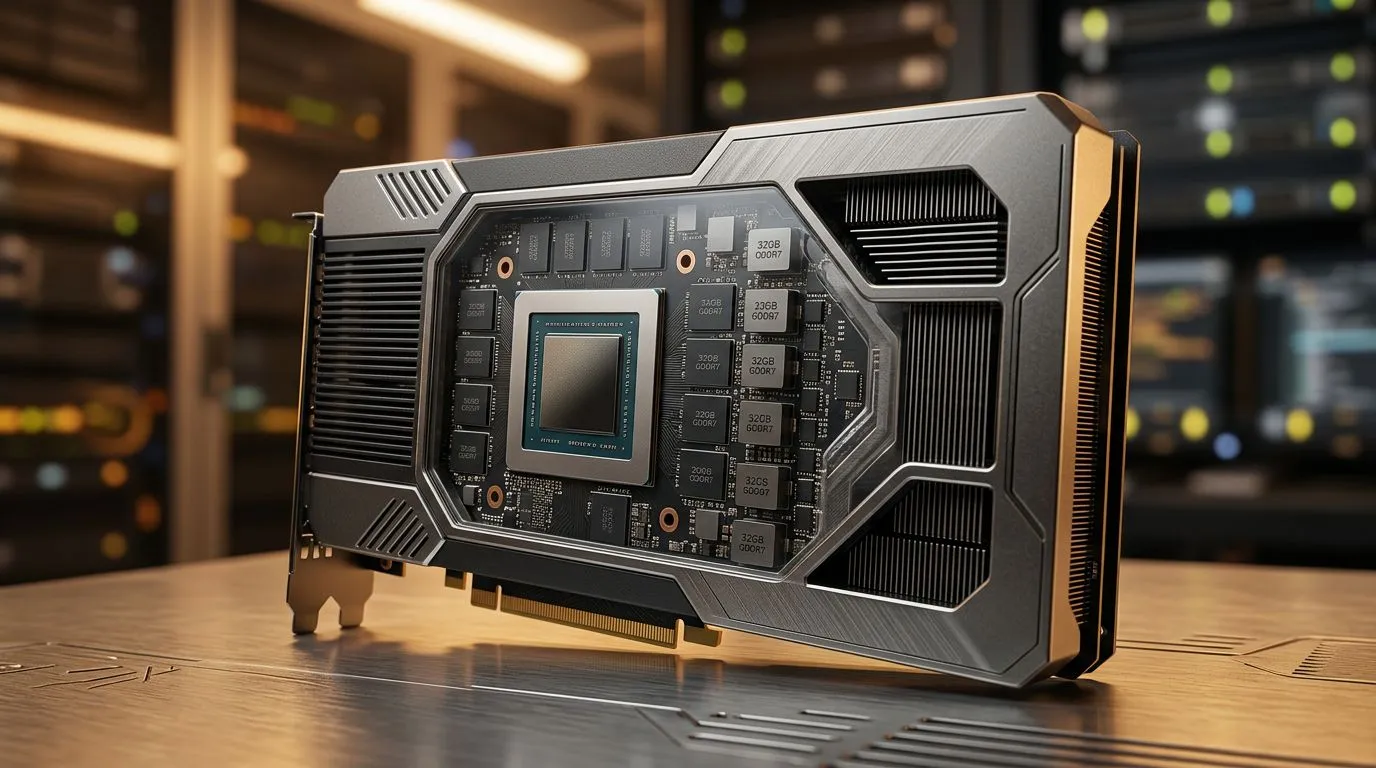
32GB GDDR7 VRAM: Optimising 4K and 8K Workloads for real-world South African builds ⚡
If you’re chasing smooth 4K in games like Cyberpunk 2077 or trying to push 8K outputs for streaming and content work, VRAM is the bottleneck people feel first. In South Africa, where upgrades come with real budgets (and real electricity bills), wasting performance on the wrong setup hurts twice.
So let’s talk plainly about 32GB GDDR7 VRAM: Optimising 4K and 8K Workloads. What you should prioritise, how to avoid VRAM “thrash”, and what to configure so your PC keeps its cool… and your frames stay steady. 🚀
Why 32GB matters: VRAM behaviour at 4K and 8K 🔧
At higher resolutions, your GPU must store more textures, frame buffers, geometry data, and caching surfaces. When VRAM runs short, the system leans on slower memory paths, and performance can turn spiky. That “why did my FPS suddenly dip?” feeling often comes from memory pressure, not raw compute.
With 32GB GDDR7 VRAM, you’re giving your GPU more breathing room for:
- High-resolution textures and texture streaming at 4K
- Larger frame buffers and post-processing buffers
- Heavier workloads like GPU-accelerated rendering, AI upscaling, and high-bitrate encoding
- Multi-application sessions (game + browser + Discord + background recording)
The big win is consistency. More VRAM helps you stay within the GPU’s fast memory lane, especially when scenes get complex or you load big assets.
A quick reality check on what VRAM won’t fix
More VRAM does not magically remove all bottlenecks. If your CPU can’t keep up, if your storage is slow, or if your power settings throttle, you’ll still see limits. But for 4K and 8K texture-heavy scenarios, VRAM headroom is genuinely meaningful.
32GB GDDR7 VRAM: Optimising 4K and 8K Workloads with the right settings ⚙️
Here’s how to get the most out of your VRAM without guessing.
1) Tune texture quality intelligently
Use “high” or “ultra” textures, but don’t blindly max everything. Instead:
- Start with texture quality maxed
- Reduce shadow quality one step if you notice stutter
- Keep an eye on VRAM usage in your monitoring tool
If your VRAM usage climbs and stays near your card’s limit, drop textures slightly before you touch other settings.
2) Watch resolution scaling, not just “4K”
Some games render internally at a different scale and then upscale. That can change how much VRAM gets used. If you’re using upscaling (DLSS/FSR style features), set it deliberately rather than leaving it on “auto”.
3) Manage background apps (yes, really)
Background recording, browser tabs with heavy WebGL content, and GPU overlays can add VRAM pressure. Close unnecessary tools before benchmarking. You’ll often get a more stable curve.
Productivity Pro Tip ⚡
On Windows, use Task Manager to check “GPU” memory usage while you test settings. If VRAM spikes above your target budget, lower texture quality first, then shadow quality. Repeat until you stop seeing sudden drops during scene changes.
32GB GDDR7 VRAM: Optimising 4K and 8K Workloads for creators and engineers ✨
If you’re doing more than gaming, VRAM matters even more. High-resolution rendering and modern workflows can demand large amounts of memory for:
- Large texture sets
- High-poly assets
- Frame buffers for denoise and compositing
- Video encoding pipelines, especially at higher bitrates
In practice, the best strategy is to match VRAM capacity to your typical project size, not your best-case scenario. If you frequently work with 4K exports or high-detail scenes, 32GB can help you avoid frequent out-of-memory failures or slow fallback paths.
A micro-story from the workshop
A friend of mine was “sure” their GPU was fine. Games ran smoothly… until they started rendering 4K timelines with detailed assets. The fix wasn’t more CPU speed. It was adjusting the VRAM-hungry parts of the workflow and having enough VRAM headroom so the render stayed on the fast path.
That’s what you’re buying with bigger VRAM: fewer surprises.
Picking the right card: where to shop in South Africa 🚀
Once you’ve decided that 32GB GDDR7 VRAM: Optimising 4K and 8K Workloads makes sense for your use case, the next step is finding a card that fits your chassis, your PSU, and your budget.
If you’re hunting for MSI options, start here: Explore MSI graphics cards at Evetech
If you’re considering AMD Radeon cards for your workload mix, this category is a solid place to compare: Shop Radeon Graphics Cards
If you want the widest selection across both ecosystems, browse the full graphics card range: Browse graphics cards on Evetech
And if you’re specifically in the GeForce lane, check out: Shop GeForce Graphics Cards
32GB GDDR7 VRAM: Optimising 4K and 8K Workloads without wasting money 💸
Before you commit, sanity-check these items:
- Your PSU wattage and available PCIe power connectors
- Your case clearance for thicker coolers
- Whether your games and tools actually use high-res textures (some don’t benefit equally)
- Your monitor setup (a 4K panel pairs best with VRAM-heavy settings)
- Your workload type (gaming vs render vs upscaling)
If your goal is 4K and 8K stability, not just peak FPS numbers on one benchmark, then VRAM headroom is one of the cleanest upgrades you can make. It supports the “set it and forget it” feeling, especially when scenes get heavy.
Ready to Find Your Perfect Match? The Mac vs Windows debate is complex, but for maximum power, choice, and value in South Africa, Windows is hard to beat. Explore our massive range of laptop specials and find the perfect machine to conquer your world.











