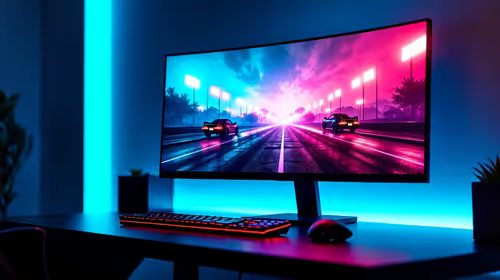
Dropping into a hot zone only to have your screen turn into a slideshow is a recipe for a swift trip back to the lobby. Apex Legends is a fast-paced battle royale, but it can be brutal on older hardware. Achieving proper Apex Legends low-end optimization is about more than just lowering settings... it is about stripping away the visual clutter that hides your enemies and kills your frame rate. 🚀
Optimise Your In-Game Video Settings
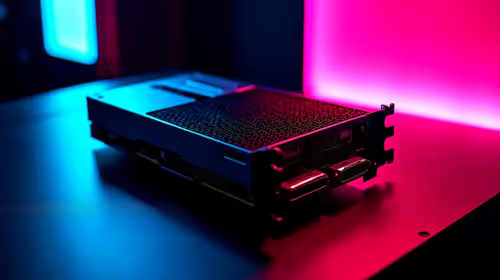
The first step to better performance starts in the game menu. Most players leave everything on "Auto" or "High," which is a mistake for budget builds. You should set Texture Streaming Budget to match your VRAM, but if you are struggling, dropping it to "Low" or "None" can instantly stabilise your frame times. Disabling Spot Shadow Detail and Ambient Occlusion will provide the biggest boost to your FPS. If you find your current hardware just cannot keep up with the latest updates, you might consider browsing MSI graphics cards for a reliable and cool-running upgrade.
Advanced Launch Options and Config Tweaks
Steam and EA App users can use launch options to force the game to run more efficiently. Adding commands like -dev, -preload, and -high tells your Windows system to prioritise the game process. This reduces background stuttering during intense firefights. While newer entries like Intel Arc graphics cards offer great modern driver support, older cards benefit heavily from these manual "under the hood" tweaks to stay competitive in the Apex Games. ✨
Apex Launch Command ⚡
Right-click Apex Legends in your library and go to properties. In the Launch Options box, type '+fps_max 0 -nojoy -preload'. This unlocks your frame rate, disables unused controller inputs, and preloads assets to prevent mid-game hitches when moving between different map sectors.
Removing Visual Clutter for Better Clarity
Apex is famous for its "visual noise"... things like smoke, sparks, and heavy shadows that look great but hide enemy silhouettes. Lowering Effect Detail and Volumetric Lighting makes it much easier to track targets through Bangalore smoke or Caustic gas. If you are looking for raw power to push past these limitations, the latest NVIDIA and ATI graphics cards provide the architecture needed to maintain high frames even when the abilities start flying. 🔧
Balancing Resolution and Scaling
If your FPS is still dipping below 60, consider using the Adaptive FPS Target setting. This dynamically lowers your resolution during heavy combat to keep the game smooth. It might look a bit blurry, but a blurry game you can play is better than a sharp one that crashes. For those who prefer the red team, AMD Radeon graphics cards offer excellent value in the South African market, often providing more VRAM for your Rand, which helps significantly with texture streaming in large maps like Storm Point.
Performance Beyond Gaming
Sometimes the lag is not just about the game... it is about the system overhead. If you use your PC for more than just gaming, like 3D rendering or video editing, you might be using workstation graphics cards. While these are built for stability in professional apps, they can still run Apex Legends effectively if you use the right driver profiles. Always ensure your "Power Plan" in Windows is set to "High Performance" to prevent your components from down-clocking during a match. ⚡
Achieving a smooth experience in Apex Legends does not always require a R50,000 investment. By cleaning up your config files, adjusting your launch options, and knowing when it is time for a small hardware refresh, you can reclaim your competitive edge.
Ready to Find Your Perfect Match? Apex Legends low-end optimization can only take you so far before the hardware becomes the bottleneck. For maximum power, choice, and value in South Africa, a dedicated GPU upgrade is the best move. Explore our massive range of laptop specials and find the perfect machine to conquer the outlands.