

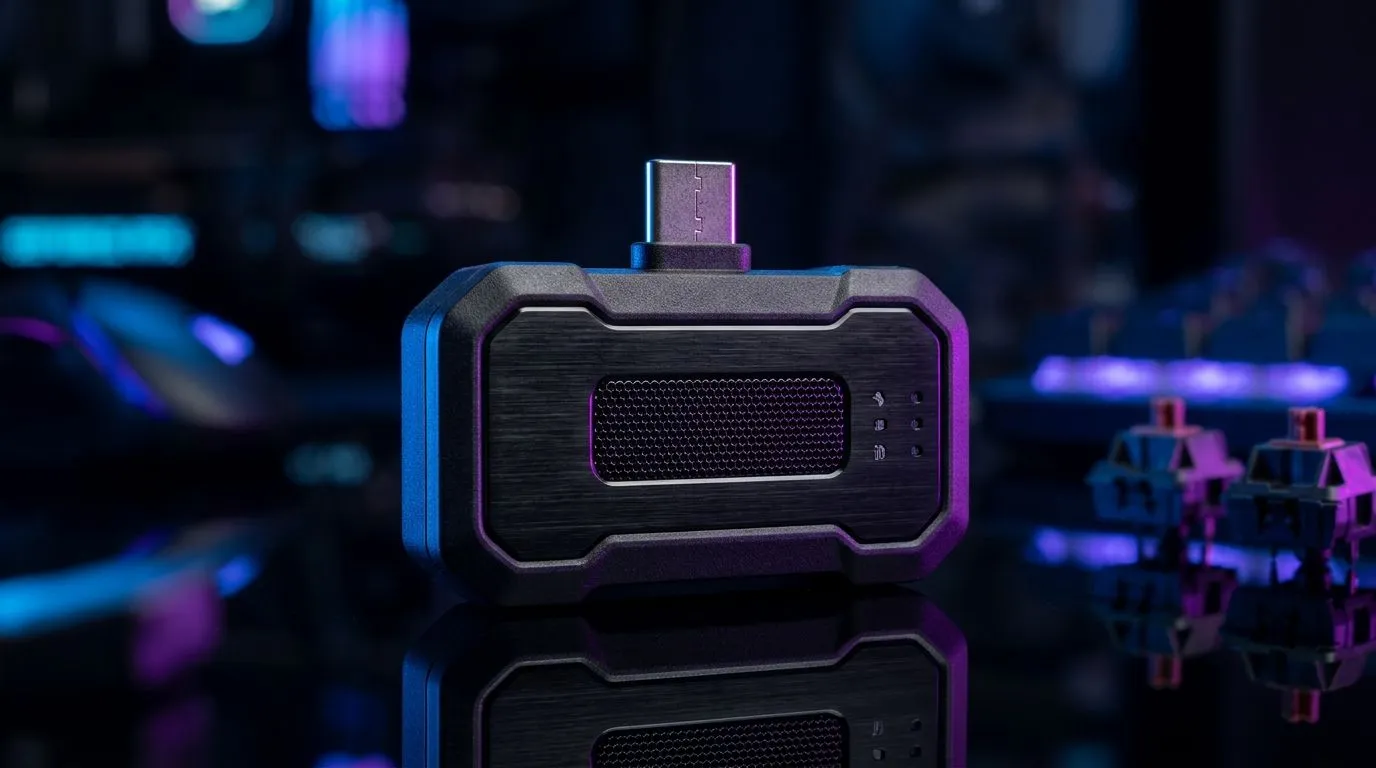
Bluetooth Interference Problems Gaming on Multiple Devices: Why Your Aim Feels “Off” 🎮
If your ping spikes every time your mate joins party chat… or your mouse cursor stutters while you’re using headphones… you’re not imagining it. Many South African gamers run multiple Bluetooth devices at once: a wireless headset, a controller, and a Bluetooth mouse or keyboard. Then something weird happens. Latency creeps in. Audio crackles. Inputs feel inconsistent.
That’s often the root of Bluetooth Interference Problems Gaming on Multiple Devices… and the fix is usually practical, not expensive.
Bluetooth Interference Problems Gaming on Multiple Devices: The Real Causes 🔧
Bluetooth and Wi‑Fi can share the same 2.4 GHz neighbourhood. In busy areas (apartments, crowded suburbs, even certain “smart” homes), interference is common. Add multiple devices using Bluetooth together and you can get:
- Higher latency: devices compete for airtime.
- Packet loss: manifests as stutter, crackle, or sudden dropouts.
- Audio sync issues: especially with Bluetooth headsets in gaming.
Also, “Bluetooth mode” isn’t always equal. Some devices prioritise voice over low-latency game input. If your headset switches profiles mid-session, your control feel changes. It’s frustrating… and hard to diagnose without a method.
Bluetooth Interference Problems Gaming on Multiple Devices: A Quick Troubleshooting Flow ⚡
Try this in order. It takes 10 minutes and usually pinpoints the issue:
1) Reduce Bluetooth load
Disconnect everything you don’t need. Test mouse + PC only, then add headset.
2) Move closer, then change position
Get within a metre or two of your PC. If the problem improves, interference is likely. Place your PC away from your router and metal furniture.
3) Prefer a wired or 2.4 GHz connection for competitive play
For gaming, USB 2.4 GHz wireless is often more consistent than Bluetooth. It’s a simple “input stability” decision.
4) Update firmware and switch dongle ports
If your mouse or headset supports a firmware update, do it. On Windows, reseat the USB dongle and try a different port to reduce interference from nearby USB devices.
Productivity Pro Tip ⚡
On Windows, use Bluetooth settings to remove and re-pair devices one at a time. Start with your headset, test audio, then add your controller, then your mouse. This isolates the exact device that triggers latency so you’re not guessing during ranked matches.
Bluetooth Interference Problems Gaming on Multiple Devices: Smart Hardware Choices for South Africans ✨
You don’t have to buy everything at once. If you’re experiencing Bluetooth Interference Problems Gaming on Multiple Devices, consider the most impact-first upgrade path:
- Use a wired mouse for peak consistency when deadlines matter.
- Or switch to a wireless gaming mouse with a USB 2.4 GHz receiver for steadier input.
- If you’re currently using a generic wireless mouse, moving to a known gaming model can be a big improvement.
Need options? Start browsing:
- If you’re leaning wired, check these models: wired mouse options
- If you want wireless stability, compare 2.4 GHz styles here: wireless mouse choices
- For quick upgrades around your setup, look at mouse accessories
- Want to keep it budget-friendly with ZAR deals? Explore: best gaming mouse deals
- And if you want a category overview that helps you choose confidently, visit: gaming mouse components
Ready to Fix the Stutter: What to Do Next 🚀
Once you identify the culprit device, you can decide whether to change settings (like removing profiles) or switch connection types. The goal is simple: consistent inputs and clean audio, even when your house is full of Wi‑Fi and gadgets.
Ready to Find Your Perfect Match? The Mac vs Windows debate is complex, but for maximum power, choice, and value in South Africa, Windows is hard to beat. Explore our massive range of laptop specials and find the perfect machine to conquer your world.











