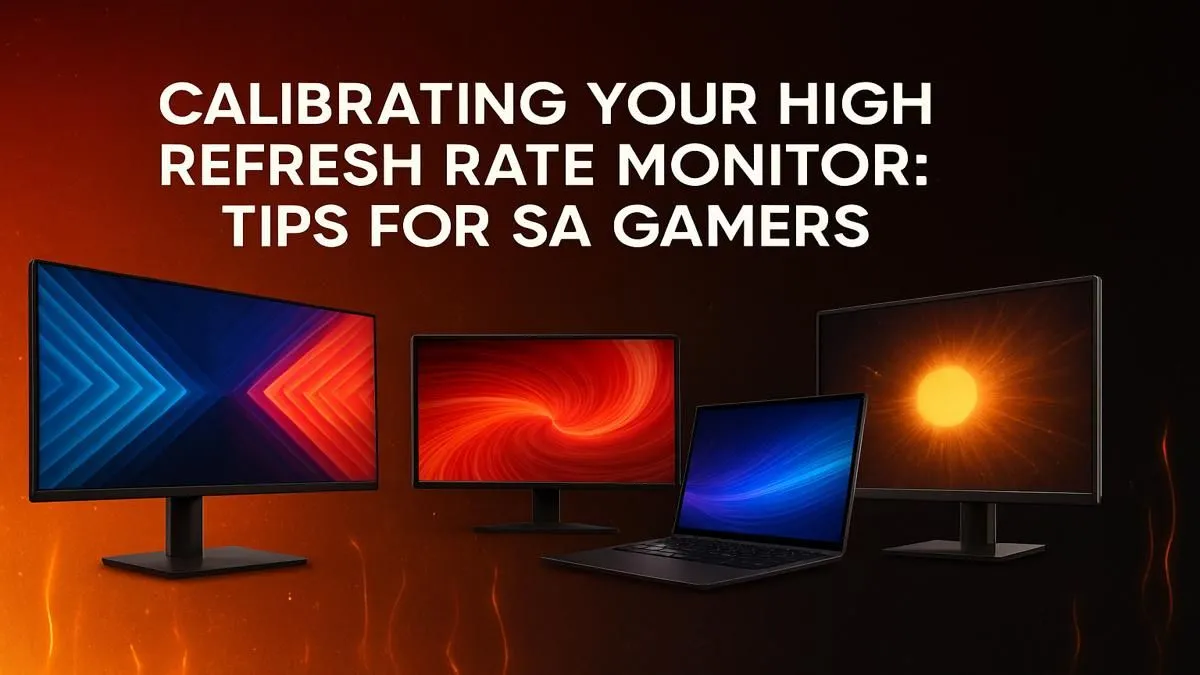
So, you’ve unboxed that beast of a 144Hz+ monitor, plugged it in, and fired up your favourite game. But something feels… off. The colours look washed out, or movement isn't as buttery-smooth as you expected. Jissou, what a letdown! The secret isn't a faulty panel; it's that out of the box, even the best screens aren't tuned for your specific setup. Learning how to properly calibrate your high refresh rate monitor is the key to unlocking its true potential. 🚀
Why You Must Calibrate Your High Refresh Rate Monitor
Skipping calibration is like buying a supercar and never taking it out of first gear. An uncalibrated gaming monitor can suffer from inaccurate colours, poor contrast, and even fail to display the correct refresh rate you paid for.
Properly setting up your display ensures:
- Colour Accuracy: See the game world exactly as developers intended. No more washed-out reds or murky shadows where enemies love to hide.
- Smoother Motion: Eliminate screen tearing and motion blur by correctly configuring response times and adaptive sync technologies.
- Competitive Edge: In fast-paced shooters like Valorant or Apex Legends, seeing an opponent a split-second faster because of optimised brightness and clarity can be the difference between a win and a trip back to the lobby.
Taking just 15 minutes to calibrate your high refresh rate monitor transforms your visual experience, making every one of our range of gaming monitors perform at its absolute best.
The First Step: Unlocking Your Monitor's Full Speed ⚡
This might sound obvious, but you'd be surprised how many gamers miss it. Often, Windows defaults to a standard 60Hz refresh rate, even on a 165Hz or 240Hz panel. Before you touch any other setting, you need to tell your PC to use the monitor's maximum speed.
Here’s how:
- Right-click on your desktop and select Display settings.
- Scroll down and click on Advanced display.
- Find the "Choose a refresh rate" dropdown menu and select the highest value available.
Your screen will briefly go black and then... magic. You'll immediately feel the difference in how smoothly your cursor moves. This simple tweak ensures all your PC monitors are running at the speed they were built for.
Fine-Tuning Your Visuals for Gaming Supremacy
Now for the fun part. Grab your monitor's remote or find the little joystick/buttons on the back and open the On-Screen Display (OSD) menu. This is your command centre for visual perfection.
Brightness and Contrast
Start with the basics. Load up a game with both bright and dark areas. Adjust the brightness until you can clearly see details in the shadows without them looking grey and washed out. Then, tweak the contrast so that the brightest parts of the scene (like the sky or a muzzle flash) are brilliant but not "clipped" or losing detail.
Colour Calibration
This is where you gain a real advantage. Most monitors come with preset modes like "FPS," "RTS," or "Cinema." While a good starting point, a custom calibration is always better. Look for the colour temperature or RGB settings. The goal is a neutral white balance. Getting this right is especially important for stunning 4K monitors where every pixel counts towards realism.
Quick Calibration Check 🔧
Use the free online tools at Lagom LCD monitor test pages. The contrast, gamma, and viewing angle tests are brilliant for quickly spotting issues. It’s a simple way to see if your monitor’s calibration is on the right track without needing expensive hardware.
Overdrive and Response Time
This setting controls how quickly pixels change colour, which reduces "ghosting" or motion blur. Most monitors have settings like "Off," "Normal," "Fast," and "Fastest." Setting it too high can cause "inverse ghosting," where you see a bright trail behind moving objects. The sweet spot is usually "Normal" or "Fast." Use the UFO Test to find the best balance for your specific panel.
Beyond the Basics: Advanced Setup and Immersion
Once your primary display is dialled in, consider your complete setup. Enabling G-Sync (for NVIDIA) or FreeSync (for AMD) in your graphics card's control panel is crucial for tear-free gaming.
For maximum immersion, nothing beats the wrap-around view of curved monitors, which fill your peripheral vision. And for the multitaskers and streamers out there, adding one of the latest portable monitors as a second screen for Discord, OBS, or Spotify is an absolute win. ✨
A well-calibrated monitor is one of the most impactful upgrades you can make. It costs nothing but a few minutes of your time and makes every rand you spent on your hardware worth it.
Ready to See the Difference? A perfectly calibrated monitor is the final piece of the puzzle for an elite gaming rig. Whether you're upgrading or starting fresh, we've got the screen for you. Check out the best PC monitor deals in South Africa and find the perfect display to dominate the competition.