

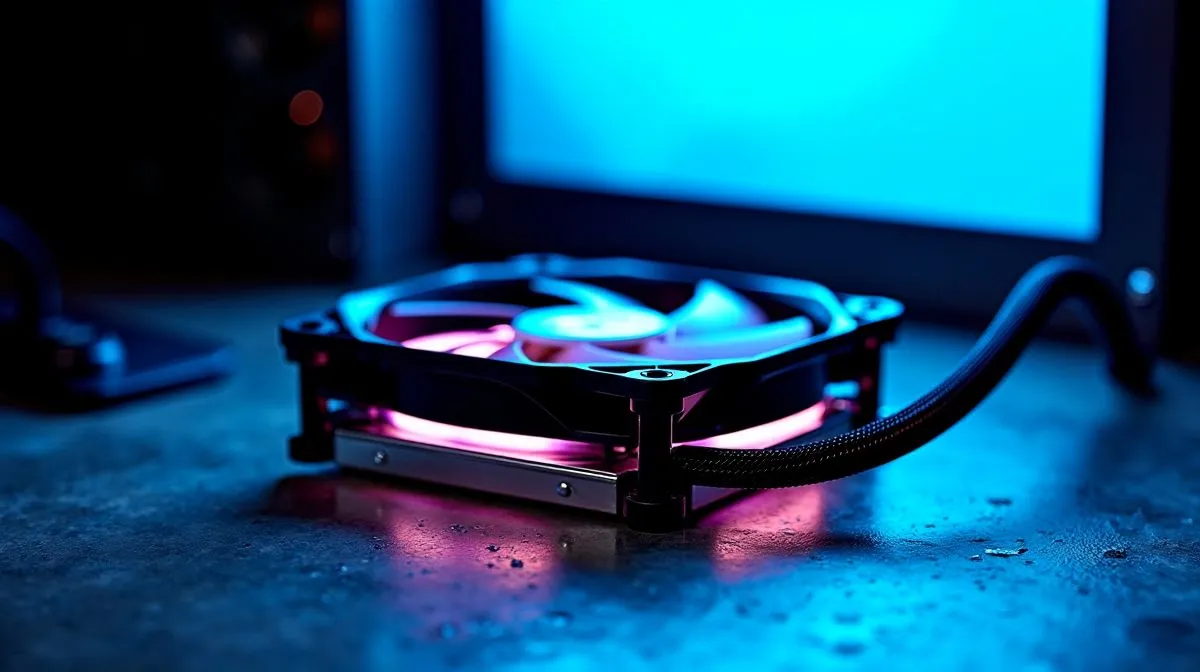
CPU Overheating With a Liquid Cooler: Why It Happens (and why it feels random)
If your CPU temperatures spike after installing an AIO, you’re not alone. One minute you’re gaming smoothly… the next your fans scream and your frame rate stutters. In South Africa, where loadshedding and warm rooms are real, cooling issues can show up faster than you expect. 🔧
This guide on CPU overheating with a liquid cooler: causes and fixes will walk you through the most common reasons, what to check in minutes, and when it’s worth upgrading your setup.
CPU Overheating With a Liquid Cooler: Common Causes You Can Diagnose
Air bubbles, poor pump performance, or mounting issues
Liquid coolers work by moving heat from the CPU to the radiator. If the pump is mounted incorrectly, the contact pressure can be off. If air gets trapped, heat transfer drops.
What to do:
- Power down, reseat the cooler using even pressure on all screws.
- Apply thermal paste properly (thin, even spread; don’t overdo it).
- Ensure the pump’s power cable is connected to the correct header (often labeled AIO_PUMP).
Radiator placement and airflow bottlenecks
AIOs need the radiator fans (and your case airflow) to move heat out. Mounting a 360mm radiator in a cramped case with weak front intake can throttle your cooling.
Quick checks:
- Front or top intake usually performs better than blocking vents.
- Verify radiator fans are exhausting in the intended direction.
- Clean dust filters. Dust can raise coolant and fan temps quickly. 🚀
Fan curves set too conservatively
If your BIOS fan curve is too gentle, the cooler may not react early enough under load.
Fix:
- Use a balanced or performance fan curve in BIOS.
- If available, set CPU temp targets and confirm pump speed isn’t capped.
Productivity Pro Tip 🔧
On Windows, open Task Manager > Performance and keep a CPU graph visible while you test your cooling. If temperatures climb fast within 2 to 5 minutes of a stress test, it usually points to mounting contact issues or a fan curve that reacts too late.
CPU Overheating With a Liquid Cooler: Step-by-Step Fixes
Step 1: Confirm temperatures and throttling
Use reputable monitoring tools (CPU temp and whether it throttles). Many CPUs will reduce performance when they hit thermal limits, which feels like sudden “lag.”
Step 2: Inspect the basics
- Recheck cooler power connections.
- Inspect thermal paste condition after removing the cooler.
- Clean old paste with isopropyl alcohol and reapply.
Step 3: Match radiator size to your case and workload
A larger radiator (like 360mm) typically gives more heat dissipation headroom than smaller setups, especially in hotter rooms.
If you’re shopping, you can browse options here:
- Consider liquid cooler (AIO) picks from Evetech’s cooler range: Browse CPU liquid coolers
- Or narrow to liquid cooler (AIO) models: Liquid cooler (AIO) selection
- Prefer a specific brand? Find CORSAIR liquid coolers
- Or check Deepcool options: Shop Deepcool liquid coolers
- Running a 360mm radiator: 360mm AIO liquid coolers
- Or a 240mm radiator: 240mm AIO liquid coolers
CPU Overheating With a Liquid Cooler: When to Blame the System, Not the Cooler
Sometimes the cooler is fine, but the environment isn’t:
- Poor case airflow (restricted front intake, blocked vents).
- High ambient room temperatures.
- Background loads (streaming, renders, virus scans) during “gaming”.
If your fixes don’t move temps after a reseat and fan curve update, it may be time to try a different AIO size or quality tier. That’s especially true for higher power CPUs under sustained load. ✨
Ready to Find Your Perfect Match? The Mac vs Windows debate is complex, but for maximum power, choice, and value in South Africa, Windows is hard to beat. Explore our massive range of laptop specials and find the perfect machine to conquer your world.











