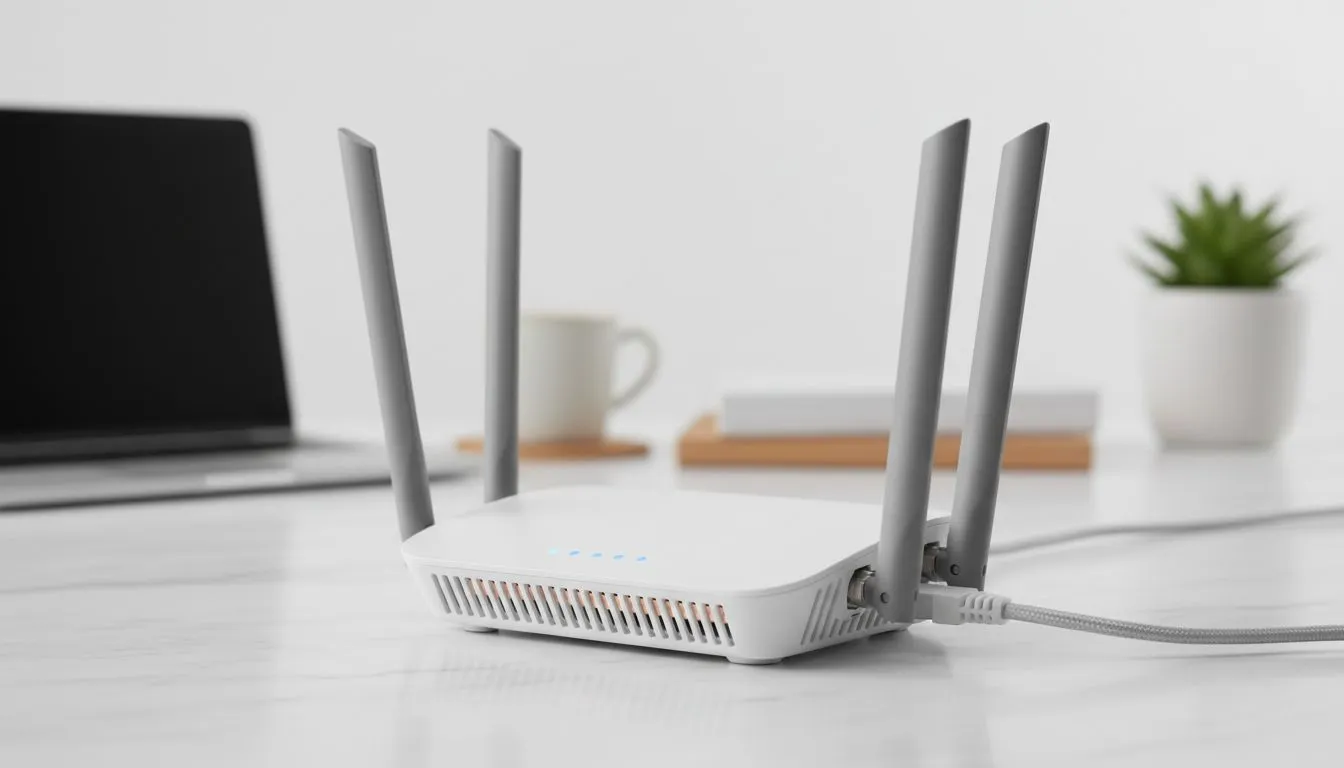
Why Dual-Band Router Settings Matter for Zoom
We’ve all been there. You are mid-sentence in a vital presentation, and your screen freezes. In South Africa, where reliable connectivity is everything, fighting with lag is a daily battle. Mastering your dual-band router settings for buffer-free Zoom meetings is the secret to professional success and smooth gaming. Let’s dive into how you can optimise your home network today. ⚡
Most modern routers offer two distinct frequencies: 2.4GHz and 5GHz. The 2.4GHz band is excellent for range but it is incredibly crowded. Your microwave, baby monitor, and your neighbour's older tech all live there. For high-bandwidth tasks, you need to switch your primary device to the 5GHz band. This frequency offers faster speeds and significantly less interference.
If you are working from a remote location or need a backup during load shedding, the Cudy LT700 AC1200 4G Cat6 router is a fantastic choice for maintaining a stable connection.
Optimising Your 5GHz Frequency for Stability
To get the most out of your hardware, you should separate your Wi-Fi bands. Give the 2.4GHz and 5GHz bands different names (SSIDs). This prevents your laptop from "hopping" between bands, which often causes a momentary drop in your Zoom call.
Meeting Stability Pro Tip ⚡
If you are working from a room far from the router, consider a powerline adapter or a mesh system. Physical walls are the enemy of 5GHz signals. A direct Ethernet connection remains the gold standard for zero-latency video calls during those high-stakes presentations.
Another essential setting is Quality of Service (QoS). This feature allows you to prioritise specific types of traffic. By logging into your router dashboard, you can set video conferencing as a high priority. This ensures that even if someone else is streaming Netflix, your meeting stays crisp. The Cudy South Africa range provides user-friendly interfaces that make these tweaks simple for anyone. ✨
Clearing the Digital Airwaves
Interference is a silent killer of productivity. Most routers are set to "Auto" for channel selection, but this is not always ideal. Using a free Wi-Fi analyser app can show you which channels are least congested in your area. Manually selecting a clear channel can reduce packet loss significantly.
If your current hardware is struggling to keep up with modern demands, it might be time for an upgrade. Exploring the latest TP-Link wireless routers is a smart move. These devices offer advanced beamforming technology. This focuses the signal directly toward your device rather than broadcasting it in every direction. 🚀
Investing a few minutes into your dual-band router settings for buffer-free Zoom meetings pays off immediately. You will notice fewer "connection unstable" warnings and much happier colleagues.
Ready to Find Your Perfect Match? Buffering during a meeting is a choice, not a lifestyle. For the best prices on networking gear in South Africa, we have you covered. Explore our massive range of router specials and find the perfect hardware to keep you connected.