

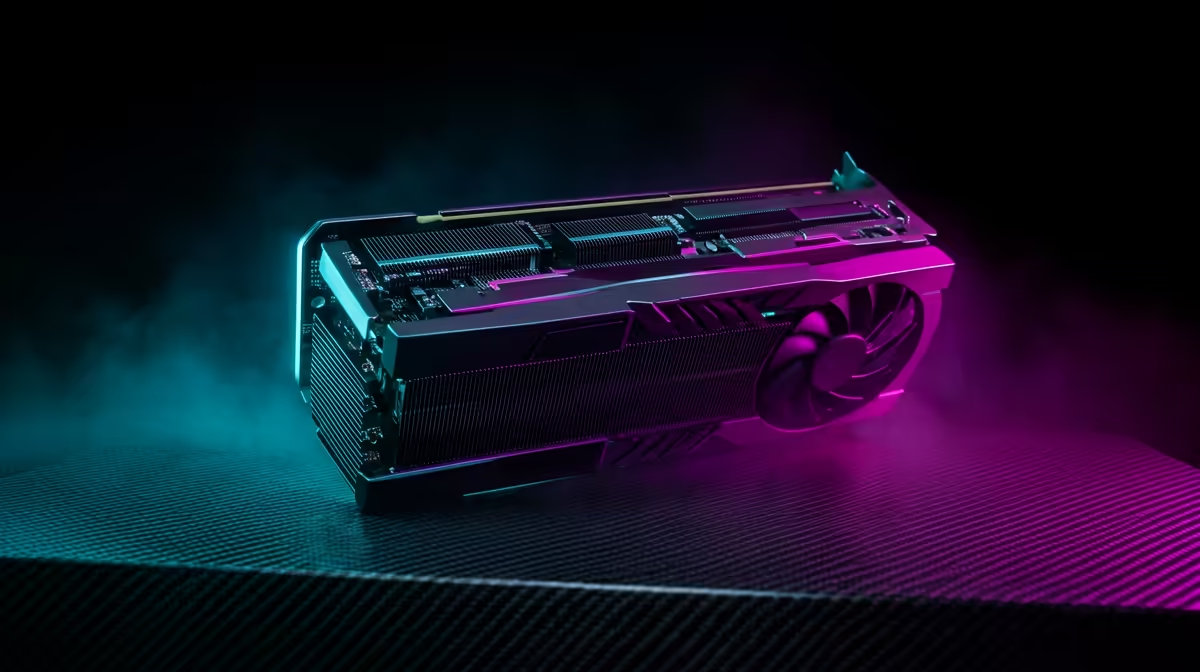
You've finally got your 4K monitor. You imagined breathtaking visuals in Cyberpunk 2077's Night City or crystal-clear headshots in Apex Legends. But the reality is... a stuttering, laggy mess. Don't stress, you're not alone. Many South African gamers hit a wall when making the leap to ultra-high definition. This guide will walk you through the most common issues and provide practical steps to fix your 4K gaming problems for good. 🚀
Is Your Rig Truly Ready for the 4K Jump?
Before diving into software, let's talk hardware. 4K gaming pushes four times as many pixels as 1080p, and that requires serious muscle. Your trusty old graphics card might not be up to the task of solving these demanding 4K gaming issues on its own.
- The GPU Check: An NVIDIA RTX 3070/4060 Ti or an AMD RX 6800/7700 XT is a realistic starting point for smooth 4K. Anything less, and you'll likely struggle to hit a stable 60 FPS in demanding titles.
- The Cable Matters: Are you using the right cable? For 4K at high refresh rates (120Hz+), you need either an HDMI 2.1 or a DisplayPort 1.4 cable. Using an older HDMI cable can bottleneck your performance, causing flickering or limiting your refresh rate. If you suspect your display is the bottleneck, it might be time to browse the latest PC monitors to see what's new.
Software Tweaks to Solve 4K Gaming Stutter
If your hardware is solid, the next stop is your software. A few simple tweaks can dramatically improve your experience and help fix common 4K gaming problems without costing you a cent.
Update Your Drivers
This is non-negotiable. NVIDIA, AMD, and Intel release driver updates constantly, often including specific optimisations for new games that directly address performance. Head to their websites and grab the latest version for your graphics card. It’s the easiest performance boost you’ll ever get.
Embrace Upscaling Technology
Technologies like NVIDIA's DLSS, AMD's FSR, and Intel's XeSS are your best friends for 4K gaming. They render the game at a lower resolution and then use AI to intelligently upscale the image to 4K. The result? A massive FPS boost with minimal loss in visual quality. Most modern gaming monitors are built to take full advantage of these features.
Windows Pro Tip ⚡
In Windows 11, search for "Graphics Settings" and enable "Hardware-accelerated GPU scheduling". This can reduce latency and improve performance by letting your GPU manage its own video memory. It's a small change that can help smooth out frustrating micro-stutters in demanding games.
Dialing In Your Display and Game Settings
Sometimes the problem isn't raw power, but a simple misconfiguration between Windows and your monitor. Optimising these settings is crucial for a crisp, smooth 4K experience.
Check Windows Display Scaling
Is text on your desktop looking a bit blurry? Windows often applies scaling (like 150%) to make things readable on a 4K screen. While great for browsing, some games don't handle it well. Right-click your desktop, go to "Display settings," and check your scaling. You can also try overriding scaling settings in the compatibility properties for a specific game's .exe file.
Set Your Refresh Rate Manually
Windows doesn't always automatically select your monitor's maximum refresh rate. Go to Display settings > Advanced display and make sure you've selected the highest available refresh rate (e.g., 144Hz). This simple fix makes your entire experience feel smoother and is essential if you've invested in one of our range of high-resolution 4K monitors designed for high-fidelity gaming.
For those seeking ultimate immersion, the panoramic view of curved monitors at 4K resolution can be a truly next-level experience. Even for gamers on the move, compact portable monitors are now available with 4K options, though they present their own unique setup challenges.
When It's Time for a Monitor Upgrade
You've tried every tweak, updated every driver, and your game still feels... off. It's possible your monitor itself is the weak link. Older 4K screens often had slow response times, low refresh rates, and poor colour accuracy. If you're serious about your gaming, investing in a display built for it is key.
Look for features like:
- Refresh Rate: 120Hz or higher for fluid motion.
- Response Time: 1ms (GtG) to eliminate ghosting and motion blur.
- Panel Type: IPS for the best colour accuracy or VA for superior contrast.
- Adaptive Sync: G-Sync or FreeSync Premium to prevent screen tearing.
If your current screen is holding you back, don't despair. You can often find incredible value when you check out the best PC monitor deals in SA, making the upgrade more affordable than you think. ✨
Ready for Flawless 4K? Solving 4K gaming problems is a mix of smart software tweaks and having the right hardware. When you're ready to see what true, uncompromised 4K gaming looks like, we're here to help. Explore our massive range of 4K monitors and find the perfect display to conquer your world.











