


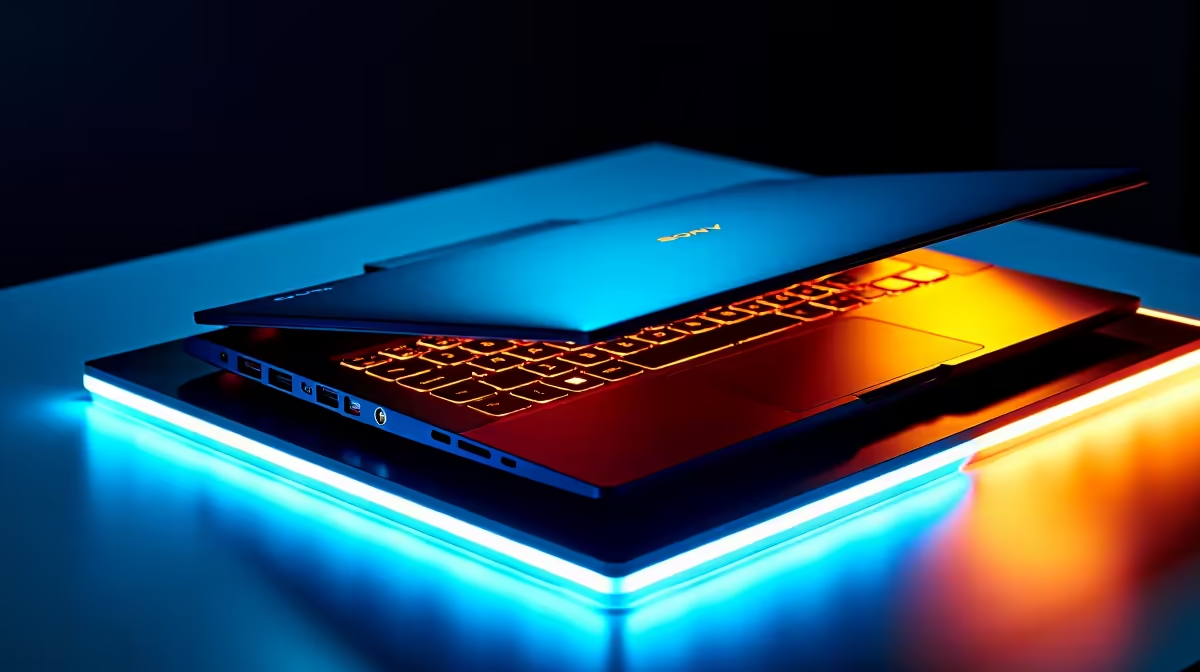
You’re in the final circle in Warzone, the tension is thick... and then it happens. Your frames drop to a crawl, your controls feel sluggish, and your laptop’s fans scream like a jet engine. Your gaming laptop is overheating, and it just cost you the match. Sound familiar? Don’t stress, boet. A hot gaming laptop is a common problem for South African gamers, but it’s one you can absolutely fix. Let's get your machine running cool again. 🚀
Understanding the Heat: Why Gaming Laptops Get So Hot
Before we dive into the fixes, it helps to know why your machine is turning into a portable heater. A gaming laptop packs immense power into a super slim chassis. Your CPU and GPU work incredibly hard to render those gorgeous graphics, and all that effort generates a serious amount of heat.
When dust clogs the cooling vents or the internal fans, that hot air gets trapped. The result? Your components get too hot, and your laptop automatically slows them down (a process called thermal throttling) to prevent damage. This is what causes those sudden, frustrating performance drops. A gaming laptop overheating is basically its own self-defence mechanism kicking in.
Quick Fixes for a Hot Gaming Laptop You Can Do Today
You can often solve a gaming laptop overheating issue with a few simple, practical steps. No need to be a tech wizard... just start with the basics.
Elevate and Ventilate 🌡️
The easiest win is to improve airflow. Never, ever game with your laptop on a soft surface like a bed, couch, or carpet. These materials block the air intake vents underneath, effectively suffocating your machine.
Always place it on a hard, flat surface like a desk. For an extra boost, use a laptop stand or even a couple of books to elevate the back. This simple trick allows the fans to draw in cool air much more efficiently. While even the most affordable gaming laptops under R20k have decent fans, they can't work if the vents are blocked.
Banish the Dust Bunnies 🔧
Dust is the number one enemy of a cool laptop. Over time, it builds up on fan blades and clogs heatsink fins, creating an insulating blanket that traps heat.
To fix this, you'll need a can of compressed air.
- Power Down: Completely shut down your laptop and unplug it.
- Short Bursts: Hold the can upright and use short, controlled bursts of air to blow dust out of the vents. Don't use a vacuum cleaner, as it can create static electricity that may damage components.
- Fan Focus: Aim the air at the fan blades to dislodge any stubborn buildup.
Regular cleaning every few months can prevent your gaming laptop from overheating and keep even high-performance premium gaming laptops over R20k running at their peak.
Pro Tip: Monitor Your Temps ✨
Download a free tool like HWMonitor or MSI Afterburner. These apps let you see your CPU and GPU temperatures in real-time. A good rule of thumb is to keep them below 90°C under load. If you're consistently hitting higher numbers, you know it's time to take action before performance suffers.
Optimise Your System to Reduce Laptop Overheating
Sometimes, the problem isn't just physical... it's digital. Software settings and background processes can push your hardware harder than necessary, leading to excess heat.
Tweak Your Game Settings
You don't always have to run every game on "Ultra" settings. Dropping demanding settings like shadows, anti-aliasing, or ambient occlusion can significantly reduce the load on your GPU. Capping your frame rate (FPS) to match your screen's refresh rate (e.g., 60 or 144 FPS) is another excellent way to stop your GPU from rendering unnecessary frames, which directly lowers its temperature. This is a smart move even on powerful GeForce RTX gaming laptops on special to ensure smooth, consistent performance.
Close Unnecessary Apps
That browser with 20 tabs open? The Discord call you're not active in? Every background app consumes precious CPU cycles, adding to the overall thermal load. Before you launch a game, take a moment to close everything you don't need. This gives your processor more headroom to focus on the game. Whether you're running one of the latest AMD Ryzen gaming laptops or a classic from the range of all Intel gaming laptops, freeing up resources is always a good idea.
Advanced Steps and Knowing When It's Time for an Upgrade
If you've tried all the above and your gaming laptop is still overheating, there might be a deeper issue. The thermal paste that sits between your CPU/GPU and the heatsink can dry out over several years, becoming much less effective at transferring heat. Replacing it is a more advanced fix that can make a huge difference, but we recommend having a professional handle it if you're not comfortable opening your machine.
Ultimately, technology moves fast. An older laptop may simply not have the cooling capacity to handle modern games. Today's models, like many powerful Intel Core i7 gaming laptops, feature vastly superior thermal designs with multiple heat pipes and more powerful fans, keeping them cool and quiet even under pressure.
Ready for a Cooler Gaming Experience? A hot laptop shouldn't ruin your fun. If these fixes aren't enough, it might be time for an upgrade. Explore our massive range of laptop specials and find a machine with the cooling power to conquer any game.











