

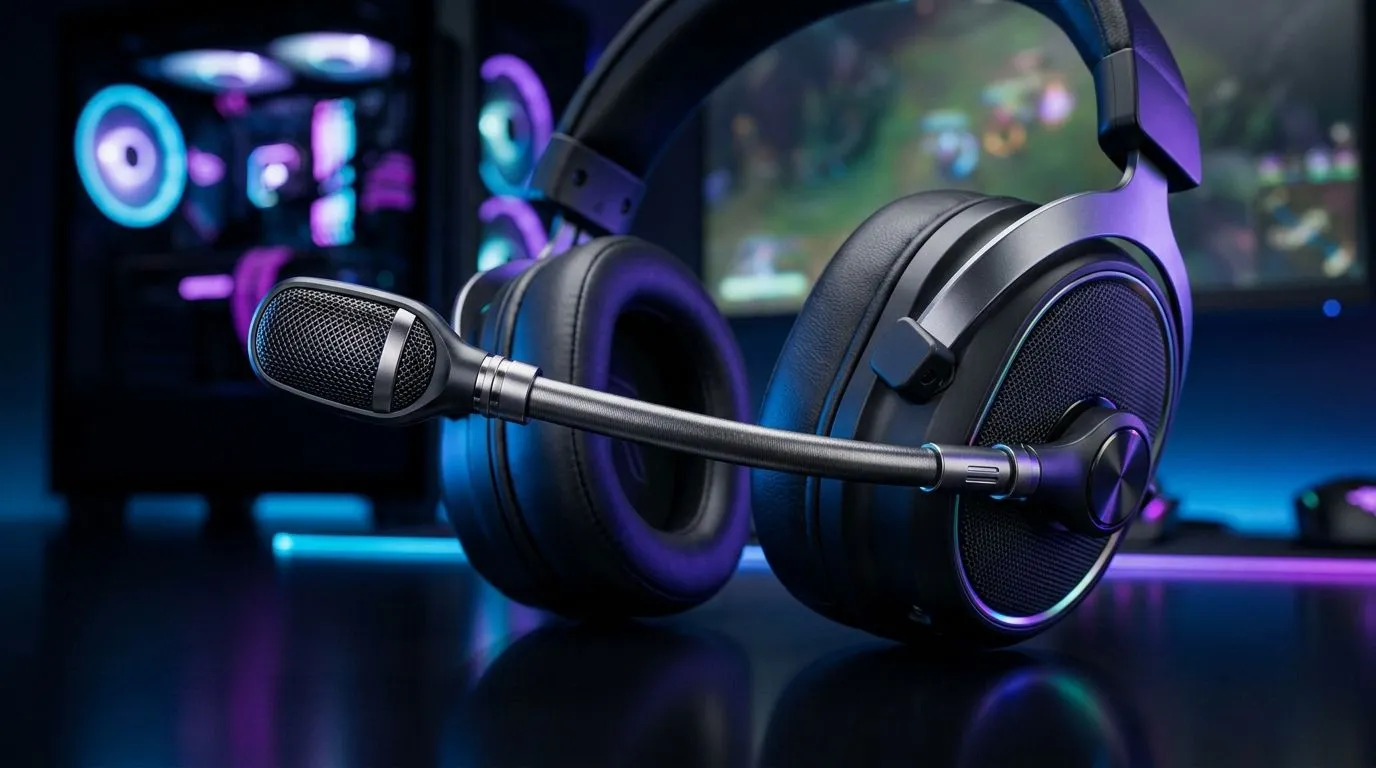
Hear yourself, fix your voice fast 🔧
If your teammates keep asking you to repeat yourself, you can quickly Fix Poor Mic Quality with Gaming Headset Mic Monitoring Settings. Start by testing whether others hear echo, hiss, or distant sound. Mic monitoring feeds your own voice back into your earcups so you judge volume, plosive control, and mic placement in real time. This saves time in ranked matches and voice chats.
How mic monitoring improves clarity
Mic monitoring works at the hardware or software level. Many wired and wireless headsets include onboard monitoring that mixes mic input with game audio. Console players can try headsets optimised for PlayStation or use models certified for Xbox to get better native monitoring. If you need a headset for PlayStation, check practical options here: https://www.evetech.co.za/buy-playstation-headsets/x/1575.aspx.
Quick setup checklist
- Reduce mic gain before adding monitoring.
- Adjust sidetone to a comfortable level so your voice sounds natural.
- Move the boom 1–2 cm from your mouth and angle it slightly to avoid plosives.
- Use a noise gate or software filter only if background noise persists.
For Xbox players, explore compatible headsets and native chat features here: https://www.evetech.co.za/buy-xbox-headsets/x/1576.aspx. For simpler wired options that often include direct sidetone, see wired models here: https://www.evetech.co.za/buy-wired-headset/x/1577.aspx.
Step‑by‑step: Windows and console settings ⚡
On Windows, enable "Listen to this device" or use your headset's driver software to turn on sidetone. Lower system microphone boost and use the headset's monitoring dial if present. On PlayStation and Xbox consoles, look for headset audio or voice chat settings and toggle mic monitoring or sidetone. Wireless headset owners should confirm firmware is current and check the wireless headset's companion app. Browse wireless headset choices here: https://www.evetech.co.za/buy-wireless-headset/x/1578.aspx.
Troubleshooting and pro tips ✨
If you hear feedback or echo, reduce room speaker volume or use closed-back headphones. Test with a friend on a voice call and capture a short recording to compare. Consider replacing damaged cables or trying a different USB port. For budget or premium picks, Evetech lists current deals and savings—worth checking before you buy: https://www.evetech.co.za/best-gaming-headset-deals/x/053.aspx.
Mic Monitoring Pro Tip ⚡
Start with a low sidetone level. Speak normally and increase in small steps until your voice feels natural. If background noise rises, try a noise gate at -40 dB.
For a wider selection of audio components and replacement headsets, browse Evetech's headset category to compare specs and prices: https://www.evetech.co.za/components/headphone-headsets-100.aspx.
Performance Pulse: monitoring checklist
Test mic monitoring in your usual gaming spot at normal volume and chat. Compare two headsets if possible, keep proof of purchase, and prefer local warranty for easy swaps in South Africa.
Final thoughts
Mic monitoring is a simple setting that helps you control tone, volume, and clarity without guesswork. Tweak gain, sidetone, and boom position, and you'll notice a cleaner mic in minutes. Small changes make a big difference in team comms and streaming.
Ready to Find Your Perfect Match? Choosing the right headset makes mic monitoring effortless. Explore our massive range of headset specials and find the perfect match for your setup in South Africa.











