

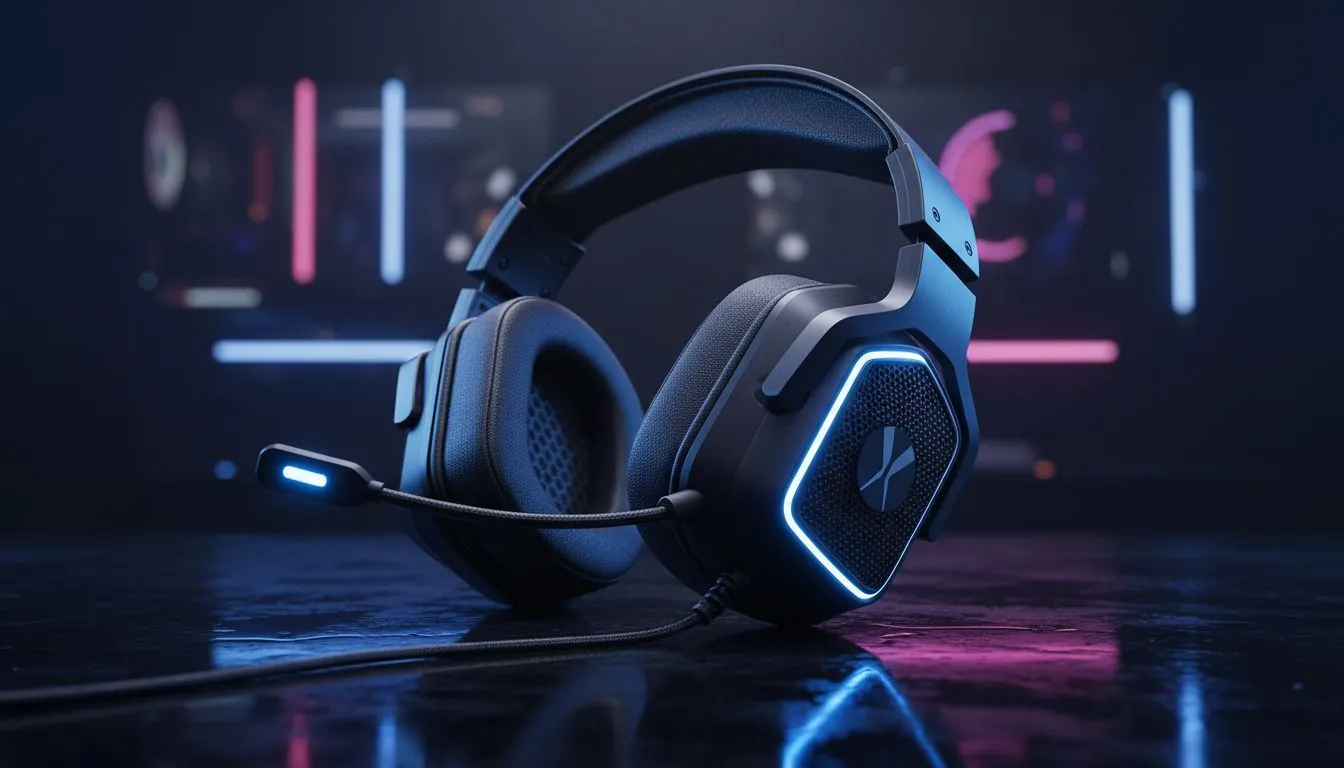
Fixing gaming headset audio issues — fast steps for PC & console 🎧🔧
Struggling with distorted sound, one‑sided audio, or muting in the middle of a raid? Gaming headset audio issues: How to fix on PC & console is the exact crisis many South African gamers face mid‑match. Read this short, actionable guide to diagnose whether it’s a cable, a driver, or a settings quirk — and get back to playing with clean, balanced sound.
Diagnose the symptom first: plug, mute, balance
Start simple. Is the headset wired or wireless? Do you lose all sound, one channel, or hear static? These clues point to different fixes: cable or jack problems, driver and software issues, or Bluetooth interference. If you’re using a popular headset like the Razer Barracuda X Chroma, test it wired and wireless so you can isolate the fault — see the product page for specs and compatibility details: Razer Barracuda X Chroma on Evetech. ⚡
Quick checks for both PC and console
- Swap the cable and try a different USB or 3.5mm jack.
- Test the headset on a phone to rule out PC/console hardware.
- Confirm the game’s audio settings aren’t routing chat or music to a second output.
Fixes specific to PC: drivers, sample rate, and communication settings
On Windows, most audio issues trace back to drivers or sample‑rate mismatches. Open Sound settings → Device properties → Advanced, and verify the sample rate matches the headset’s supported rates. Also check “Allow applications to take exclusive control” — toggle if you notice clipping. Installing the latest drivers or firmware from the manufacturer often helps; browse the Razer headsets collection for driver and accessory support. If you use USB DACs, ensure Windows isn’t downmixing a Dolby stream.
Test Like a Pro ⚡
Use Windows' Sound Control Panel to play a test tone for left and right channels. If balance is off by a hair, try Audio Enhancements off and set the sample rate to 48000 Hz. This tiny test saves hours of guesswork.
Fixes specific to consoles: adapters, chat mixers, and controller firmware
Console audio can be finicky when using third‑party headsets. For PS5, ensure chat audio and game audio aren’t split in the console’s sound menu. On Xbox, check controller firmware and whether your headset uses inline controls that mute chat. If using a USB headset on a console, try the controller 3.5mm adapter or optical outputs where available. When an ageing headset repeatedly fails, consider browsing replacement options: shop headsets and replacements at Evetech.
When to swap, not fix: hardware signs to watch for
If a headset buzzes regardless of source, or physical buttons fail, it’s likely hardware. Failing drivers won’t fix torn cables, broken mics, or degraded earpads. For wireless users: battery sag and Bluetooth latency hint at replacement. If you want a balanced wireless option with solid cross‑platform support, compare models in Evetech’s headset range to find a suitable upgrade.
Wrap and next steps — quick checklist before you buy
- Test on another device.
- Switch cables/adapters.
- Update firmware and drivers.
- Check console audio routing and controller updates.
- Consider warranty or replacement if hardware fails.
Ready to Find Your Perfect Match? The Mac vs Windows debate is complex, but for maximum power, choice, and value in South Africa, Windows is hard to beat. Explore our massive range of laptop specials and find the perfect machine to conquer your world.











