

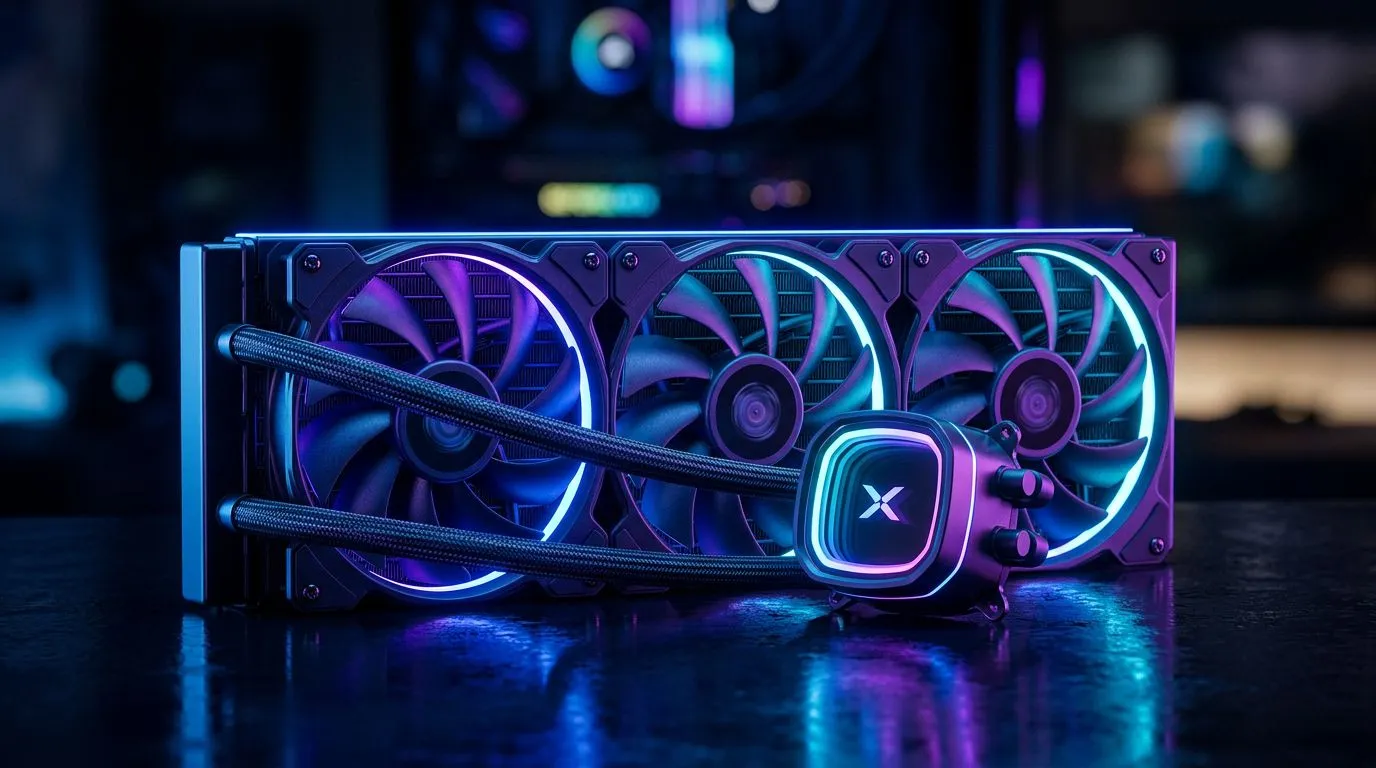
GPU Thermal Throttling: Why a 360mm Radiator is the Ultimate Fix
GPU thermal throttling is the silent performance killer… and in South Africa, where load shedding can also mess with airflow and room temperatures, it hits harder. One minute your favourite game feels smooth, the next you see clock speeds drop and FPS “stutter” like your GPU is giving up.
If you’re chasing stable frames in Cyberpunk 2077, Fortnite, or even creator workloads, this is where a proper cooling setup matters. Specifically: a 360mm radiator can be the difference between hot-and-sluggish and cool-and-consistent. 🔧
Let’s unpack what throttling really is, why radiator size helps, and how to fix it the practical way… without wasting money.
GPU Thermal Throttling and What “Throttling” Actually Means
Thermal throttling happens when your GPU’s temperature climbs past safe limits. To protect itself, it reduces power draw or clock speeds. The result is lower performance even if your FPS cap and settings are unchanged.
The symptoms you can actually notice
- FPS drops during longer sessions (not just in the menu)
- Fan noise ramps up aggressively
- GPU clock speeds look inconsistent (usually in monitoring tools)
- Micro-stutters that worsen as the session continues
Why liquid cooling with a 360mm radiator helps
A 360mm radiator generally offers more surface area for heat to dissipate compared to smaller radiators. More surface area means the coolant can release heat more effectively, which supports steadier temperatures under sustained load. ⚡
In plain terms: fewer “overheat spikes” mean fewer throttling moments.
GPU Thermal Throttling: Why a 360mm Radiator Beats “Just Add More Fans”
If you’ve ever tried to solve overheating with extra fans only… you already know the limit. Fans help, but heat still has to move from hot components to cooler air.
With a 360mm radiator:
- More radiator area can reduce coolant temperature swings
- Sustained workloads stay closer to your GPU’s intended boost behaviour
- Your fans may run calmer overall, depending on your fan curve
What to check before upgrading cooling
Before you spend, confirm the basics. Many thermal issues are configuration, airflow, or dust related.
Cooling Pro Tip 🔧
On Windows, use a monitoring tool (like MSI Afterburner) to log GPU temperature and clock speed over 15 to 30 minutes. If temps rise steadily and clocks fall later, you’re dealing with sustained thermal pressure. If temps jump instantly, check mounting pressure and airflow first, then consider radiator support.
GPU Thermal Throttling: How to Choose the Right GPU (and Cooling Compatibility)
Thermals are not only about your radiator. They’re also about the GPU model, its power limits, and its cooler design.
If you’re shopping in South Africa and want confidence in your build, it helps to compare GPU lines based on intended performance class and cooling design. If you’re considering MSI cards, you can browse options here:
For Radeon options:
For GeForce options:
Or if you just want to compare across the full list:
Micro-story: the “it was never the game” moment
A friend upgraded their GPU expecting instant gains in Valorant. The first matches were great… then the round times started feeling “off”. After checking temps, the GPU was thermal throttling after a while. They fixed cooling, then suddenly the clocks stopped dropping. Same settings. Different result.
That’s the frustrating part… throttling can masquerade as “network lag” or “bad performance luck”.
GPU Thermal Throttling: Build Tips for a Stable 360mm Radiator Setup
Here’s how to get real benefits from a 360mm radiator. 🔥
1) Airflow still matters
Even with great liquid cooling, your case airflow decides whether heat has somewhere to go.
- Front intake with clean paths
- Rear exhaust to keep air moving
- Avoid blocking radiator fans with cables
2) Fan curves should be gradual
A “ramp instantly to 100%” curve can be loud and still not stabilise temps. Aim for a curve that builds response as temperature rises.
3) Don’t forget dust and filters
Dust reduces radiator efficiency. If your system runs in a dusty room or near pets, clean filters on a schedule.
4) Watch mounting pressure and paste condition
Incorrect mounting pressure or degraded thermal paste can increase junction temperatures. If you’ve repasted recently, still re-check torque and alignment.
5) Room temperature counts (especially in SA)
Hot days make everything harder. If you’re in a warm room, you’ll see throttling sooner. That’s not your fault; physics is stubborn.
GPU Thermal Throttling: When a 360mm Radiator is the Ultimate Fix (and when it’s not)
A 360mm radiator is usually worth it when:
- You’re running sustained GPU loads for long sessions
- Your temps climb steadily over time
- Your GPU fans already max out frequently
- You want consistent boost behaviour, not “sometimes smooth”
It may not fully solve the problem if:
- Your case has poor airflow
- Your GPU cooler is failing or poorly seated
- Dust and filters are clogged
- Your expectations don’t match the GPU’s power limit and thermal design
In those cases, you’ll get better results by fixing airflow and maintenance first.
GPU Thermal Throttling: Get the Right Parts From Evetech
If you’re building for stable performance, cooling quality and GPU choice go hand in hand. Evetech’s range makes it easier to compare options across brands and categories, then pick the combination that fits your budget in ZAR and your performance goals.
Ready to Find Your Perfect Match? If you want smooth, consistent frames and fewer thermal slowdowns, the right GPU and cooling parts matter. Explore our massive range of graphics cards and upgrades, then compare options that fit your build and budget in South Africa. Shop Evetech graphics cards and get back to gaming with confidence.











