

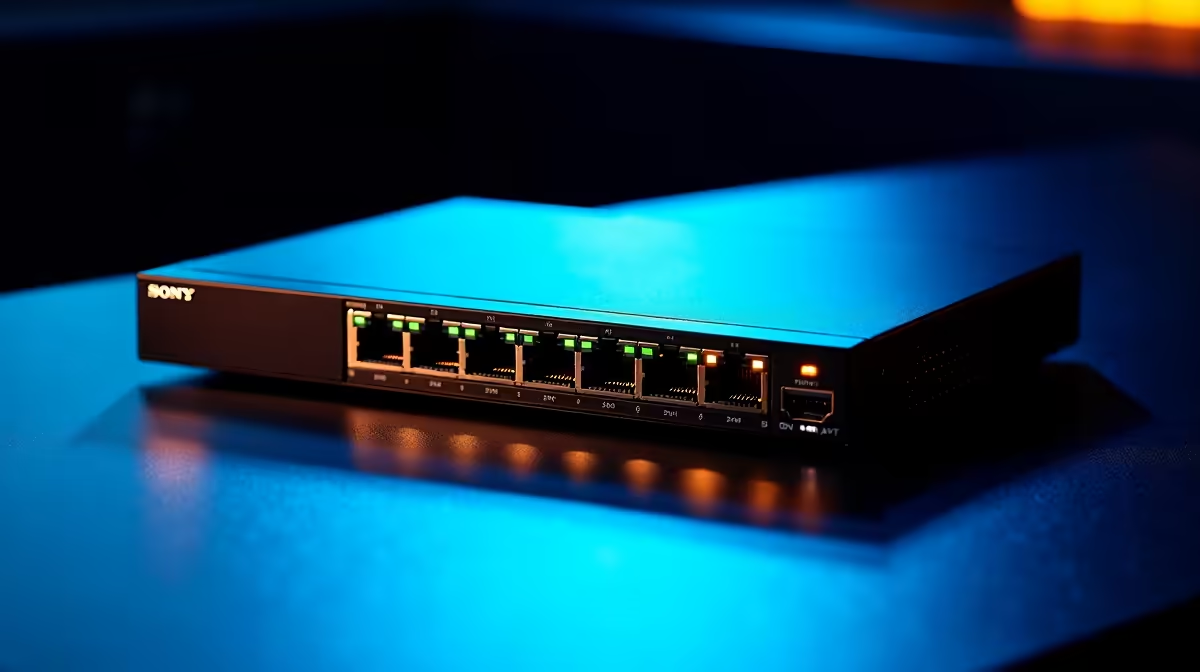
Is your gigabit fibre feeling sluggish during evening Warzone sessions? You might blame your ISP or your router, but the hidden culprit is often your network switch. Knowing how to benchmark your network switch to check performance is essential for any serious South African gamer or tech enthusiast. Let us dive into finding out if your setup is actually delivering the speeds you paid for.
The Heart of Your Home Network ⚡
Before you start ripping out cables, you need to understand what your switch actually does. It acts as the digital traffic cop for your local area network. If it drops packets or struggles with high throughput, your entire house suffers. Upgrading your core hardware is pointless if your switch is the bottleneck. Sometimes the issue stems from your main routing hardware, so checking out the latest high-performance routers is a good first step. But if your router is solid, the switch is next in line.
Gearing Up for the Test
To properly benchmark your network switch to check performance, you need two reliable devices connected via Ethernet. Wi-Fi introduces too many variables... always use cables for this. You could use your main rig from our best gaming PC deals as the server node. For the client node, a secondary desktop from our pre-built PC deals works perfectly. Both machines need gigabit or faster Ethernet ports to push the switch to its absolute limits.
Testing Tool Pro Tip 🔧
For the most accurate results, download iPerf3. It is a free, command-line tool that blasts synthetic data between two computers. Run one PC as the server using the command "iperf3 -s" and the other as the client using "iperf3 -c [Server IP Address]".
Running the Throughput Test 🚀
Once your devices are plugged directly into the switch, fire up iPerf3. If you do not have a second desktop handy, any modern device from our notebooks for sale will do the job perfectly... provided it has a LAN port or a high-quality Type-C ethernet adapter. Let the test run for at least sixty seconds to get a stable average. You want to see speeds close to 940 Mbps on a standard gigabit switch. Anything significantly lower indicates a problem with the switch processing power or the cables themselves.
Making Sense of the Numbers
If your benchmark results are sitting around 100 Mbps on a gigabit network, check your cables first. A damaged Cat5e cable will instantly throttle your speeds down to fast-ethernet levels. If the cables are fine and the switch is still underperforming, it might be time to replace the unit entirely. A faulty switch often introduces severe latency spikes and packet loss... the absolute worst enemies for competitive gaming or streaming 4K video. Heat can also degrade switch performance over time, especially during our scorching South African summers if the unit sits in an unventilated cabinet. If you need to upgrade your setup without breaking the bank, keep an eye on our weekly specials to save some hard-earned ZAR on premium networking hardware.
Ready to Upgrade Your Network? Do not let a bottlenecked switch ruin your gaming experience or slow down your workflow. Explore our massive range of networking gear and find the perfect hardware to keep your connection lightning fast.











