

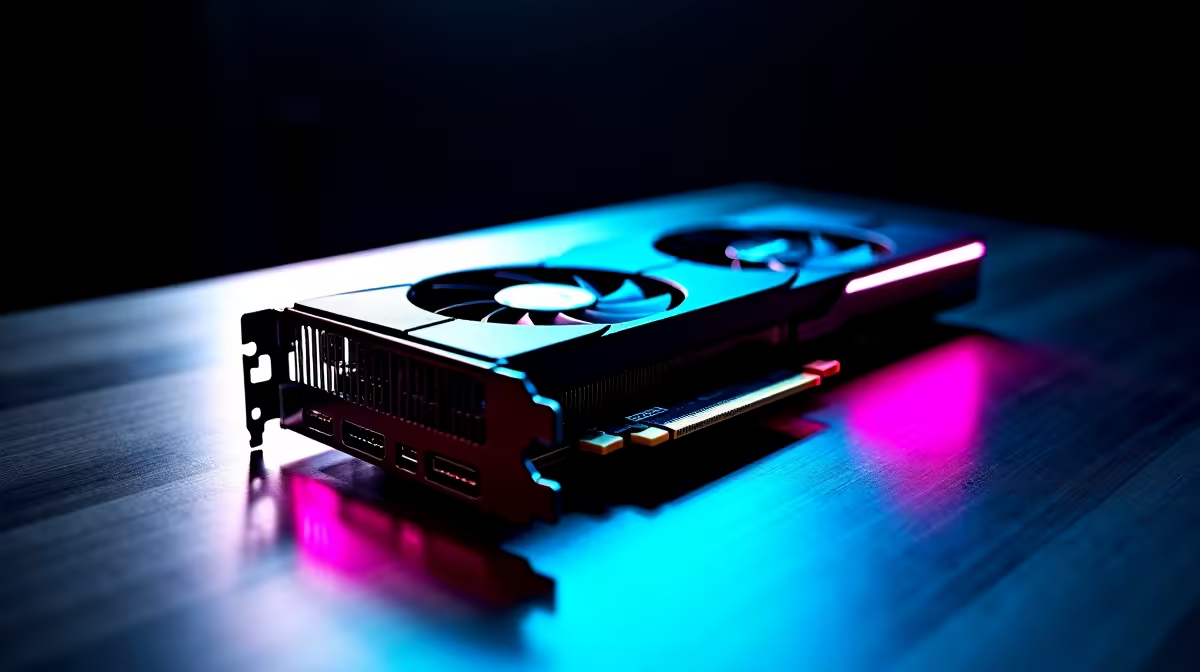
You just dropped your hard-earned ZAR on a shiny new GPU. It looks incredible in your rig... but is it actually delivering the frames you paid for? Knowing how to benchmark your RTX 5060 Ti to check performance is a vital skill to optimise your South African gaming setup. Let us show you exactly how to push your new hardware to the limit and verify those numbers. ✨
Why You Must Stress Test Your GPU ⚡
Upgrading your system is a serious investment. You might have bought a standalone component. Or maybe you snagged one of the elite pre-built PCs on the market. Either way, you need to know it works perfectly.
Benchmarking stresses your graphics card to its absolute maximum. It reveals thermal throttling, driver conflicts, and power delivery issues. If your card is underperforming, a benchmark will catch the problem fast.
Top Tools to Test Your Graphics Card
You need the right software to get accurate readings. Synthetic benchmarks like 3DMark Time Spy are an industry standard for testing raw power. They provide a consistent baseline score. If you prefer real-world numbers, modern titles like Cyberpunk 2077 feature excellent built-in testing tools. To monitor your system vitals while these tests run, MSI Afterburner is an absolute must-have utility.
If you are still hunting for the perfect upgrade, browse the latest graphics cards to see what fits your budget. For those who prefer gaming on the go, modern laptops now offer incredible desktop-class performance. You can easily test mobile hardware using the exact same benchmarking software to see how it compares.
How to Benchmark Your RTX 5060 Ti to Check Performance 🚀
Start by closing all background applications. Even a simple web browser can steal valuable resources and skew your final score. Run your chosen benchmark for at least twenty minutes. This allows the GPU to heat up fully... accurately simulating a heavy gaming session.
Testing Pro Tip 🔧
Always update your Nvidia drivers to the latest version before running any tests. Old drivers can severely limit your frame rates and cause stuttering... making your benchmark results completely inaccurate.
Once the test finishes, compare your final score against online databases like the 3DMark leaderboard. If your score is drastically lower than the average, you might have a system bottleneck. A weak processor will constantly hold back a powerful GPU. If your CPU is ancient, exploring the best gaming PC deals might be your smartest next move to unlock your true potential.
Also, monitor your temperatures closely during the stress test. Your new graphics card should ideally sit between 65 and 75 degrees Celsius under full load. If your card hits 85 degrees and drops clock speeds, you need better case airflow. Keep an eye out for hardware specials to grab some extra cooling fans or a high-quality chassis to keep your temperatures low.
Ready to Maximise Your Framerates? Now that you know how to push your hardware, ensure the rest of your rig can keep up. Browse our latest Evetech deals and build the ultimate South African gaming setup today.











