

RX 9070 XT Elden Ring Nightreign at 4K: FPS Benchmark & Optimal Settings
RX 9070 XT Elden Ring Nightreign at 4K: FPS. Real-world benchmark data, FPS numbers & performance analysis. What SA gamers can actually expect.
Read moreIs your monitor's FPS counter accuracy reliable? We dive deep into how On-Screen Display (OSD) counters work compared to software like RivaTuner and GeForce Experience. Discover the truth about input lag, refresh rate syncing, and which tool gives you the most precise performance data for competitive gaming. 🖥️ Get the real numbers!
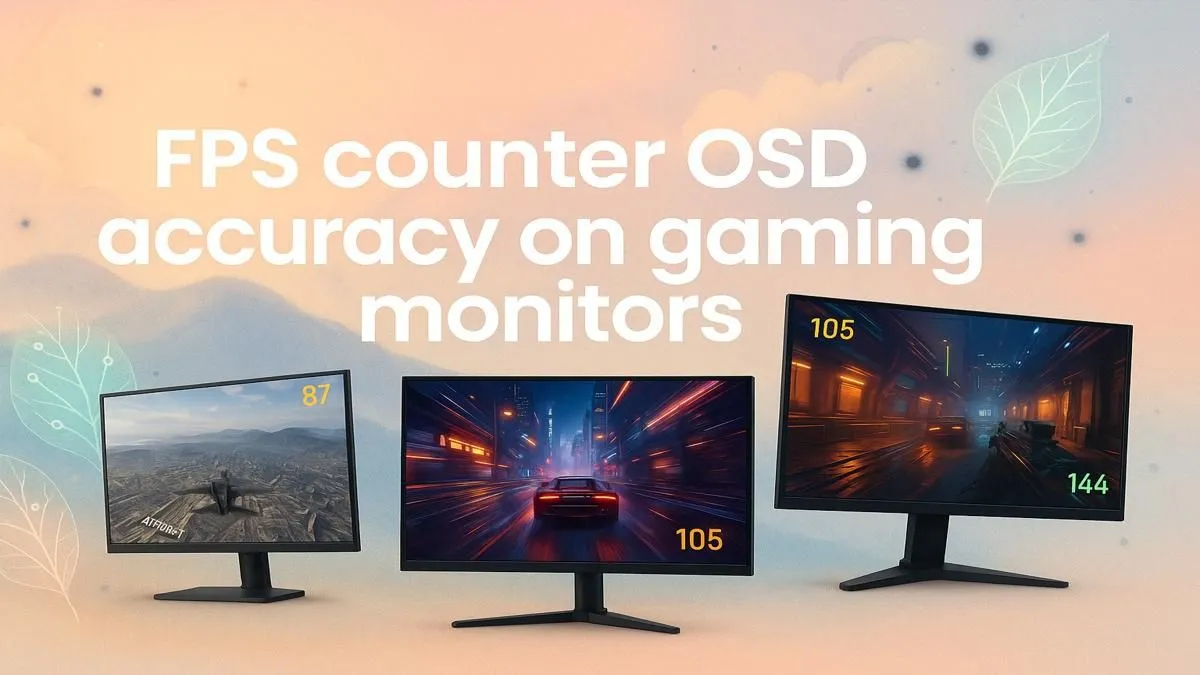
You’ve just unboxed your shiny new 165Hz beast. You fire up Apex Legends, enable the built-in FPS counter in the On-Screen Display (OSD), and it proudly shows a rock-solid "165". Yet… something feels off. The gameplay isn’t as buttery smooth as you expected. So, what’s the deal? Is your new screen lying to you? Let’s investigate the truth behind monitor FPS counter accuracy and whether you can really trust that little number in the corner.
First things first, it's crucial to understand what your monitor's OSD is actually measuring. In most cases, the built-in FPS counter isn't tracking the frames your graphics card is rendering. Instead, it’s reporting the refresh rate signal it's currently receiving and displaying. ⚡
Think of it this way:
The potential for confusion around monitor FPS counter accuracy comes from the gap between these two metrics. They are related, but not the same thing. This feature is now common across all the latest gaming monitors, making this a widespread question.
So, you run MSI Afterburner or the NVIDIA Performance Overlay, and it shows 110 FPS, while your monitor’s OSD insists on 165 FPS. Why the difference? The answer usually lies in VRR technologies like G-Sync or FreeSync.
The performance tax of gaming on crisp 4K and 5K monitors makes accurate frame-rate tracking even more vital for optimising your settings.
the most reliable, ground-truth performance data, always trust a software-based utility like MSI Afterburner, NVIDIA FrameView, or CapFrameX. These tools poll the GPU driver directly, giving you a precise reading of rendered frames, frame times, and 1% lows—metrics your OSD simply can't provide. This is especially useful when testing settings on secondary [portable monitors](https: www.evetech.co.za buy-portable-monitors x 1590.aspx) for your setup.
So, can you trust your OSD? Yes, but only for its intended purpose: to tell you the monitor's current refresh rate.
The OSD counter is an excellent tool for a quick diagnostic check. For example, if you see the number fluctuating in-game, it’s a great confirmation that your VRR is working correctly. ✨ However, for a true measure of your PC's gaming performance, a software utility is non-negotiable. The numbers from your OSD lack the deeper context that tools like Afterburner provide, which is essential for fine-tuning your settings.
Ultimately, an OSD FPS counter is a neat bonus feature, but it shouldn't be the deciding factor when browsing Evetech's wide range of PC monitors.
When you’re ready to upgrade, focus on the core specs that deliver a superior visual experience: the panel type (IPS for colour, VA for contrast), response time for minimal ghosting, and resolution for clarity. A great panel is the foundation of any elite gaming setup, complemented by quality monitor accessories that help you create the perfect battlestation.
Understanding the nuances of monitor FPS counter accuracy empowers you to make a smarter choice. You know what the feature does and, more importantly, what it doesn't do. Now you can focus on the specs that will genuinely elevate your gaming. If you're looking for an upgrade that delivers both performance and value, be sure to check out the latest monitor deals available right now.
Ready to See Every Frame? The debate over FPS counters is one thing, but finding a monitor that truly keeps up with your GPU is what really matters. Explore our massive range of gaming monitors and find the perfect screen to conquer your world.
Mostly, but they measure differently than software. Monitor OSD counters often report the display's current refresh rate (Hz), while software measures frames rendered by the GPU.
This discrepancy occurs because the monitor shows its refresh rate, while software reports the frames your GPU produces. They measure two different points in the performance chain.
For raw GPU output, software tools like RivaTuner (with MSI Afterburner) or NVIDIA's FrameView are considered most accurate as they hook directly into the graphics API.
No. A monitor's built-in OSD FPS counter operates on the monitor's own hardware and does not interfere with the GPU's rendering process, so it adds no input lag.
Not exactly. FPS is how many frames your GPU renders per second. Refresh rate (Hz) is how many times your monitor updates the screen. For smooth gameplay, you want FPS to match Hz.
Access your monitor's settings using its physical buttons. Navigate to a 'Gaming' or 'Information' menu to find and enable the on-screen display (OSD) for the FPS/refresh rate.
RX 9070 XT Elden Ring Nightreign at 4K: FPS. Real-world benchmark data, FPS numbers & performance analysis. What SA gamers can actually expect.
Read more
RTX 5090 Marvel Rivals FPS: Performance Benchmark. Real-world benchmark data, FPS numbers & performance analysis. What SA gamers can actually expect.
Read more
Intel Arc A770 Escape from Tarkov Performance. Real-world benchmark data, FPS numbers & performance analysis. What SA gamers can actually expect.
Read more
Head-to-head comparison of RX 9070 XT vs RTX 6070: Gaming Performance for SA gamers. Performance benchmarks, Rand pricing & which delivers better value.
Read more
Head-to-head comparison of RTX 5060 Ti Mining vs Gaming: Does It Affect for SA gamers. Performance benchmarks, Rand pricing & which delivers better value.
Read more
Ryzen 7 7800X3D Gaming Benchmark: FPS Across 20. Real-world benchmark data, FPS numbers & performance analysis. What SA gamers can actually expect.
Read more
Complete ATX Case Size Guide: Interior Dimensions. Best deals curated with real SA discounts, price history & tips on getting genuine value.
What GPU Do You Need for AI & Machine Learning. Hardware requirements breakdown with recommended specs & SA pricing for each tier.
Top Settings for RTX 4060 at Ultrawide 1440p picks evaluated on performance, value & SA availability with current Rand pricing from Evetech.
Head-to-head comparison of FreeSync vs G-Sync Explained: Which Should Gamers for SA gamers. Performance benchmarks, Rand pricing & which delivers better value.
Every spec on PCIe 5.0 explained in plain English. What matters for gaming and creator work in 2026, what's marketing fluff, and how each number translates to real-world performance.
Every spec on bios explained in plain English. What matters for gaming and creator work in 2026, what's marketing fluff, and how each number translates to real-world performance.
Every spec on gaming setups explained in plain English. What matters for gaming and creator work in 2026, what's marketing fluff, and how each number translates to real-world performance.
Every spec on cooling systems explained in plain English. What matters for gaming and creator work in 2026, what's marketing fluff, and how each number translates to real-world performance.
Every spec on 10tb enough storage explained in plain English. What matters for gaming and creator work in 2026, what's marketing fluff, and how each number translates to real-world performance.
External HDD vs External SSD: real-world performance, SA pricing, power draw and which one delivers better value for your build. The clear answer — without the fluff.
What to prioritise when shopping for external hard drive in South Africa: the specs that matter, Rand value tiers, and the trade-offs between budget and flagship picks in 2026.
Desktop External HDDs vs Portable Drives: real-world performance, SA pricing, power draw and which one delivers better value for your build. The clear answer — without the fluff.