

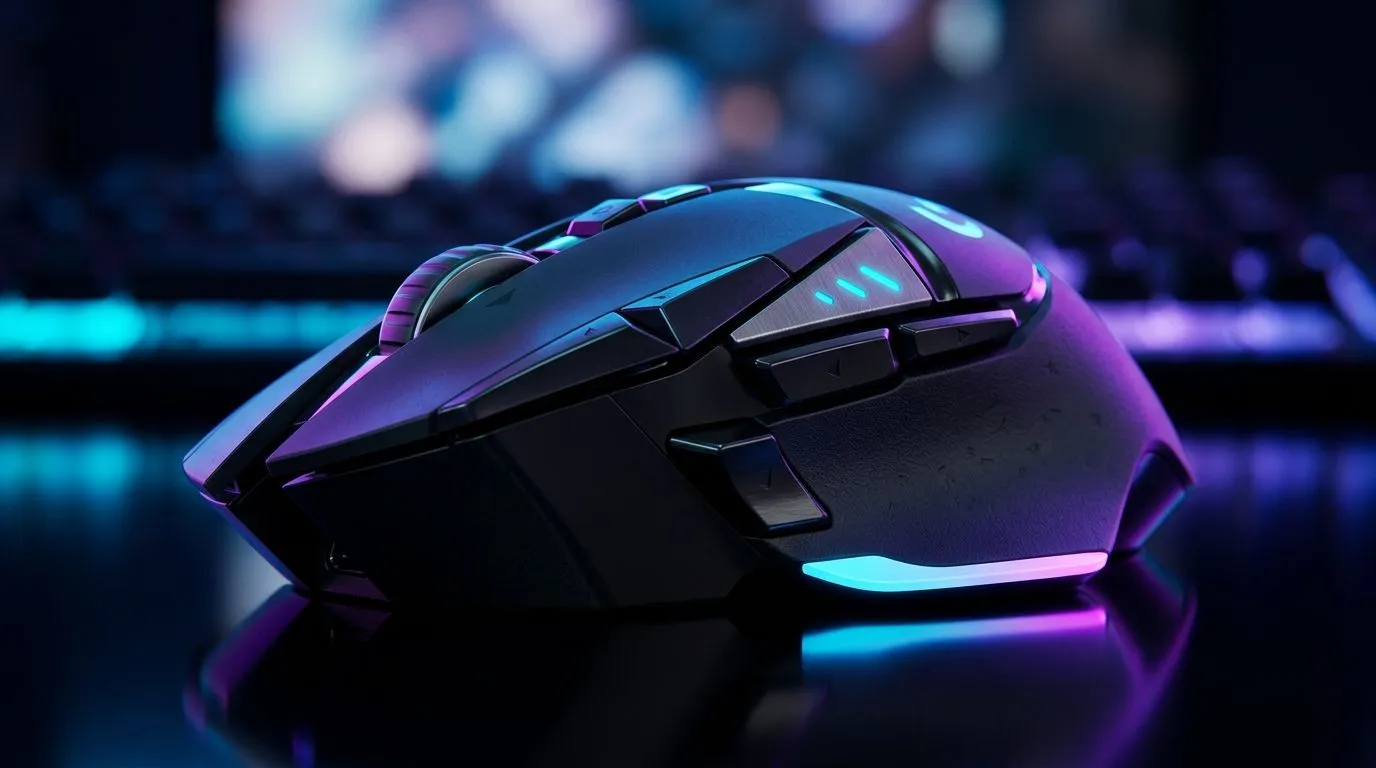
Mouse Button Programming for Faster In-Game Actions: why SA gamers feel the difference
If you’ve ever died because you pressed the wrong key mid-fight… you already know why mouse button programming matters. In South Africa, where we juggle work, school, and weekends on ranked servers, every second counts. ⚡ The good news? You can map your most-used actions onto buttons you can hit instantly, without taking your thumb off the grip. That means smoother rotations, faster reloads, and less “panic clicking” when things get chaotic.
Mouse Button Programming for Faster In-Game Actions: build an action map that actually fits your playstyle
Start with your real habits, not the internet’s “best binds”. Write down the 5 actions you press the most during a match. Examples: weapon swap, push-to-talk, grenade, interact, crouch, or sprint. Then assign those to the mouse buttons closest to where your thumb naturally rests.
Here’s a simple starting layout for common shooter use:
- Mouse Side Button 1: Reload (or weapon swap)
- Side Button 2: Grenade
- Side Button 3 (if available): Interact/Use
- DPI toggle: Off in-game, or use one clean toggle for sensitivity changes
Why this works: your hand movement stays consistent. Less cursor travel. Faster decision-to-action. And when you’re under pressure, consistency beats complexity.
Choose the right mouse hardware before you map anything
If you want reliable remapping, your mouse needs actual programmable buttons (not just “extra clicks”). For buyers comparing options, check the range and specs here:
- Wired mice built for quick response: wired gaming mouse models
- Wireless options for desk freedom: wireless gaming mice
- Extra control with accessories that match your grip and use-case: mouse accessories
- If you’re hunting value this month, browse: best gaming mouse deals
- Want a big selection of models? Start here: gaming mouse range
Note: button mapping is only useful if the mouse gives you enough programmable inputs for your key binds.
Mouse Button Programming for Faster In-Game Actions: set up macros carefully (and stay fair)
Let’s be honest. Macros can be tempting… but you don’t need automation to gain speed. Focus on “single-press binds” first. If your game allows it, you can use profiles per mode (ranked, practice, or different game types).
Use safe macro rules:
- Use one button = one action.
- Avoid long delays.
- If a macro is effectively an aim assist, don’t use it. It can violate game rules and bans are not worth it.
Many games also let you bind abilities directly. If they do, prefer that over a macro. It stays predictable across updates.
Productivity Pro Tip ⚡
Windows, install mouse software from the manufacturer, then create two profiles: one for FPS (reload, grenade, interact) and one for general use. Switch profiles using the mouse DPI Profile button to avoid constantly reconfiguring binds mid-session.
Quick calibration: test your binds in a 10-minute warm-up
Before ranked, run a short warm-up:
- Spend 60 seconds firing and reloading.
- Spend 60 seconds using your grenade or utility button.
- Then do a “stress test” round where you only use those binds, no exceptions.
If you misclick, don’t blame yourself. Move the bind to a more reachable button. Muscle memory is built through small, repeatable corrections. ✅
Mouse Button Programming for Faster In-Game Actions: the fastest setup that feels natural
The best bindings feel boring. You shouldn’t think about them. Your thumb should hit the button and your brain should move to the next decision.
If you’re building from scratch, pick one theme:
- “Combat comfort” (reload, weapon swap, utility)
- “Movement control” (crouch, sprint, jump if your game supports it)
- “Team actions” (ping, communication push-to-talk, map/ability)
Once you pick, don’t keep changing it every day. Give it a week.
When you’re ready to upgrade, consider a mouse with enough programmable buttons and solid comfort for long sessions. That combo makes your programming stick.
CALLTOACTION
Ready to Find Your Perfect Match? Your best in-game actions start with the right mouse, the right buttons, and settings you can trust. Browse our range and choose a model built for faster play. Explore the best gaming mouse deals and upgrade your setup today and lock in the binds that fit your hands.











