

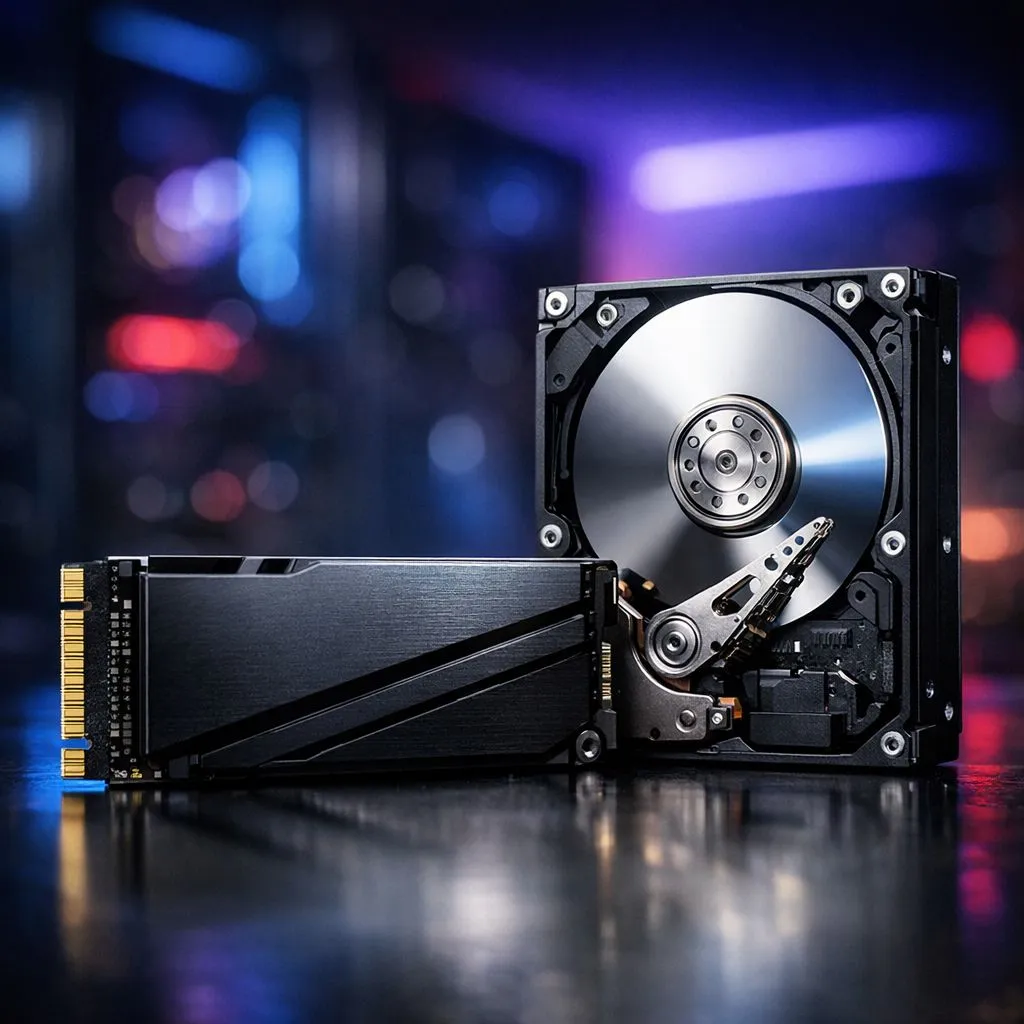
Master the Shuffle: Move Steam Games to SSD and HDD Efficiently
Tired of waiting for Cyberpunk 2077 to load while your friends are already half-way through a mission? In South Africa, where data caps and slow downloads can be a headache, managing your storage is vital. Learning how to move Steam games to SSD and HDD efficiently ensures you spend more time playing and less time staring at progress bars. Let’s get your library organised without the redownload stress. 🚀
Setting Up Your New Storage Destination
Before you can shift your files, you need to tell Steam where they are going. Steam does not automatically detect every drive for library use. You must manually add a new library folder in the settings. If you have just picked up one of the latest solid state drives to boost your PC, head over to the Storage tab in Steam. Click the "plus" icon next to your current drive to create a fresh landing zone for your favourite titles. 🔧
Storage Management Pro Tip ⚡
Always leave at least 10% to 15% of your SSD capacity empty. Solid state drives need this "over-provisioning" space to perform background maintenance tasks like wear levelling. Filling an SSD to the absolute brim can significantly slow down your write speeds and shorten the lifespan of the drive.
How to Move Steam Games to SSD and HDD Efficiently
Steam has made the actual transfer process incredibly simple. You no longer need to hack registry files or use third-party tools. Right-click any game in your library and select Properties. Navigate to the "Installed Files" tab and click the "Move install folder" button.
If you are looking for the absolute pinnacle of speed, moving your competitive shooters to Gen 5 NVMe drives will make a world of difference. The transfer itself will be over in seconds... much faster than waiting for a 100GB download on a rainy afternoon in Johannesburg. ✨
Balancing Performance and Capacity
Not every game in your library requires the blistering speed of an NVMe. It is often smarter to use a high-capacity Western Digital drive for older indie titles or your massive backlog of "maybe one day" games.
Keep your resource-heavy open-world games on a reliable ADATA SSD to ensure textures pop in instantly. This hybrid approach keeps your primary boot drive clean and your gaming performance high. It is all about using the right tool for the job.
Taking Your Library on the Road
Sometimes you need your games to be as mobile as you are. Whether you are heading to a local LAN or moving between home and the office, an external SSD is a brilliant investment.
By choosing a dedicated external drive with high read speeds, you can run games directly from the USB port. This saves you from dragging your entire desktop across town just for a weekend of gaming. Just plug it in, point Steam to the folder, and you are ready to play. ⚡
Ready to Upgrade Your Storage? Don't let slow load times hold your gaming back. Whether you need massive HDD capacity or the lightning speed of an NVMe, we have the best deals in South Africa. Explore our massive range of SSD and HDD specials and give your Steam library the home it deserves.











