So, you’ve optimised your rig, tweaked your in-game settings, and you’re still hungry for a competitive edge? What if we told you there’s free performance hiding in the screen you already own? That’s the magic of learning to overclock your gaming monitor. It’s a simple tweak that can push your refresh rate beyond its factory settings, giving you smoother visuals and faster reactions in the heat of battle. It’s a proper win.
The "Why": Understanding the Gains of a Monitor Overclock
In the world of competitive gaming, every millisecond counts. Your monitor's refresh rate, measured in Hertz (Hz), dictates how many times your screen updates per second. A standard 60Hz monitor shows 60 frames per second (FPS), while a 144Hz model shows 144. The higher the number, the smoother the motion.
When you overclock your gaming monitor, you're essentially telling it to run faster than its official rating. Pushing a 60Hz panel to 75Hz, or a 144Hz panel to 160Hz, might not sound like much... but that small boost can mean seeing an opponent a crucial fraction of a second earlier. This reduces motion blur and input lag, making your aim feel more responsive and the entire game more fluid. It’s the kind of subtle advantage that can turn a close loss into a victory. 🚀
Before You Begin: The Essential Checklist 🔧
Before you jump in, let's cover the basics. To get the best results, you'll need a decent graphics card and the right connection. A DisplayPort cable is highly recommended as it typically supports higher bandwidth than HDMI, which is crucial for stable high refresh rates. Ensuring you have the right quality monitor accessories is the first step to success.
It's also important to be realistic. Not every panel overclocks well. Some might give you an extra 20Hz, while others might not budge at all. There's a small risk of instability (like screen flickering or artifacts), but permanent damage is very rare with modern displays. Just take it slow and test thoroughly.
Check for Frame Skipping! ⚡
A higher number doesn't always mean better performance. Sometimes, an overclocked monitor will "skip" frames to keep up, which completely negates the benefit. After you apply an overclock, use a tool like the Blur Busters UFO Test for frame skipping. If the test shows any issues, lower your refresh rate by a few Hz and test again until it's perfectly stable.
How to Overclock Your Gaming Monitor: A Step-by-Step Guide
The process is surprisingly straightforward and handled directly within your GPU's control panel. Whether you're running a 27-inch beast or one of the more niche portable monitors for a LAN party, the software principles are the same.
For NVIDIA Users (NVIDIA Control Panel)
- Right-click your desktop and open the NVIDIA Control Panel.
- Navigate to Display > Change resolution.
- Select the monitor you want to overclock and click the "Customise..." button.
- Tick the box for "Enable resolutions not exposed by the display" and click "Create Custom Resolution...".
- Here’s the fun part: In the "Refresh rate (Hz)" box, increase the value in small steps. We suggest increments of 5Hz.
- Click "Test". If your screen displays an image correctly, the test passed. If it goes black, wait 15 seconds, and it will revert.
- Once you find a stable refresh rate, save it. You can now select it from the resolution list.
For AMD Users (Radeon Software)
- Right-click your desktop and open AMD Radeon Software.
- Click the Gaming tab, then go to "Display".
- Next to "Custom Resolutions," click "Create New".
- Find the "Refresh Rate (Hz)" field and increase it slightly (again, 5Hz increments are a good start).
- Click "Create". The screen will flicker as it applies the new setting.
- If the display is stable, you're good to go. If not, it will revert after a short period. Keep testing until you find your monitor's sweet spot.
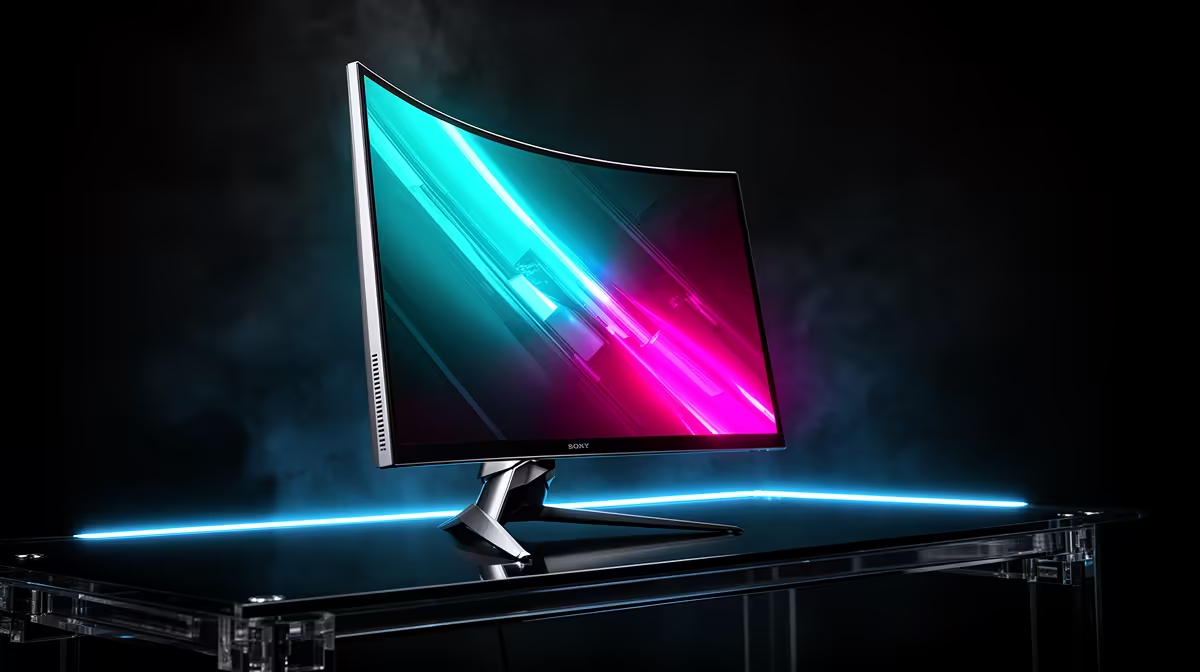
This process works on all kinds of panels, from immersive curved monitors designed for cinematic single-player games to ultra-sharp high-resolution 4K monitors where even a small Hz boost can improve desktop fluidity.
When Is It Time for an Upgrade?
Overclocking is a fantastic way to squeeze extra life and performance out of your current gear. But sometimes, you'll hit a wall. If your monitor is unstable with even a tiny overclock, or if you're chasing the massive performance leap needed for professional-level esports, it might be time for an upgrade. The technology inside modern gaming monitors is specifically engineered for native high refresh rates, guaranteeing stability and often including features like G-Sync or FreeSync for an even smoother experience.
While a DIY overclock is great, nothing beats the guaranteed performance of a panel built for speed from the ground up. If you've pushed your current screen to its limit, exploring the latest PC monitors could be your next big performance unlock. ✨
Ready to See the Difference?
Overclocking is a brilliant free upgrade, but for guaranteed stability and blistering native speed, a new monitor is the ultimate solution. Explore Evetech's massive range of gaming monitors and find the perfect panel to dominate the competition.