


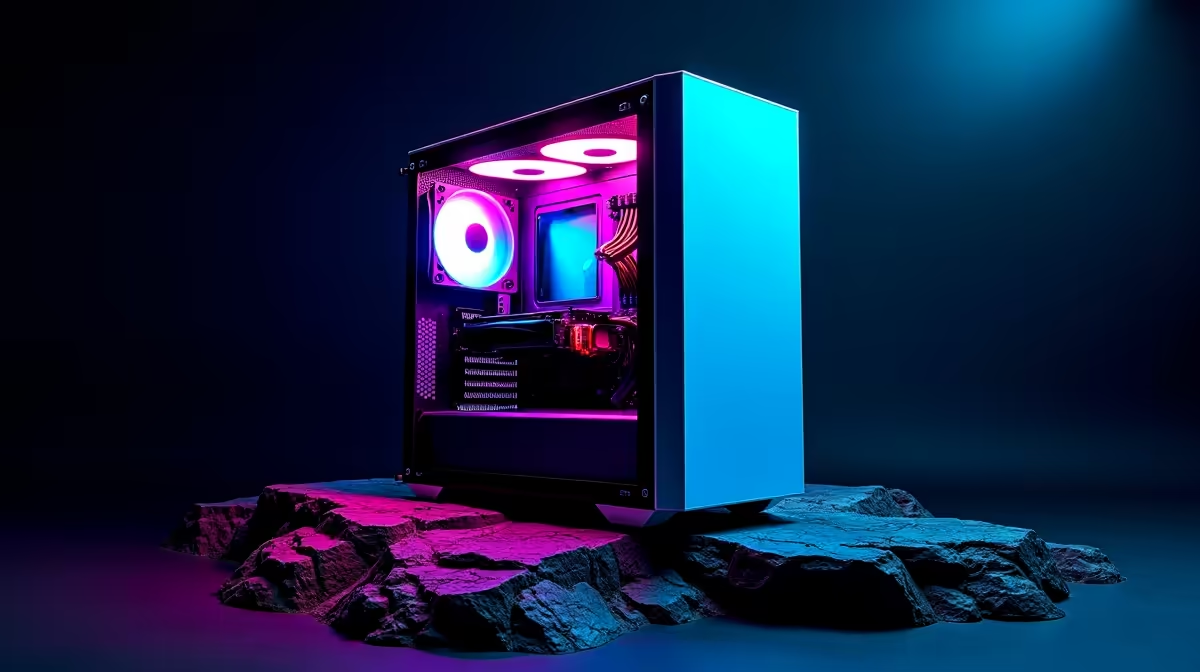
That scorching Highveld sun isn't just tough on us; it's tough on our rigs. Your PC fans are screaming louder than a hadeda at sunrise, and your frames drop mid-firefight. Sound familiar? PC overheating in South Africa is a real battle, thanks to our climate, dust, and the occasional an unexpected outage curveball. But don't sweat it. Before you spend a cent, here’s your ultimate guide to fixing that overheating PC and reclaiming your performance.
Understanding Why Your PC is Overheating in SA 🌡️
Before we can fix the problem, we need to know the cause. In South Africa, a few key culprits are usually to blame for your PC overheating.
The Dust Demon
From the fine red dust of Gauteng to the general build-up in coastal cities, dust is your PC's worst enemy. It clogs heatsinks, suffocates fans, and acts like a winter blanket for your heat-producing components. This insulation causes temperatures to climb, leading to thermal throttling—your PC slowing itself down to prevent damage.
Poor Case Airflow
A PC case needs to breathe. If the internal cables look like a plate of spaghetti, or if your fans aren't set up for a clear intake and exhaust path, you're creating hot spots. Cool air can't get in, and hot air can't get out. It's a simple recipe for an overheating PC, especially during a Cape Town heatwave.
Your First Fixes: Simple Steps to a Cooler PC
Ready to get hands-on? These initial steps solve the vast majority of PC overheating issues and don't require any technical wizardry.
The Essential Deep Clean 💨
This is the single most effective thing you can do.
- Power Down: Shut down and unplug your PC completely.
- Get Outside: Take your PC to a well-ventilated area (your stoep is perfect).
- Open Up: Remove the side panel.
- Blast It: Using short bursts of compressed air, blow the dust out of your CPU cooler, GPU fans, case fans, and especially the power supply.
- Wipe Down: Clean your case's dust filters. Most modern cases have removable filters at the front, top, and bottom.
A regular clean-up is vital. Even the most powerful NVIDIA GeForce gaming PCs need clear airways to perform at their best.
Cooling Pro Tip ⚡
Use a free tool like HWMonitor or MSI Afterburner to check your CPU and GPU temperatures. Under load (while gaming), your CPU should ideally stay below 85°C and your GPU below 80°C. Knowing your baseline temps is the first step to diagnosing any PC overheating issue!
Advanced Solutions for Stubborn Heat Problems
If a good clean didn't solve your PC overheating problem, it's time to look at more advanced solutions.
Upgrading Your Cooling
The stock cooler that came with your CPU might not be enough, especially for intense gaming or productivity. High-performance components, like those found in custom AMD Radeon gaming PCs, often benefit from premium cooling. Consider upgrading to a larger tower air cooler or an All-In-One (AIO) liquid cooler for a significant drop in temperatures. This is especially true for demanding workstation PCs that run at full tilt for hours on end.
Re-applying Thermal Paste
Between your CPU and its cooler is a thin layer of thermal paste. Over years, this paste can dry out and lose its effectiveness. Replacing it is a cheap but slightly more technical fix that can lower CPU temperatures by 5-10°C. If your PC is over three years old, this could be the magic bullet you're looking for.
Don't let the South African heat win. By following these steps, you can tackle PC overheating head-on and ensure your machine runs cool, quiet, and fast. 🚀
Tired of Thermal Throttling? Fixing an old, hot PC can feel like a losing battle. Sometimes, the ultimate fix is a modern, professionally built rig with optimised airflow from day one. Explore our range of expertly cooled gaming PCs and leave overheating in the dust.










