

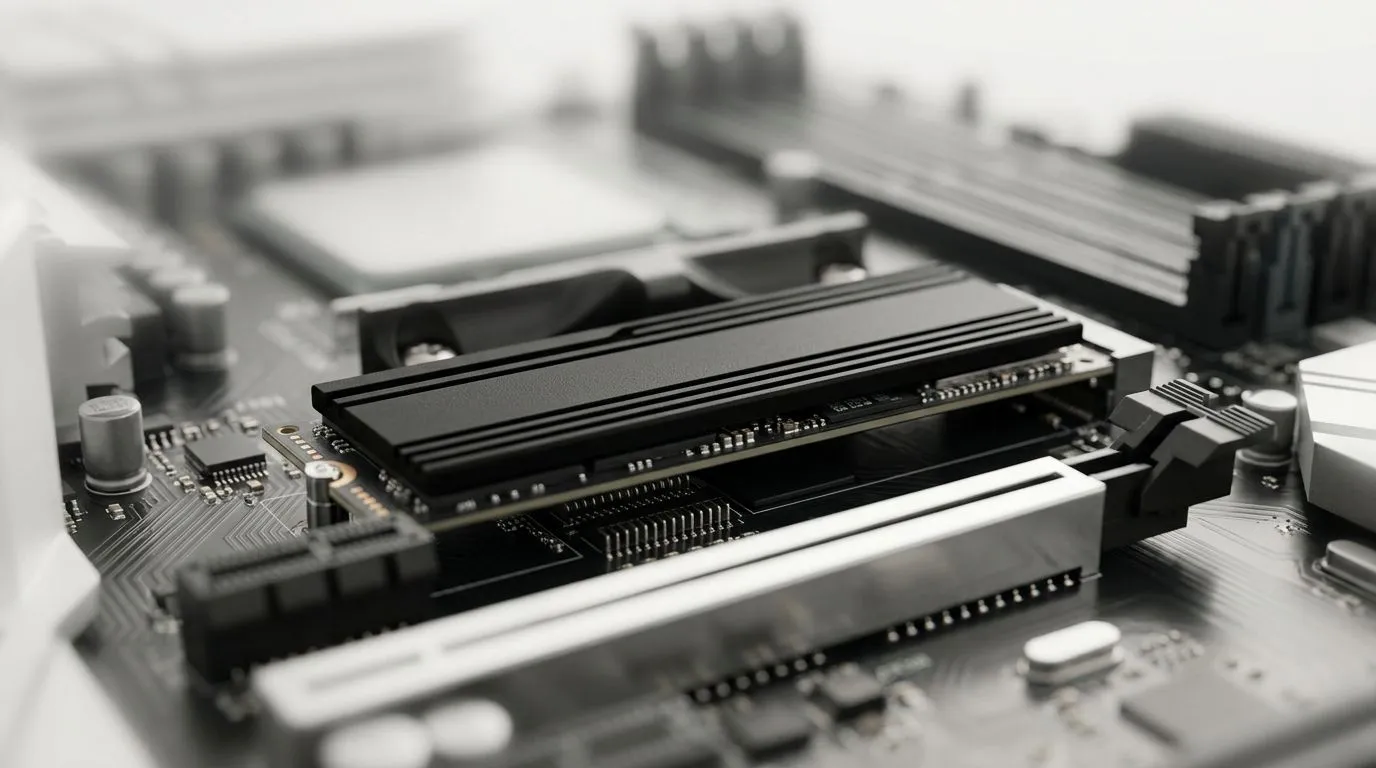
Why Is My PC Still Slow After Installing an SSD? (And What To Check First) ⚡
So you upgraded to an SSD… and your PC still feels sluggish? That’s frustrating, especially when you just want faster boot times and smoother game loading in South Africa’s load-shedding reality. ⚡ Maybe Windows is still “thinking” like it’s on a hard drive. Or perhaps your SSD is installed, but it’s not actually running at full speed. Let’s troubleshoot it properly, step by step… no guessing.
Why Is My PC Still Slow After Installing an SSD? The Common Causes 🔧
Before you blame the SSD, verify the basics. Most “slow SSD” cases come down to one of these:
1) The SSD isn’t connected to the right port
If your motherboard has multiple M.2 slots or SATA ports, the SSD might be in a slower interface lane. In practice, SATA SSDs feel faster than HDDs, but they won’t match the performance of NVMe drives. Check your board manual for which slot supports which speeds.
2) You cloned it, but didn’t align Windows correctly
A proper SSD clone should keep partitions sane and support trimming. If alignment or partition layout is off, the drive may do extra work. Windows can also disable trimming depending on how it was migrated.
3) TRIM isn’t enabled
TRIM helps your SSD manage deleted blocks efficiently. If it’s not enabled, performance can degrade over time, especially after lots of installs, downloads, and deletes. Windows usually handles this automatically, but migrations can complicate things.
4) Too little RAM or too much background load
Yes, an SSD helps… but games and creators still bottleneck on RAM and CPU. If your browser is chewing through tabs and Discord is recording, your “slow PC” might just be overloaded.
Productivity Pro Tip ⚡
On Windows, open Task Manager and check the “Startup apps” tab. Disable launchers you don’t need for gaming sessions. Then restart and test load times again. A clean boot often reveals whether the SSD is fine and the slowdown is just software contention.
5) Low free space on the SSD
SSDs need breathing room to keep write performance healthy. If you installed updates and games onto a nearly full drive, performance may feel worse after an initial boost.
Why Is My PC Still Slow After Installing an SSD? Practical Fixes You Can Do Today 🚀
Try these in order. They’re quick, and they usually find the culprit:
- Confirm the SSD type and interface: SATA vs M.2 vs NVMe affects perceived speed.
- Check Windows storage settings: make sure the SSD is the boot drive.
- Enable/verify TRIM (Windows): if it’s off, turn it on and reboot.
- Update SSD firmware if the manufacturer supports it (use their official utility).
- Run a health check: if the SSD shows errors or unusual wear, replacement might be needed.
If you’re at the stage of “I need a better SSD anyway,” shop smart. Evetech stocks a wide selection of solid state options, including SATA and NVMe models, plus various brands and form factors. For example:
- Browse SSD options here: Solid State Drives at Evetech
- Looking for ADATA specifically? Check: ADATA solid state drives
- Prefer Kingston? See: Kingston solid state drives
- After M.2 2280? This is the one: M.2 2280 SSDs
- Want to compare Gen 5 NVMe options? Start here: Gen 5 NVM SSDs
Why Is My PC Still Slow After Installing an SSD? When to Ask for Help ✨
If you tried the basics and the system is still slow, it might be a Windows migration issue, a compatibility setting, or a drive fault. A quick diagnostic can save you time and prevent you from buying the wrong part. If you’re building for gaming and productivity, getting the right SSD spec matters… and Evetech can help you match the drive to your motherboard and workload.
Ready to Find Your Perfect Match? The Mac vs Windows debate is complex, but for maximum power, choice, and value in South Africa, Windows is hard to beat. Explore our massive range of laptop specials and find the perfect machine to conquer your world.











