

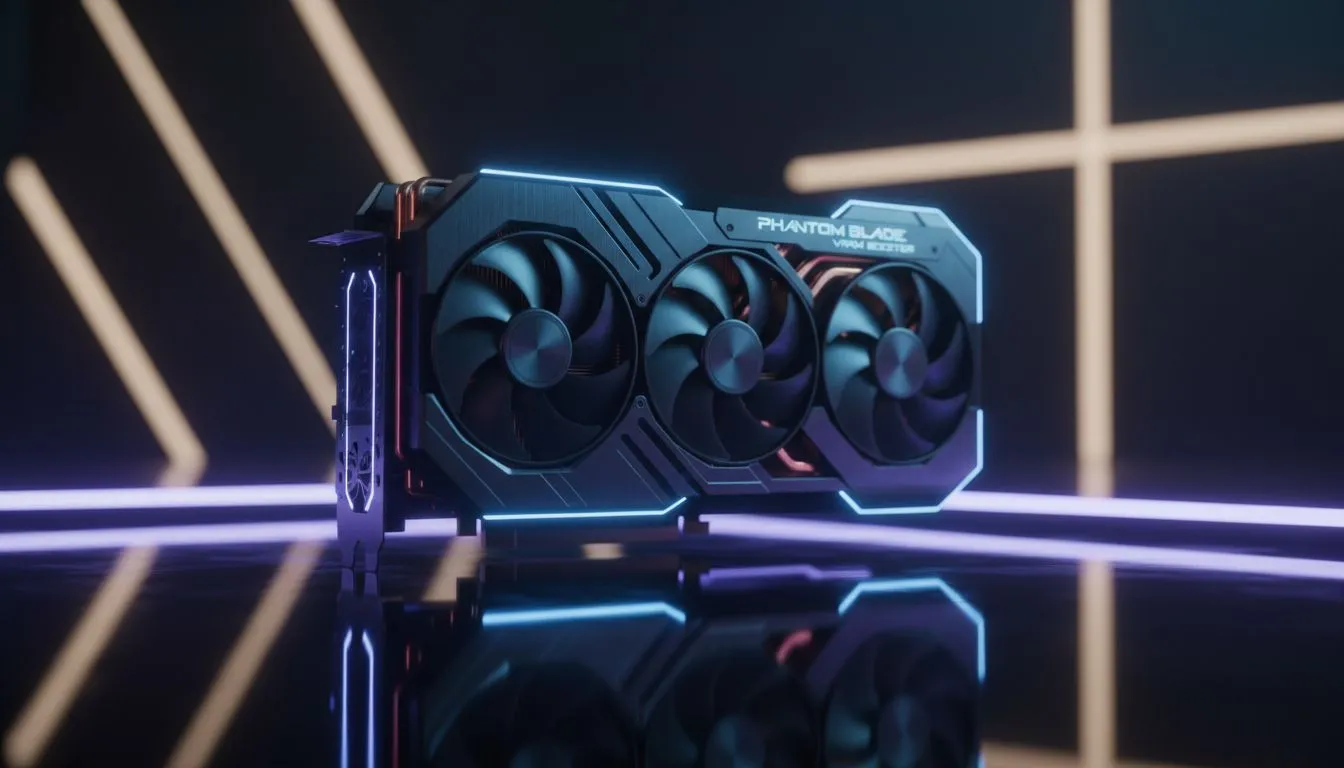
Why VRAM Matters for Your Phantom Blade Speed Runs
Nothing kills a perfect speed run like hitting a blurry wall that hasn't loaded yet. In the high-speed world of Phantom Blade, your hardware needs to keep up with every dash and strike. If you want to prevent texture pop-in during your Phantom Blade speed runs, managing your VRAM is non-negotiable. Let’s look at how to keep those visuals crisp while you're chasing world records. ⚡
Maximise Performance to Prevent Texture Pop-in
Texture pop-in occurs when your graphics card cannot load assets fast enough into its dedicated memory. When you are moving at breakneck speeds, the engine demands immediate access to high-resolution files. If your buffer is full, the game reverts to low-quality placeholders. Upgrading to the latest NVIDIA and ATI graphics cards ensures you have the bandwidth to handle these rapid transitions without stuttering.
VRAM Management Tip ⚡
Lower the 'Texture Pool Size' in your game settings if you encounter stuttering. This gives your GPU a bit of breathing room to manage background tasks without hitting the VRAM ceiling. It is a quick fix that keeps your frame rates stable during intense combat sequences.
Choosing the Right Hardware for Smooth Visuals
Not all cards are created equal when it comes to memory management. Many South African gamers prefer the cooling efficiency and reliability of MSI graphics cards to maintain peak clock speeds. Higher clock speeds help the GPU process data faster... which indirectly helps mitigate the delay in texture streaming. 🚀
If you are looking for excellent value in the mid-range market, the latest Intel Arc graphics cards offer impressive VRAM capacities for their price point. Alternatively, the raw memory overhead found in AMD Radeon graphics cards makes them a favourite for those running Phantom Blade at 4K resolutions. More memory means fewer instances where the game has to "guess" which textures to keep loaded.
Expert VRAM Tips for Competitive Play
For the absolute enthusiasts who use their rigs for more than just gaming, even workstation graphics cards can provide the massive frame buffers needed for uncompromised fidelity. While usually meant for rendering, their stability is legendary. 🔧
To truly prevent texture pop-in, ensure your "Resizable BAR" is enabled in your BIOS. This allows your CPU to access the entire VRAM capacity at once rather than in small chunks. It is a small change that can lead to a much smoother experience in open-world titles. Staying ahead of the curve in South Africa means optimising every megabyte of your hardware. ✨
Ready to Find Your Perfect Match? Preventing texture pop-in requires the right balance of memory and speed. For maximum power, choice, and value in South Africa, our GPU range is hard to beat. Explore our massive range of graphics card specials and find the perfect machine to conquer your world.











