

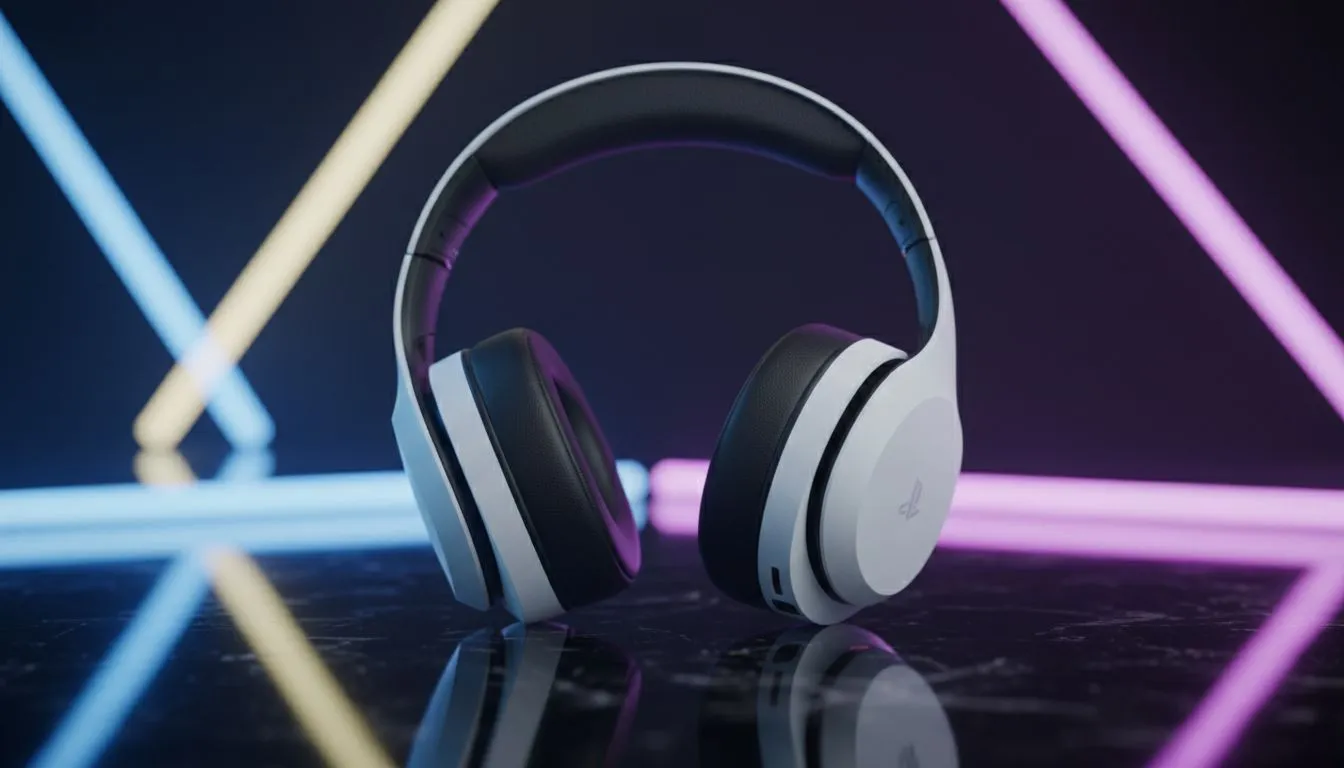
Nothing ruins a Friday night gaming session in Johannesburg like getting sniped from a direction you never heard coming. In competitive shooters, sound is your most valuable weapon. Getting your PS5 audio settings for footsteps and positional sound right can be the difference between a clutch win and a frustrating trip back to the lobby. Let’s dive into how you can optimise your setup for total tactical awareness. 🎧
Master the PS5 System Audio Settings
Before you even load into a match, you need to ensure your console is communicating correctly with your hardware. Sony’s Tempest 3D AudioTech is a powerful tool, but it requires a bit of fine-tuning to work effectively for competitive play.
Start by navigating to your Settings, then Sound, and finally Audio Output. Ensure that "Enable 3D Audio for Headphones" is toggled on. The most important step here is "Adjust 3D Audio Profile". Everyone’s ears are shaped differently... this setting allows you to choose a profile that matches your ear level. Pick the one where the sound feels like it is coming directly from your side, not above or below.
To get the most out of these features, you need hardware that can actually reproduce those subtle cues. Browsing through high-quality headphone headsets is the best way to ensure your gear isn't holding your gameplay back.
Fine-Tuning In-Game Audio for Footsteps
Once your system settings are locked in, you need to look at your specific game’s menu. Most modern shooters like Call of Duty or Apex Legends have multiple audio presets. While "Studio Reference" sounds great for movies, it often buries footsteps under heavy bass.
Look for a "Boost High" or "Midnight Mode" setting. These presets tend to compress the dynamic range... this means loud explosions are quieter, while quiet sounds like shuffling feet or reloading weapons are amplified. If you are using a premium option like the Razer Barracuda X Chroma Wireless Headset, you will notice that the clear mids and highs make these positional cues stand out even more.
Audio EQ Pro Tip ⚡
When setting up your EQ, try to slightly boost the 2kHz to 4kHz range. This is where the 'crunch' of footsteps usually lives. Reducing heavy bass can also prevent explosions from drowning out vital movement sounds during intense firefights.
Choosing the Right Gear for Positional Sound
You don't need to spend tens of thousands of Rands to get a competitive edge, but quality drivers are essential. Positional sound relies on the headset's ability to create a wide soundstage. This allows you to pinpoint exactly where a sound is originating in a 360-degree space. 🚀
If you find that your current setup feels "muddy," it might be time for an upgrade. You can explore a wide variety of specialised gear in the Razer headphones and headsets category. These devices are often tuned specifically for gamers who need to hear every detail in the heat of battle.
Remember to keep your controller or headset firmware updated via the PS5. Sony frequently releases patches that improve the 3D audio implementation... staying updated ensures you are always using the latest spatial algorithms. ✨
Ready to Hear Every Move? Finding the right PS5 audio settings for footsteps and positional sound is only half the battle. To truly dominate the lobby, you need the right hardware. Explore our massive range of gaming headsets and find the perfect pair to elevate your competitive play.











