

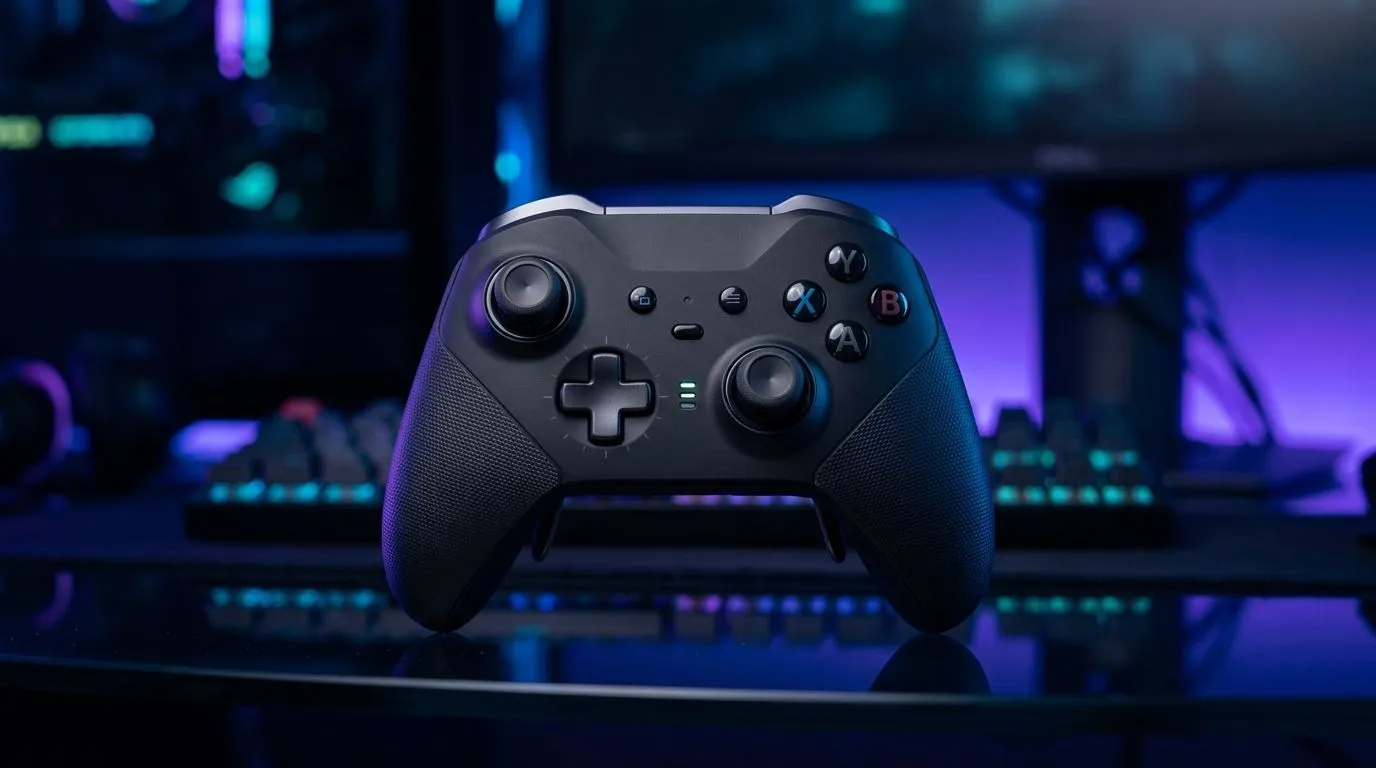
Cut Wireless Input Lag on PC with Better Setup ⚡
Ever feel like your shots land half a heartbeat late… even though your aim feels right? On PC, wireless controllers can be brilliant for couch comfort, but input lag is the one thing that makes competitive play feel off. If you’re gaming in South Africa and want smoother movement in shooters, fighters, or even competitive FIFA, the good news is: you can often reduce lag with a few smart tweaks… without replacing your whole setup.
Reduce Input Lag on a Wireless Gaming Controller on PC: Start With the Right Connection 🔧
Wireless lag isn’t just the controller. It’s the entire path: controller signal, PC Bluetooth stack, Wi‑Fi congestion, and controller firmware behaviour.
Prefer Low-Latency Wireless Paths
If your controller supports more than one mode (Bluetooth vs dedicated wireless dongle), use the lowest-latency option first. Dedicated dongles typically avoid Bluetooth contention, which helps when your Wi‑Fi is busy.
If you’re shopping specifically for responsiveness, Evetech’s controller range is a solid place to compare options and features: https://www.evetech.co.za/PC-Components/buy-gaming-controllers-365
Update Firmware and Use Stable Settings
Before you blame the hardware, check whether the controller has a firmware update (often via the manufacturer’s app). Updates can fix performance and consistency issues. Then, in Windows, set your controller mode to what the manufacturer recommends for gaming (not “media” or “power saving”, if those options exist).
Reduce Input Lag on a Wireless Gaming Controller on PC by Cutting PC-Wide Bottlenecks 🚀
Even with a perfect controller, PC-side lag can sneak in.
Tame “Power Saving” and USB/Wireless Sleep
On Windows, power-saving settings can make wireless devices behave unpredictably. Turn off sleep for USB devices where possible, and ensure your wireless adapter isn’t aggressively saving power during gameplay.
Match Your Refresh Rate and V-Sync Choices
Your monitor refresh rate and graphics settings can make input feel delayed. For competitive play:
- Use the monitor’s native refresh rate
- Avoid heavy input-lag settings unless you tested them (like aggressive frame pacing)
This is also why testing matters. Change one setting at a time and do a short 10-minute session per tweak.
Choose a Controller With the Right “Responsive” Build
Some controllers are designed around low-latency wireless behaviour. If you’re specifically after a responsive pad for PC, consider a model like the Razer Wolverine V3 Tournament Edition, often chosen for esports-style reliability. You can compare it here: https://www.evetech.co.za/razer-wolverine-v3-tournament-edition-8k/best-deal/24274
And if you want to narrow by brand, Evetech can help you start there too: https://www.evetech.co.za/PC-Components/buy-gaming-controllers-365?brands=Raze
Productivity Pro Tip ⚡
On Windows, test latency changes quickly by locking your in-game settings and using a consistent “warm-up” routine (same game mode, same sensitivity). After each tweak, play 10 minutes only. If you keep changing multiple settings, you’ll never know what actually helped.
Reduce Input Lag on a Wireless Gaming Controller on PC: Practical Tests (No Guessing) ✨
Here’s a simple method you can do tonight:
- Baseline: Use Bluetooth mode (or your current mode) and note how it feels in one match.
- Change one variable: Switch to a dedicated wireless dongle mode (if available) or move the PC away from the router.
- Reduce interference: Put your router farther from the PC, and avoid stacking the PC, router, and controller charging cables together.
- Re-test: Same match type, same scenario. You’re looking for “time-to-action” improvements, not just comfort.
If your lag disappears in one mode but not the other… you’ve just identified the culprit.
Reduce Input Lag on a Wireless Gaming Controller on PC: When It’s Worth Upgrading
If you’ve tried firmware updates, mode changes, and Windows power settings and it’s still noticeably delayed, it may be the controller’s wireless implementation or receiver strength.
That’s when a new controller is not about “more features”. It’s about stable, consistent wireless performance. Browse Evetech’s selection and compare wireless modes, build quality, and responsiveness: https://www.evetech.co.za/PC-Components/buy-gaming-controllers-365
Ready to Find Your Perfect Match? The Mac vs Windows debate is complex, but for maximum power, choice, and value in South Africa, Windows is hard to beat. Explore our massive range of laptop specials and find the perfect machine to conquer your world.











