

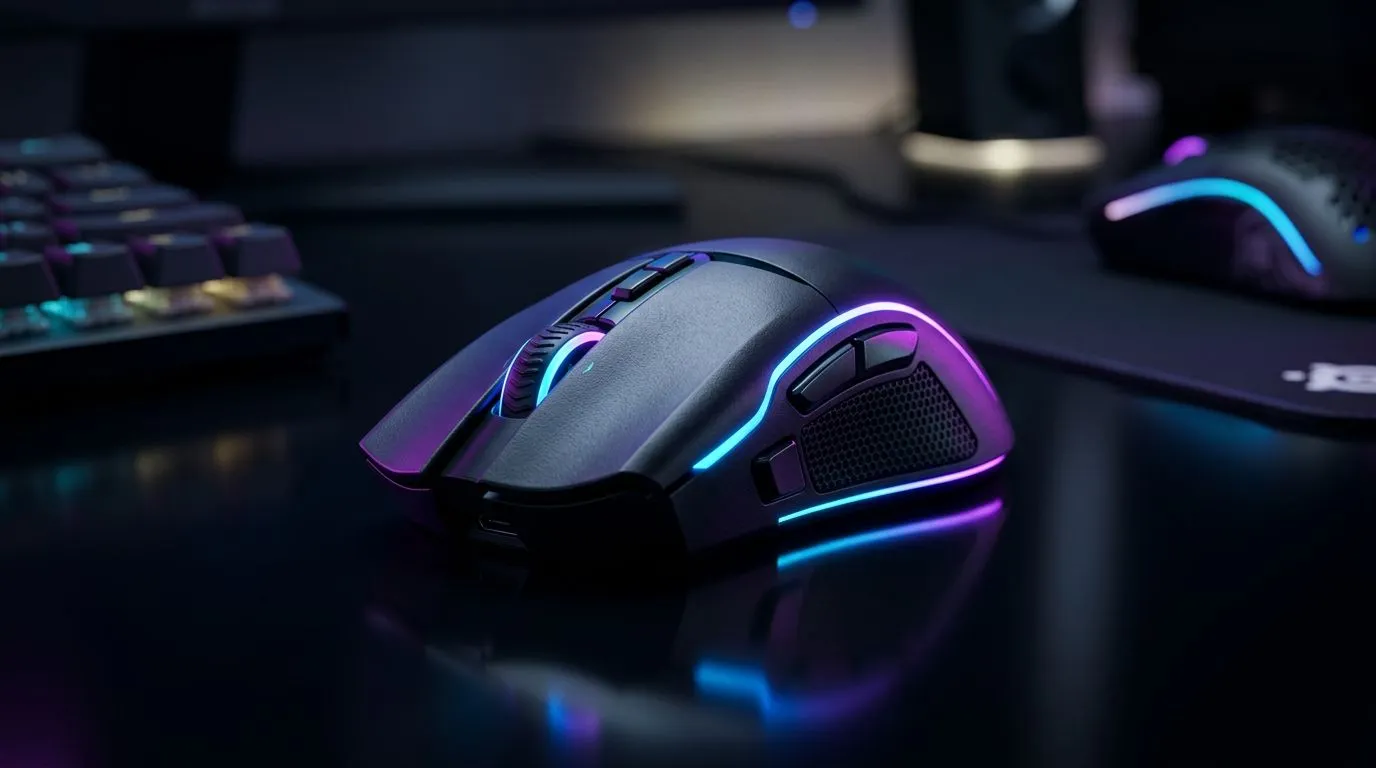
RGB Software Conflicts: Fix Mouse Lighting Without Crashes
Your mouse lighting should level up your battlestation, not freeze it. If your RGB software keeps crashing, fighting with Windows, or refusing to save profiles, you’re not alone. Many South African gamers run into this after a fresh install, a driver update, or adding a second brand’s utility. The good news? Most RGB software conflicts are fixable without replacing the mouse... or losing your cool 🔧
RGB Software Conflicts: Why Mouse Lighting Breaks in the First Place
The problem usually starts when two programs want control of the same device. A mouse utility, motherboard suite, keyboard app, and headset software can all try to manage lighting at once. That tug-of-war can cause lag, random resets, missing profiles, or a full crash.
This matters more if you’ve built your setup piece by piece. A lot of SA gamers do. One month it’s a new desk mat. The next month it’s a better sensor, or a fresh clicky mouse for ranked nights. If you’re browsing mouse accessories, remember that some extras are passive, while others may come with their own software layer.
The simplest fix is often the best one. Keep only one RGB control suite active for the mouse. If your mouse brand has its own software, use that first. Then disable overlapping lighting features in motherboard or peripheral apps.
Quick checks before you uninstall anything
- Close all RGB apps from the system tray.
- Update the mouse software and Windows.
- Reboot once after each change.
- Test the mouse with lighting set to a single static colour.
- If the crash stops, the issue is likely software overlap.
If you’re using a wired device for competitive play, a stable cable connection can also reduce weird disconnect behaviour. Browse wired mouse options if you want fewer wireless variables in the mix.
Quick Stability Tip ⚡
Before changing three settings at once, test one adjustment at a time. Set RGB to static colour, restart, then reopen only one software suite. It’s the fastest way to identify which app is causing the conflict.
RGB Software Conflicts: How to Fix Crashes Without Guesswork
Start with a clean software stack. Uninstall old utilities for mice you no longer own. Then check for leftovers in startup items. A forgotten launcher can still seize control of your lighting profile after you log in.
Next, look for brand ecosystems. Some suites are powerful, but they can also be heavy. If you only need mouse lighting, avoid installing every optional module. Fewer background services usually means fewer crashes. That’s especially handy on mid-range gaming PCs where every process counts.
If you prefer the freedom to swap devices often, wireless mouse models can be great... but only when the dongle, battery, and companion software are all behaving. Keep firmware current, and re-pair the mouse after major updates if the lighting becomes unstable.
Best practice for a cleaner setup
- Use one primary RGB app per device brand.
- Disable third-party lighting sync unless you truly need it.
- Remove duplicate startup entries.
- Update firmware from the official device software.
- Test after every step.
If you’re shopping for a fresh replacement, check best gaming mouse deals before you commit. A better-supported mouse often beats a flashy one with messy software.
RGB Software Conflicts: Choosing Hardware That Plays Nicely
Not every mouse is equally picky. Some are built for simple plug-and-play use, while others lean heavily on companion software for DPI, macros, and lighting. If you want fewer headaches, look at models with clean driver support and straightforward control panels.
That’s where gaming mouse options can help. Compare features carefully. Ask yourself what you actually need. Do you want RGB sync across your whole rig? Or just a mouse that tracks well and stays stable during late-night sessions? Sometimes less software means more reliability ✨
For South African buyers, value matters too. A smart purchase in rand can save you hours of troubleshooting later. If a mouse costs less to buy but more to maintain in software friction, it’s not always the better deal.
RGB Software Conflicts: When to Stop Troubleshooting and Replace the Mouse
If lighting still crashes after updates, cleanup, and a single-app setup, the hardware or firmware may be the issue. Repeated failures can point to a bad cable, an unstable dongle, or software support that’s simply outdated.
At that stage, it may be easier to move to a mouse with better compatibility. That doesn’t mean overspending. It means buying once, then gaming in peace. For many players, that’s worth more than a rainbow effect that keeps dropping out mid-match.
Ready to Find Your Perfect Match? The Mac vs Windows debate is complex, but for maximum power, choice, and value in South Africa, Windows is hard to beat. Explore our massive range of laptop specials and find the perfect machine to conquer your world.











