

RX 9070 XT Elden Ring Nightreign at 4K: FPS Benchmark & Optimal Settings
RX 9070 XT Elden Ring Nightreign at 4K: FPS. Real-world benchmark data, FPS numbers & performance analysis. What SA gamers can actually expect.
Read more• Compare RTX 5060 Ti Rocket League settings: High Quality vs Performance • Benchmark FPS, input lag and visuals • Recommend 1080p/1440p presets 🔧⚡ Practical guide to tune your RTX 5060 Ti for Rocket League balance.
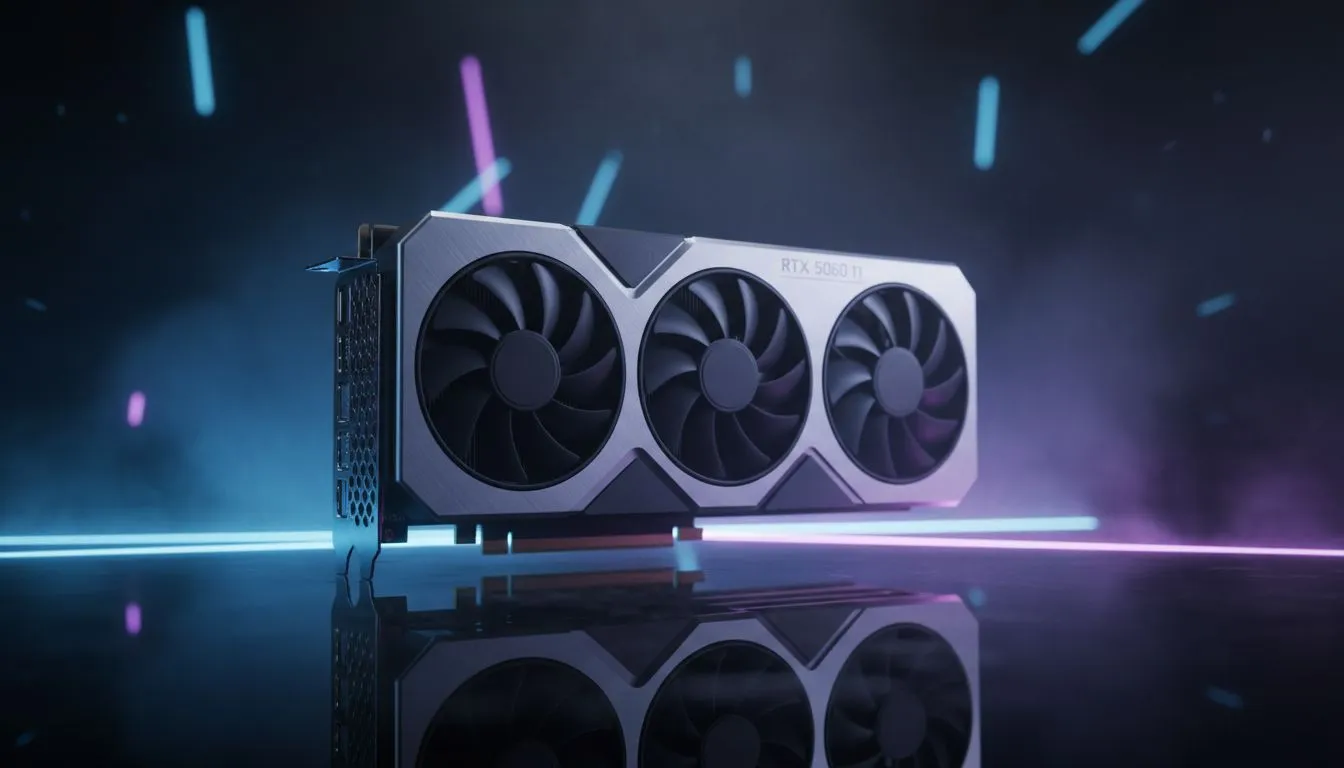
Rocket League is all about speed and precision. In South Africa, where ping can be a pain, your frame rate shouldn't be. The RTX 5060 Ti is a beast for 1080p and 1440p gaming. But should you crank the settings to "High Quality" or stick to "Performance" for that competitive edge? Let's dive into the best RTX 5060 Ti Rocket League settings: High Quality vs Performance for your local setup.
When you are playing on South African servers, every millisecond counts. Choosing the right latest NVIDIA graphics cards is the first step toward a smooth experience. The RTX 5060 Ti handles High Quality settings with ease... often pushing well over 240 FPS at 1080p. However, many pros prefer Performance settings to reduce input latency. 🚀
If you want your car to shine and the grass to look lush, High Quality is the way to go. You can find premium MSI GPU options that keep temperatures low while looking great. While some might look at Intel Arc alternatives, the NVIDIA driver support for Rocket League remains incredibly stable. High Quality enables Bloom, Motion Blur, and high-intensity shaders. It makes the game look modern and vibrant on a high-refresh monitor. ✨
Turn off V-Sync in the Rocket League settings menu. It adds noticeable input lag that can ruin your timing on aerials. If you experience screen tearing, use NVIDIA G-Sync or Freesync instead for a much smoother experience without the delay.
Competitive players usually turn off everything. This includes World Detail and Weather Effects. Even if you aren't using workstation graphics cards for professional rendering, your gaming card needs to breathe. Lowering settings ensures that frame drops are non-existent during heavy goal explosions.
Some users might compare this to AMD Radeon graphics cards, but the RTX 5060 Ti holds its own in frame consistency. By selecting "Performance" or "High Performance" in the render settings, you maximise your visibility. This makes it easier to track the ball across the pitch without distractions. 🔧
For the casual player in Johannesburg or Cape Town, High Quality offers a beautiful experience. The RTX 5060 Ti has more than enough power to keep things fluid. But if you are climbing the ranks, Performance settings are non-negotiable. You want the highest possible frame rate to match your monitor's refresh rate. This ensures your inputs are registered as fast as possible. ⚡
Ready to Find Your Perfect Match? Choosing between quality and speed is easier when you have the right hardware. For maximum power, choice, and value in South Africa, the RTX series is hard to beat. Explore our massive range of NVIDIA graphics cards and find the perfect machine to conquer the pitch.
Use Performance for competitive play to maximize FPS and reduce input lag; choose High Quality for casual play or streaming when visuals matter.
Start with Performance preset, disable motion blur, set render scale to 100%, enable DLSS Quality/Balanced if available, and tune post processing to taste.
Expect 200+ FPS at 1080p on Performance preset with a 144Hz monitor; High Quality or higher render scales will reduce that depending on settings.
Yes. DLSS can raise FPS noticeably at 1440p with minimal visual loss; use Quality or Balanced DLSS modes for the best tradeoff.
Lower presets to Performance, disable VSync, enable low latency mode in NVIDIA control panel, and run at native refresh rate to cut input lag.
Choose 1080p for maximum FPS and competitive edge; pick 1440p if visuals matter and use DLSS or Quality tweaks to preserve smooth FPS.
RX 9070 XT Elden Ring Nightreign at 4K: FPS. Real-world benchmark data, FPS numbers & performance analysis. What SA gamers can actually expect.
Read more
RTX 5090 Marvel Rivals FPS: Performance Benchmark. Real-world benchmark data, FPS numbers & performance analysis. What SA gamers can actually expect.
Read more
Intel Arc A770 Escape from Tarkov Performance. Real-world benchmark data, FPS numbers & performance analysis. What SA gamers can actually expect.
Read more
Head-to-head comparison of RX 9070 XT vs RTX 6070: Gaming Performance for SA gamers. Performance benchmarks, Rand pricing & which delivers better value.
Read more
Head-to-head comparison of RTX 5060 Ti Mining vs Gaming: Does It Affect for SA gamers. Performance benchmarks, Rand pricing & which delivers better value.
Read more
Ryzen 7 7800X3D Gaming Benchmark: FPS Across 20. Real-world benchmark data, FPS numbers & performance analysis. What SA gamers can actually expect.
Read more
RX 7800 XT The Witcher 4 Low Settings at 1440p. Real-world benchmark data, FPS numbers & performance analysis. What SA gamers can actually expect.
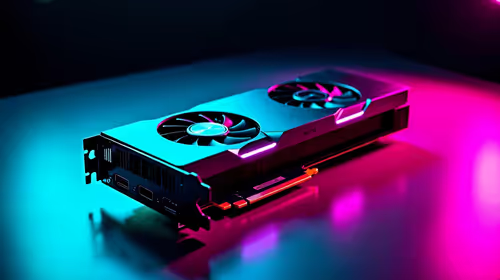
RTX 5070 GTA 6 High Settings at 1440p: FPS Results. Real-world benchmark data, FPS numbers & performance analysis. What SA gamers can actually expect.
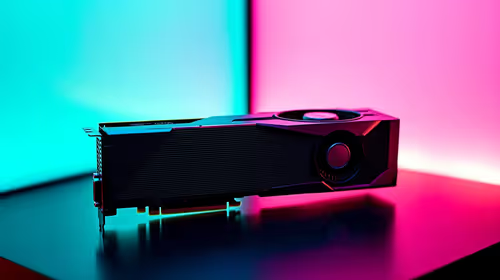
Does RTX 5070 Run Hot in South African Climate Detailed answer with SA data, expert analysis & practical recommendations for local buyers.
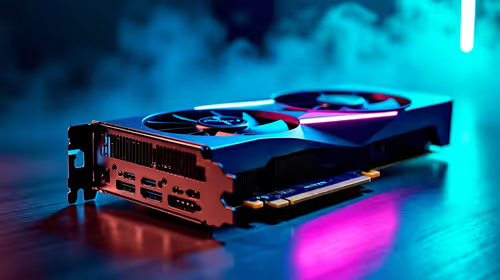
How Long Will the RX 7900 XTX Last for Gaming Detailed answer with SA data, expert analysis & practical recommendations for local buyers.
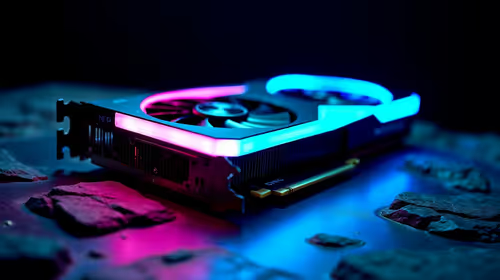
Every spec on PCIe 5.0 explained in plain English. What matters for gaming and creator work in 2026, what's marketing fluff, and how each number translates to real-world performance.
Every spec on bios explained in plain English. What matters for gaming and creator work in 2026, what's marketing fluff, and how each number translates to real-world performance.
Every spec on gaming setups explained in plain English. What matters for gaming and creator work in 2026, what's marketing fluff, and how each number translates to real-world performance.
Every spec on cooling systems explained in plain English. What matters for gaming and creator work in 2026, what's marketing fluff, and how each number translates to real-world performance.
Every spec on 10tb enough storage explained in plain English. What matters for gaming and creator work in 2026, what's marketing fluff, and how each number translates to real-world performance.
External HDD vs External SSD: real-world performance, SA pricing, power draw and which one delivers better value for your build. The clear answer — without the fluff.
What to prioritise when shopping for external hard drive in South Africa: the specs that matter, Rand value tiers, and the trade-offs between budget and flagship picks in 2026.
Desktop External HDDs vs Portable Drives: real-world performance, SA pricing, power draw and which one delivers better value for your build. The clear answer — without the fluff.