

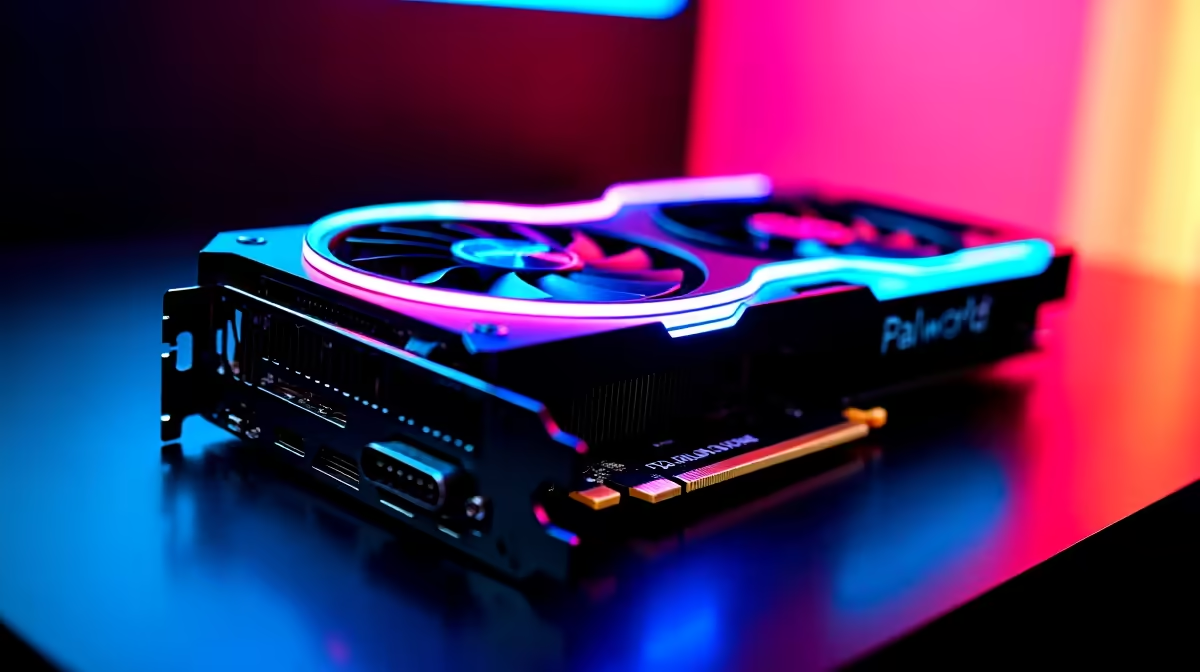
The RTX 5070 Ti is NVIDIA's high-performance Ada successor, and Palworld gives it a genuine workout thanks to its open-world rendering, creature density, and dynamic lighting systems. If you want to know exactly what to expect at 1080p and how to dial in settings for the best experience, this benchmark guide covers it.
Quick Answer
The RTX 5070 Ti at 1080p in Palworld delivers well over 120 FPS at max settings with DLSS Quality enabled, and exceeds 100 FPS even in demanding base-building areas at native resolution. At 1080p this card is overqualified - ideal if you plan to push to 1440p or 4K later.
RTX 5070 Ti Palworld FPS at 1080p 🔧
At 1080p with Epic settings and no upscaling, the RTX 5070 Ti sustains well above 100 FPS in Palworld across most gameplay scenarios. Exploration in open biomes typically runs at 140-170 FPS, while complex base areas with many Pals performing tasks and structures generating draw calls can push the GPU harder, dropping to around 90-110 FPS depending on base complexity.
Enabling DLSS Quality mode - which renders at approximately 720p and upscales to 1080p with excellent image quality - pushes frame rates into the 180-220+ FPS range consistently. For a 144Hz or 165Hz monitor this is the sweet spot: maximum smoothness with near-native visual quality.
For a gaming PC built around the RTX 5070 Ti, pairing it with a 1440p or 4K monitor makes more sense than 1080p given the card's capabilities.
Optimal Settings for the RTX 5070 Ti at 1080p 💡
Given the RTX 5070 Ti's headroom at 1080p, max settings across the board is a reasonable starting point. However, a few targeted adjustments improve both performance and visual consistency:
- Anti-Aliasing: TAA with DLSS Quality - smoother than native TAA and faster
- Shadows: Epic - the 5070 Ti handles this without issue; dropping to High saves 5-10 FPS if needed
- Textures: Epic - fills VRAM efficiently, no performance penalty
- View Distance: Epic - impacts CPU rather than GPU; no reason to lower on capable hardware
- Grass and Foliage: High - minimal visual difference from Epic, slight CPU benefit
- Ray Tracing: Enable Ambient Occlusion at minimum if you want RT features; full RT has a 30%+ cost even on this card at 1080p
With these settings and DLSS Quality, the RTX 5070 Ti at 1080p is a completely unconstrained Palworld experience. The main limiter becomes your CPU, particularly in busy multiplayer servers.
CPU Pairing and SA Build Recommendations ⚡
At 1080p the RTX 5070 Ti can be CPU-limited in Palworld due to the game's simulation-heavy workload. Pair it with at minimum a Core i7-14700K, Ryzen 7 7800X3D, or equivalent to avoid CPU bottlenecks. The Ryzen 7 7800X3D in particular is excellent for open-world games thanks to its large L3 cache, which reduces memory latency in traversal-heavy scenarios.
For the best Palworld experience with this GPU, a full graphics card upgrade path that includes fast DDR5 RAM at 32GB gives you the headroom to run Palworld servers locally or host multiplayer sessions without throttling gameplay performance.
Frequently Asked Questions ❓
Q: Is the RTX 5070 Ti too powerful for 1080p gaming? A: At 1080p the card is significantly underutilised in most games. It makes more sense paired with a 1440p or 4K monitor, or a 1080p 240Hz display for maximum frame rates.
Q: Does Palworld support DLSS Frame Generation on the RTX 5070 Ti? A: DLSS Frame Generation support in Palworld has been progressively added. Check current patch notes as support has expanded with updates since launch.
Q: What is a good 1080p monitor to pair with the RTX 5070 Ti for Palworld? A: A 1080p 240Hz display extracts the most value from the card's frame rates at this resolution. Alternatively, stepping up to a 1440p 144Hz or 165Hz monitor is a natural pairing.
Evetech stocks RTX 5070 Ti Gaming PCs and RTX 5070 Gaming PCs — browse current SA pricing and availability online.
Ready to Find Your Perfect Match? Explore relevant Evetech options, compare current South African pricing, and choose hardware that fits your setup. Shop now











