

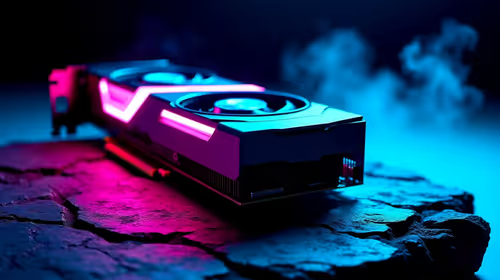
RTX 5070 Cyberpunk 2077 at 1440p: FPS Benchmark & Optimal Settings
RTX 5070 Cyberpunk 2077 at 1440p: FPS Benchmark. Real-world benchmark data, FPS numbers & performance analysis. What SA gamers can actually expect.
Read moreRX 7600 Call of Duty Warzone FPS: Performance. Real-world benchmark data, FPS numbers & performance analysis. What SA gamers can actually expect.

Dropping into Urzikstan with stuttering frames is a quick way to visit the Gulag. You need reliable hardware to dominate local South African lobbies without spending a fortune in ZAR. Today we are looking closely at the RX 7600 Call of Duty Warzone FPS experience. Is AMD's budget-friendly GPU enough to secure those high-kill wins? Let us find out.
AMD built the Radeon RX 7600 specifically for high-refresh 1080p dominance. It features the highly efficient RDNA 3 architecture... delivering excellent rasterisation performance. When you browse the latest graphics cards, you will notice the RX 7600 offers incredible value for South African gamers.
It punches well above its weight class in pure rendering speed. You get 8GB of fast GDDR6 memory. This capacity represents the perfect sweet spot for modern competitive shooters. It handles the massive map textures of Warzone without breaking a single sweat.
Numbers do not lie when it comes to competitive gaming. When testing the RX 7600 Call of Duty Warzone FPS output, the results are highly impressive. At 1080p on 'Basic' or 'Low' competitive settings, you can easily push past 120 FPS. This ensures your gameplay remains buttery smooth during intense firefights.
Bumping the visual quality to 'High' still yields a very playable 85 to 100 FPS. You will not notice any major stuttering even when multiple airstrikes hit your location. If you want this exact performance out of the box, check out the best gaming PC deals available right now. Alternatively, you can grab one of our rigorously tested pre-built PC deals to skip the assembly process entirely.
Achieving the highest Warzone FPS on your RX 7600 requires a few smart tweaks. You want to maximise frame rates while keeping enemies easy to spot. Set your render resolution to exactly 100%. Turn off world and weapon motion blur immediately. Keep texture resolution on 'Normal' to balance visual fidelity and VRAM usage perfectly.
Enable AMD FidelityFX Super Resolution (FSR) 2.1 in your Warzone settings. Set it to 'Quality' mode. This renders the game at a slightly lower resolution and upscales it, giving you a massive FPS boost without making the map look blurry.
Shadows and lighting consume a massive amount of graphical power. Turn your shadow map resolution down to 'Low'. Disable screen space shadows completely to free up vital GPU resources. You should also set particle quality to 'Low' to maintain high frames during explosions.
If you prefer taking this optimised setup on the road, modern gaming laptops pack remarkably similar hardware. You can easily find great component discounts to upgrade your rig by keeping a close eye on our weekly tech specials.
Ready to Dominate the Warzone? Getting high frames does not have to drain your bank account. For maximum power, choice, and value in South Africa, Evetech is hard to beat. Explore our massive range of graphics cards and find the perfect hardware to conquer your next match.
RX 7600 Call of Duty Warzone FPS: Perfor available at Evetech.co.za with local warranty and fast delivery.
RX 7600 Call of Duty Warzone FPS: Perfor - check Evetech for latest stock and SA pricing.
Depends on your use case. RX 7600 Call of Duty Warzone F offers good value at current Rand pricing.
RTX 5070 Cyberpunk 2077 at 1440p: FPS Benchmark. Real-world benchmark data, FPS numbers & performance analysis. What SA gamers can actually expect.
Read more
RTX 3060 Crimson Desert at 1080p: FPS Benchmark. Real-world benchmark data, FPS numbers & performance analysis. What SA gamers can actually expect.
Read more
RTX 5060 Ti Starfield at 1080p: FPS Benchmark. Real-world benchmark data, FPS numbers & performance analysis. What SA gamers can actually expect.
Read more
Intel Arc B580 Assassins Creed Shadows at 1440p. Real-world benchmark data, FPS numbers & performance analysis. What SA gamers can actually expect.
Read more
RX 9070 Avowed at 4K: FPS Benchmark & Optimal. Real-world benchmark data, FPS numbers & performance analysis. What SA gamers can actually expect.
Read more
RX 9070 XT Linux Support: Benchmark & Real-World. Real-world benchmark data, FPS numbers & performance analysis. What SA gamers can actually expect.
Read more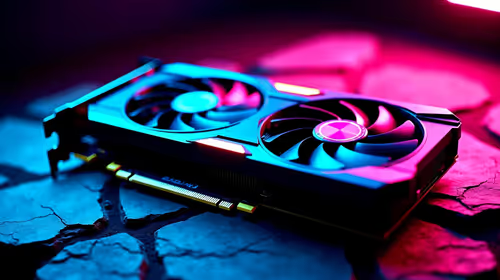
RX 7800 XT The Witcher 4 Low Settings at 1440p. Real-world benchmark data, FPS numbers & performance analysis. What SA gamers can actually expect.
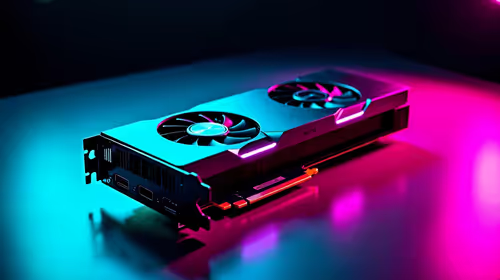
RTX 5070 GTA 6 High Settings at 1440p: FPS Results. Real-world benchmark data, FPS numbers & performance analysis. What SA gamers can actually expect.
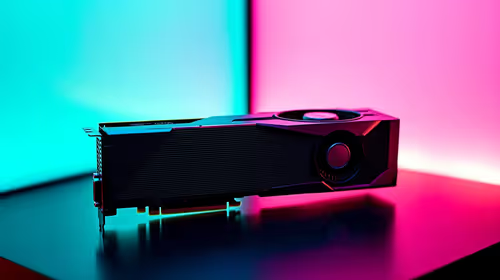
Does RTX 5070 Run Hot in South African Climate Detailed answer with SA data, expert analysis & practical recommendations for local buyers.
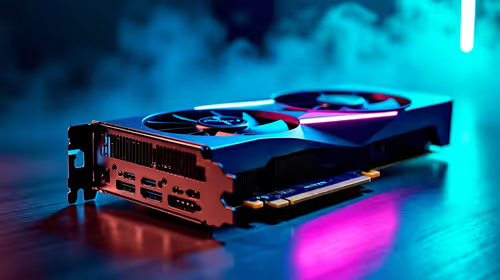
How Long Will the RX 7900 XTX Last for Gaming Detailed answer with SA data, expert analysis & practical recommendations for local buyers.
Every spec on PCIe 5.0 explained in plain English. What matters for gaming and creator work in 2026, what's marketing fluff, and how each number translates to real-world performance.
Every spec on bios explained in plain English. What matters for gaming and creator work in 2026, what's marketing fluff, and how each number translates to real-world performance.
Every spec on gaming setups explained in plain English. What matters for gaming and creator work in 2026, what's marketing fluff, and how each number translates to real-world performance.
Every spec on cooling systems explained in plain English. What matters for gaming and creator work in 2026, what's marketing fluff, and how each number translates to real-world performance.
Every spec on 10tb enough storage explained in plain English. What matters for gaming and creator work in 2026, what's marketing fluff, and how each number translates to real-world performance.
External HDD vs External SSD: real-world performance, SA pricing, power draw and which one delivers better value for your build. The clear answer — without the fluff.
What to prioritise when shopping for external hard drive in South Africa: the specs that matter, Rand value tiers, and the trade-offs between budget and flagship picks in 2026.
Desktop External HDDs vs Portable Drives: real-world performance, SA pricing, power draw and which one delivers better value for your build. The clear answer — without the fluff.