

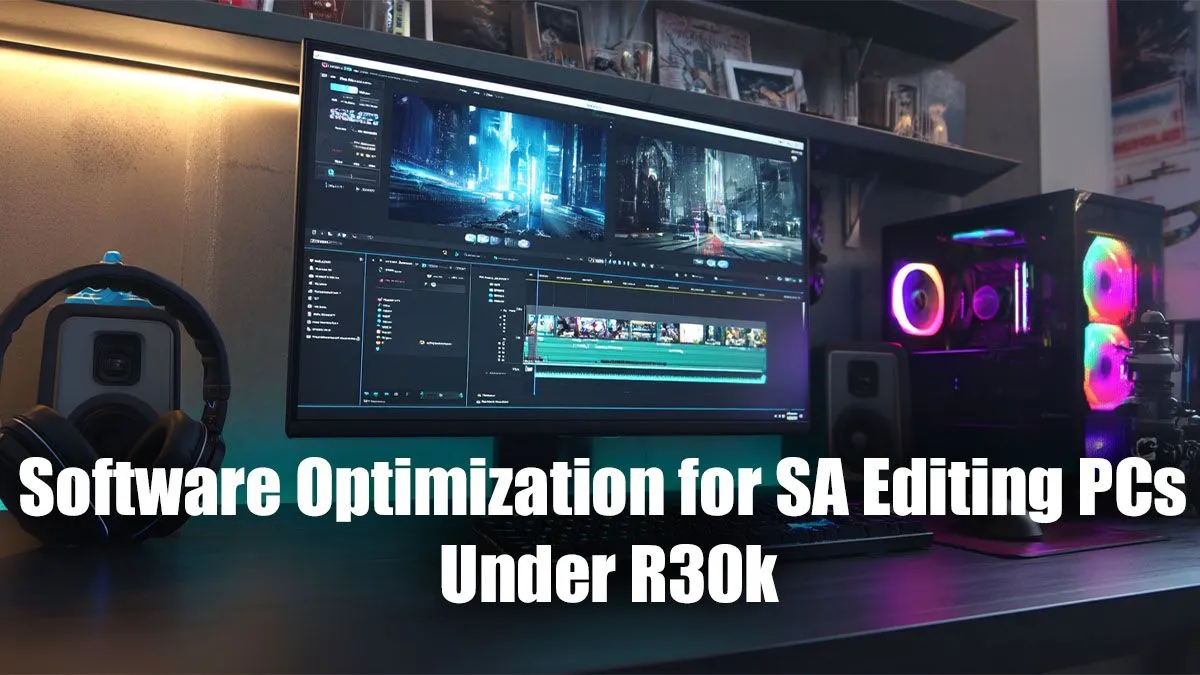
You’ve spent your hard-earned cash on a decent editing PC under R30k, but Adobe Premiere Pro still chugs and your DaVinci Resolve timeline feels sluggish. What gives? Often, the bottleneck isn't just your hardware… it's your software setup. Before you think about upgrading, let’s apply some crucial software optimization for your editing PC. These tweaks can unlock the professional speed you paid for without you spending another cent. Let's get your creative workflow flying. 🚀
Tweak Your OS for Peak Performance
Before you even open your editing software, the first step is to get your operating system running lean and mean. A well-configured Windows setup is the foundation for a smooth editing experience. It ensures that maximum resources are dedicated to your creative work, not to unnecessary background tasks.
### Declutter and Update
Start with the basics. Uninstall any software you don't use (bloatware) and disable unnecessary startup programs in the Task Manager (Ctrl+Shift+Esc). Most importantly, make sure your graphics card drivers are up to date directly from the NVIDIA or AMD website. These updates often include specific performance improvements for creative applications.
### Power Plan and Game Mode
Go to your Windows Power Options and select the "High Performance" or "Ultimate Performance" plan. This prevents your CPU from throttling down to save power. And here's a pro tip: enable Windows Game Mode. While it sounds counterintuitive, it helps by prioritising your active application and limiting background processes, which is fantastic for resource-hungry editing software. Many of these OS-level optimisations are why even affordable budget gaming PCs can punch well above their weight for creative tasks.
Optimise Your Editing Software Settings
Now we get to the heart of the matter. The default settings in programs like Premiere Pro, DaVinci Resolve, or Final Cut Pro are rarely optimised for your specific hardware. A few minutes spent in the preferences menu can result in hours saved during editing and rendering. This is the most critical part of software optimization for editing PCs.
### Playback Resolution & Proxies
Are you trying to scrub through 4K footage on a 1080p timeline preview? It’s overkill. Drop your playback resolution to ½ or ¼. Your final export will still be full quality, but your timeline will be infinitely smoother. For truly demanding footage (like 4K 10-bit or RAW), creating proxies is essential. These are low-resolution copies of your media that make editing a breeze. Even our most capable editing PCs under R20k see a massive performance jump when using a proxy workflow.
Enable GPU Acceleration ⚡
In your editing software's preferences (often under 'Playback' or 'Memory & GPU'), ensure GPU acceleration (CUDA for NVIDIA, OpenCL Metal for AMD) is enabled. This offloads heavy lifting like rendering effects, colour grading, and encoding from your CPU to your more powerful graphics card, drastically improving performance.
### Smart Cache Management
Your media cache is where your software stores temporary files to speed up performance. By default, it's often on your main C: drive. For a huge speed boost, dedicate a separate, fast SSD just for your cache files. Go into your software’s settings and point the Media Cache location to this drive.
The Unspoken Truth: When Hardware is the Limit
Software tweaks are powerful, but they aren't magic. ✨ Software optimization for editing PCs can make a good machine great, but it can't make an underpowered machine a professional workstation. If you're editing multi-layer 4K projects on a PC with only 8GB of RAM and an old quad-core CPU, you will eventually hit a hard wall.
Key components matter. For video editing, CPU core count affects render times, RAM capacity impacts how many applications you can run smoothly, and GPU VRAM is crucial for handling high-resolution timelines and effects. If you've done all the optimisations and still experience frustrating lag, it might be time to consider a hardware upgrade. Often, the rigs found in the best gaming PC deals are perfectly suited for editing thanks to their powerful multi-core CPUs and beefy graphics cards. For serious creative professionals, investing in powerful machines over R20k provides the headroom needed for complex projects and future-proofs your workflow.
Putting It All Together for Pro Speed 🔧
Achieving professional speed on a budget is a two-part strategy. First, you squeeze every drop of performance from your current system with smart software optimisation. Second, you ensure you started with a solid hardware foundation. By following the tips above, you can significantly improve your editing experience and reduce frustrating delays.
Ultimately, the smoother your workflow, the more creative you can be. Starting with a balanced system from one of our great pre-built PC deals gives you the perfect canvas to apply these optimisations, creating a truly powerful editing machine without breaking the bank.
Ready to Stop Lagging and Start Creating? Smart software optimization unlocks hidden speed, but it all starts with the right hardware. Don't let a slow PC kill your creative flow. Explore our range of custom-built editing PCs and configure the perfect machine to bring your vision to life.











