

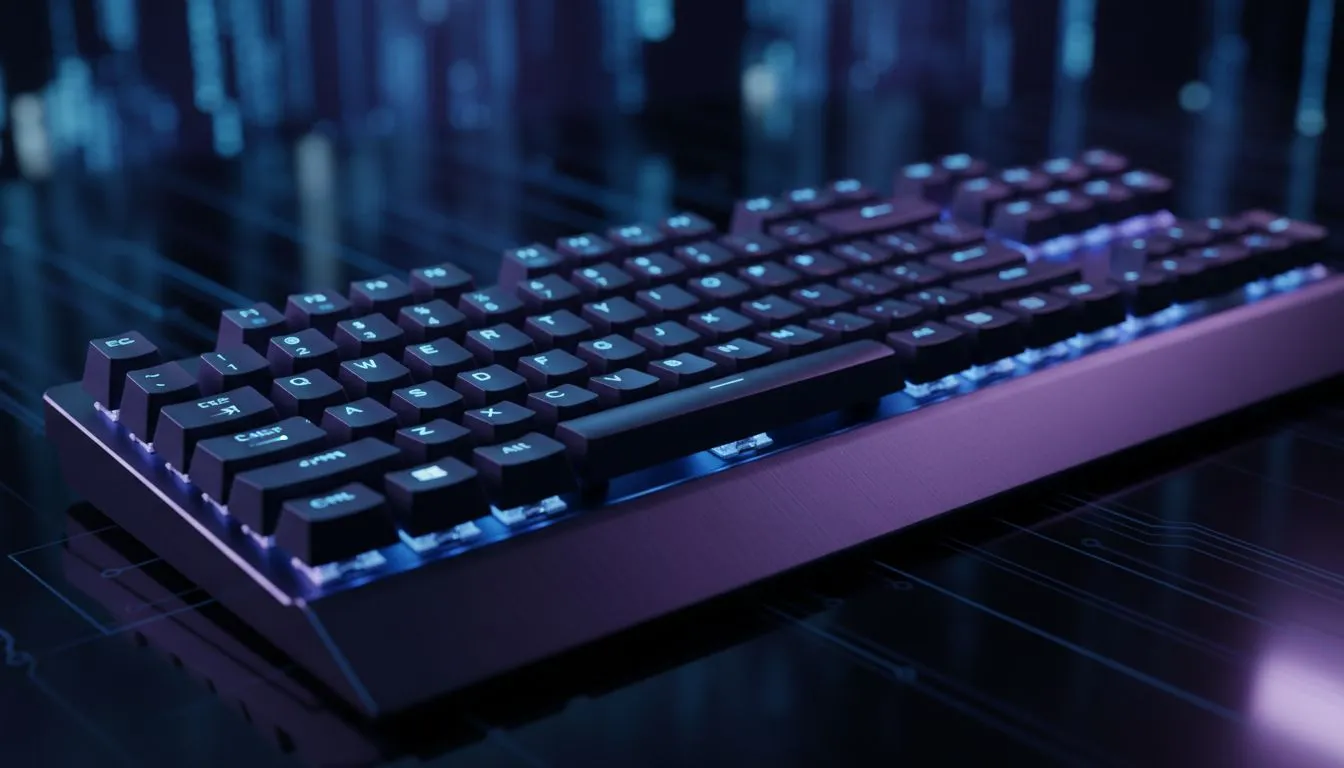
Optimising Windows Settings to Stop Keyboard Input Delay on PC
There is nothing more frustrating than losing a clutch round in Valorant because your movement felt "floaty". You press a key to strafe, but your character lags behind. While we often blame local ping, the culprit is frequently hidden in your OS settings. If you want to stop keyboard input delay on PC, you need to optimise your software and hardware immediately. ⚡
The first step involves your Windows Keyboard properties. Open your Control Panel and find the Keyboard settings. You will see "Repeat delay" and "Repeat rate". For gaming, you want the shortest delay and the fastest rate possible. This ensures that when you hold down a key... like when you are sprinting in Apex Legends... the input registers continuously without a stutter. If your current hardware feels sluggish despite these tweaks, you might want to buy the cheapest gaming keyboard in South Africa to see if a fresh controller board solves the lag.
Disabling Filter Keys for Instant Response
Windows includes several accessibility features that can accidentally sabotage your gaming performance. Filter Keys is the most common offender. It is designed to ignore brief or repeated keystrokes, which is the exact opposite of what a gamer needs. 🔧
To fix this, head to your Ease of Access settings. Ensure "Filter Keys" is toggled off. While you are there, disable "Sticky Keys" to avoid those accidental pop-ups during an intense firefight. Sometimes, the issue is not just the settings but the physical connection. Many professionals prefer wired gaming keyboards because they eliminate the interference risks often found in crowded South African suburbs.
Registry Tweak for Speed ⚡
You can further reduce delay by editing the Windows Registry. Navigate to HKEY_CURRENT_USER\Control Panel\Accessibility\Keyboard Response. Setting the 'Flags' value to 122 and 'AutoRepeatRate' to 13 can significantly sharpen your input feel. Always back up your registry before making changes.
Hardware Polling and Connection Stability
Your USB ports might be trying to save power at the expense of your reaction time. Windows often puts USB hubs into a "sleep" state. Go to Device Manager, find your Universal Serial Bus controllers, and untick "Allow the computer to turn off this device to save power" in the Power Management tab.
If you prefer a clean desk, modern wireless gaming keyboards now offer 1ms response times, matching their wired cousins. However, ensure you are using a 2.4GHz dongle rather than Bluetooth, as Bluetooth is notorious for latency. For those starting a new build, picking up a high-quality keyboard and mouse combo ensures your peripherals are designed to work together without driver conflicts.
Finally, keep an eye on your polling rate. High-end boards often support 1000Hz or even 8000Hz. If your gear is outdated, browsing the best gaming keyboard deals can help you find a mechanical option that processes inputs much faster than a standard office membrane board.
Ready to Eliminate the Lag? Software tweaks can only go so far if your hardware is holding you back. For the best response times and most reliable switches in South Africa, we have you covered. Explore our massive range of gaming keyboards and find the perfect tool to sharpen your competitive edge.











