

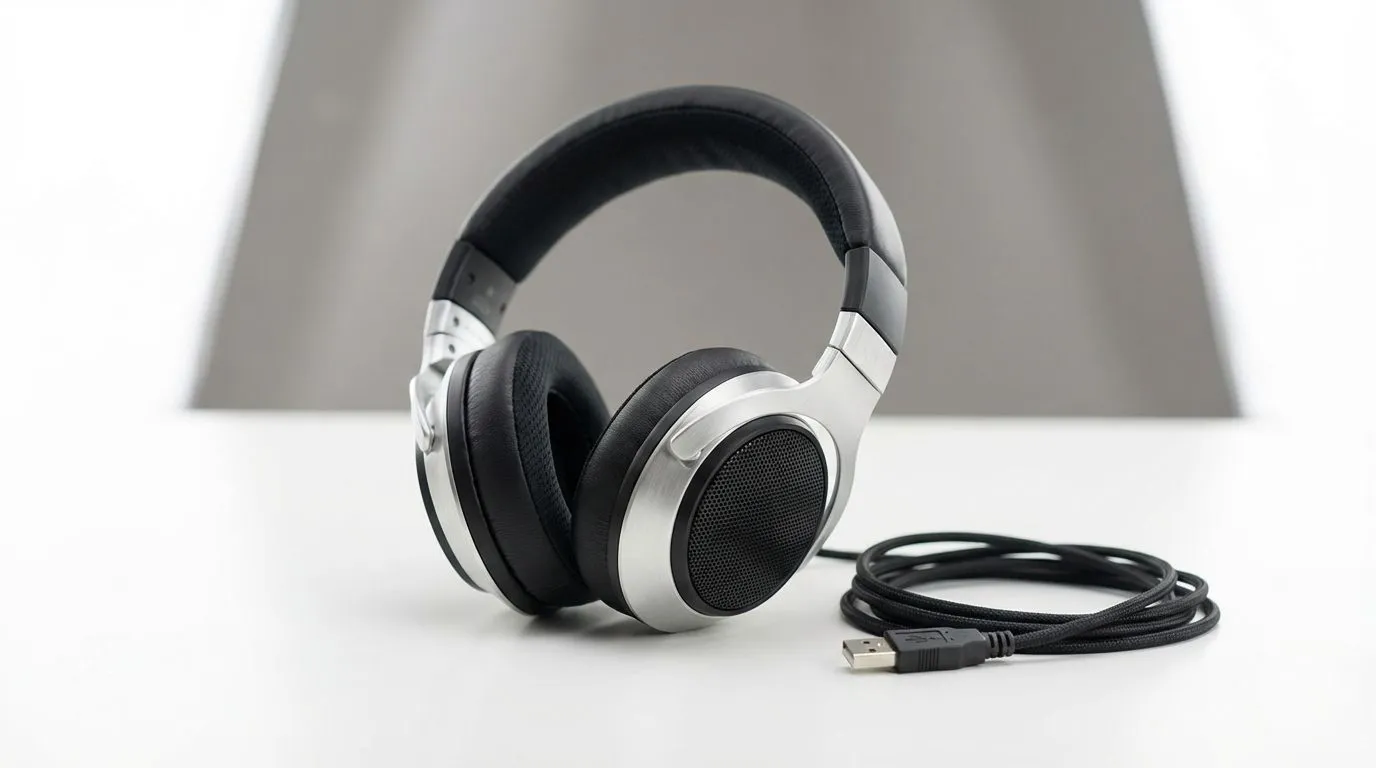
You’ve just landed in a high-stakes match, but the audio feels like it’s underwater. Even with the master slider at 100%, your USB headset sounds quiet. It is incredibly frustrating when you cannot hear footsteps or teammate callouts clearly. Before you consider your gear broken, there are several safe ways to boost your volume and reclaim your competitive edge in South Africa’s gaming scene. 🎧
Checking Windows Sound Settings First
The most common reason a USB headset sounds quiet involves hidden Windows settings. Start by right-clicking the speaker icon in your taskbar and selecting "Sound settings." Ensure your output device is correctly selected. From there, navigate to the "More sound settings" menu to open the classic Control Panel interface.
Under the "Playback" tab, right-click your headset and select "Properties." Look for an "Enhancements" tab. If it exists, try enabling "Loudness Equalization." This feature normalises audio levels... making those faint enemy reloads much easier to detect. If your audio still feels weak, ensure the levels tab is set to 100. Sometimes, Windows updates can reset these values without warning.
Update Drivers and Proprietary Software
Modern gaming gear relies heavily on software to function at peak performance. If you are using premium hardware, checking for firmware updates is essential. For instance, if you pick up the Razer Barracuda X Chroma Wireless Headset, you will need Razer Synapse to unlock its full potential.
Audio Pro Tip ⚡
Always plug your USB headset directly into the motherboard ports at the back of your PC rather than the front case IO. Front ports often suffer from power delivery issues or electrical interference... which can significantly reduce your maximum volume and audio clarity.
Software suites often include a "Pre-amp" or "Gain" slider. Increasing this can provide that extra kick you need. However, be careful not to push it too far... as this can cause digital clipping and distort your sound. If your current software is lacking features, you might want to browse our Razer headphones and headsets to find a model with more robust driver support. 🚀
Hardware Checks and Physical Connections
Sometimes the hardware itself is the bottleneck. USB headsets have built-in Digital-to-Analogue Converters (DACs). If the DAC is underpowered, the volume will suffer. Check if your headset has its own physical volume wheel. It sounds simple... but many gamers forget that the physical dial works independently of the Windows volume slider.
If you have tried every software fix and your audio is still underwhelming, it might be time for an upgrade. Low-sensitivity drivers in older sets simply cannot produce the volume levels required for modern gaming. You can explore our headphone headsets category to find high-sensitivity options that deliver thunderous bass and crisp highs. ✨
Ready to Hear Every Detail? Don't let quiet audio cost you the match. Whether you need a high-output USB DAC or a brand-new pair of cans, we have the gear to amplify your experience. Explore our massive range of headset specials and find the perfect audio solution to dominate the server.











