

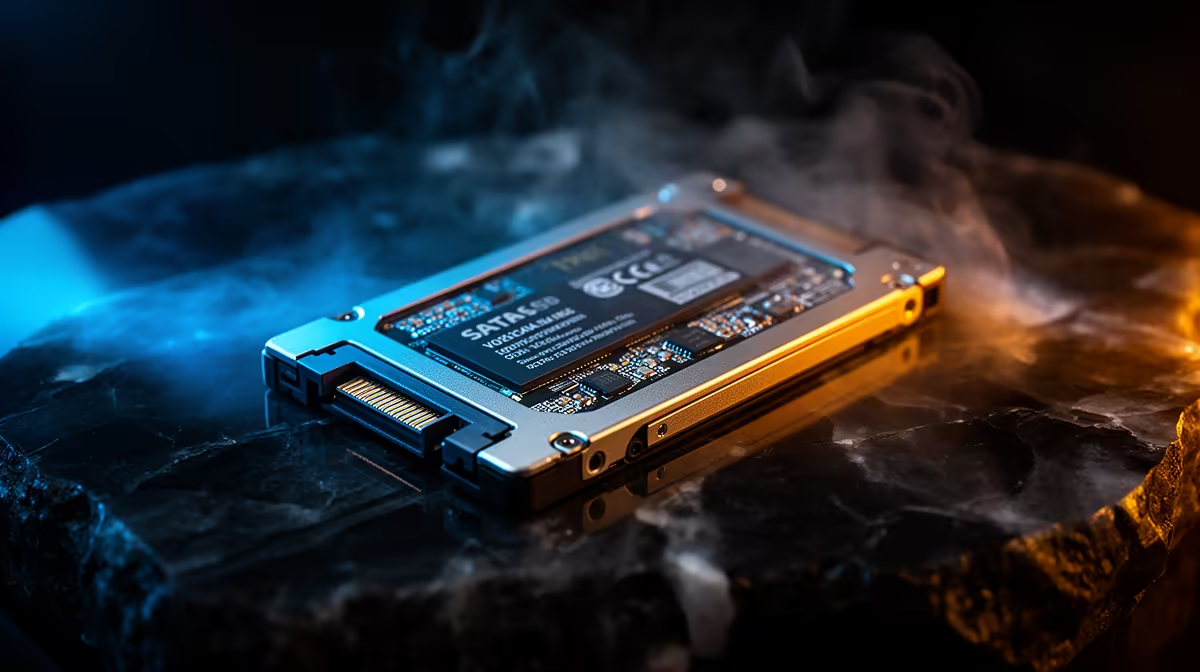
How to Use a SATA SSD for Faster Game Load Times (and actually feel it) ⚡
If your PC still takes forever to load into Warzone, Fortnite, or even your single-player RPG saves… you’re not alone. In South Africa, a lot of gamers are gaming on HDDs or older drives because budgets are real. The good news? A SATA SSD is one of the fastest upgrades you can do for smoother installs and quicker map loading.
In this guide, we’ll show you how to use a SATA SSD for faster game load times, what to set up, and how to get the best results without breaking the bank. 🚀
How to Use a SATA SSD for Faster Game Load Times: check the basics first 🔧
Before you buy, confirm your system supports SATA SSDs:
- Most desktop motherboards and many laptops support 2.5-inch SATA drives.
- You’ll need a SATA data cable and, for desktops, a spare SATA power connector from your PSU.
- If you’re upgrading a laptop, it typically uses a 2.5-inch bay (some models also support M.2, but that’s a different route).
For a SATA SSD lineup, start here:
- Browse solid-state drives across capacities here: Evetech solid-state drives
- Prefer ADATA? Shop ADATA solid-state drives
Install the SATA SSD correctly (so you don’t waste a week) ✨
Here’s the practical flow that works for most systems:
1) Mount the SSD and connect power + data
- Power off, unplug the PC, and discharge static (touch the case).
- Install the 2.5-inch SSD in the drive bay or bracket.
- Connect SATA data to the motherboard and SATA power to the PSU.
2) Enable the drive in BIOS (if needed)
When you power on:
- Enter BIOS/UEFI (usually Del on desktop).
- Confirm the SSD appears under storage.
- If it does not, re-check the SATA cable and power.
3) Clone or reinstall your games
You have two options:
- Clone your current drive (fastest if you want everything exactly as-is).
- Reinstall games onto the SSD (clean setup, often fewer weird issues).
For Kingston models, you can compare options here: Shop Kingston solid-state drives
Set up Windows for faster loads (this is where the gains happen) ⚡
Once Windows sees the SSD:
- Go to Settings > System > Storage > Advanced storage settings and manage where new apps land.
- Move your game library to the SSD in Steam/Epic/whatever launcher you use.
- Keep at least 10–15% of the SSD free. When an SSD is too full, performance can drop.
Gaming SSD Setup Tip 🚀
If you’re using Windows and Steam, change your default download install location to the new SATA SSD first. Then reinstall only the biggest games initially (the ones with the slowest launches). That way you feel faster load times sooner, without waiting for everything to download at once.
SATA SSD vs other formats (quick reality check)
A SATA SSD uses the SATA interface, not the faster NVMe route. So yes, NVMe can be quicker… but SATA still delivers a noticeable jump from HDD.
If you’re comparing form factors for what fits your PC, these pages help:
- 2280 M.2 drives (different type): Shop M.2 2280 SSDs
- If you’re looking at next-gen specs: Explore Gen 5 interfaces
How to confirm you’re actually getting faster game load times 🚀
After install and setup:
- Load into a match and time it from “Play” to “In-game.”
- Test two games: one with heavy streaming (open-world) and one lighter.
- Item
If you do this right, you should feel quicker transitions and less waiting, especially on map changes and game menu loads.
Ready to Find Your Perfect Match? The Mac vs Windows debate is complex, but for maximum power, choice, and value in South Africa, Windows is hard to beat. Explore our massive range of laptop specials and find the perfect machine to conquer your world.











