

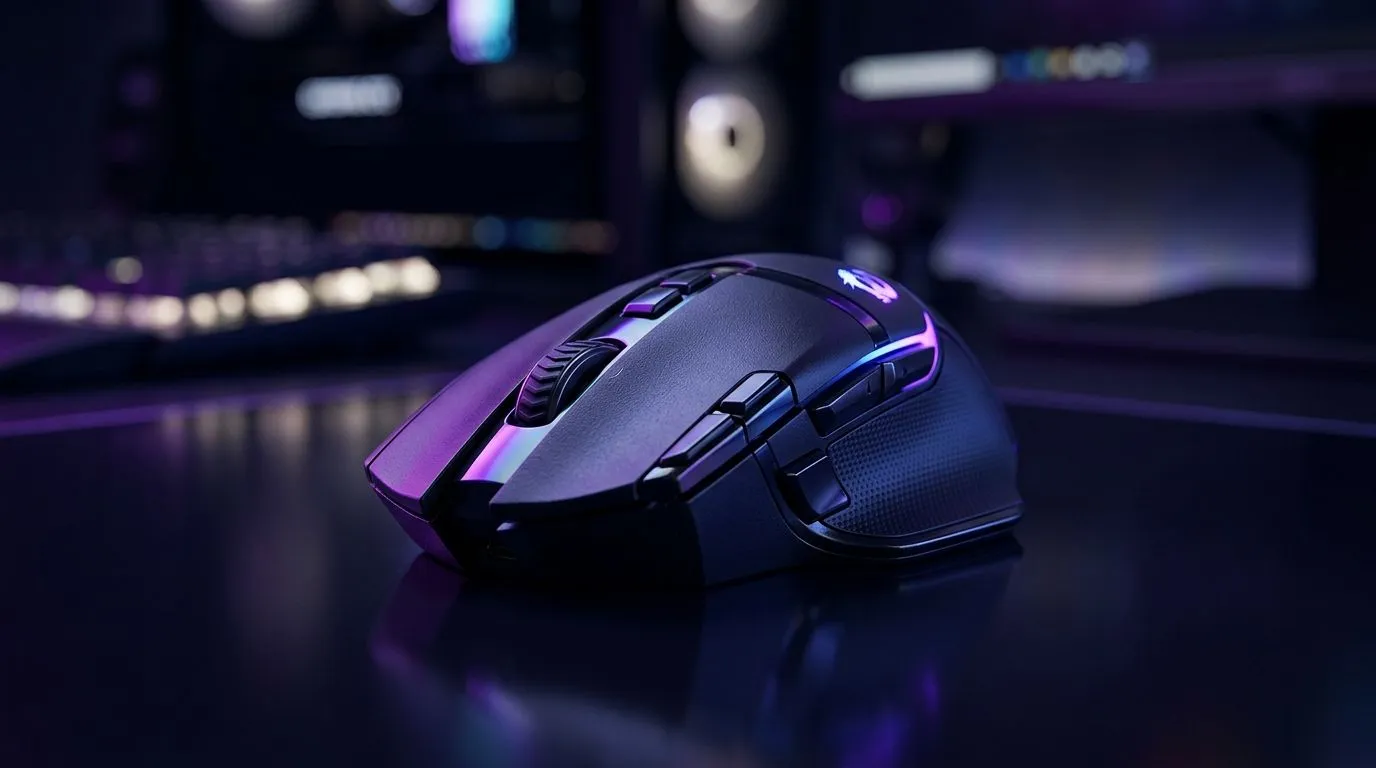
Wireless Gaming Mouse Input Lag: Fix Delayed Clicks Fast
A mouse click that lands late can wreck a clutch round. You feel it first in Valorant, CS2, or Warzone... that tiny delay between hand and screen. On a solid fibre line, your mouse should feel instant. If it does not, the problem is usually fixable. Let’s narrow down the cause and get your wireless setup back to feeling sharp ⚡
Wireless gaming mouse input lag: what is actually causing it?
Most delays are not mysterious. They usually come from one of four places:
1) Low battery or poor power settings
A wireless mouse can throttle performance when the battery runs low. Some devices also enter aggressive power-saving modes too quickly.
2) Bluetooth instead of a proper 2.4GHz link
Bluetooth is convenient, but many gaming mice perform best on their dedicated wireless dongle. That is especially true when you want lower latency and steadier tracking.
3) USB interference
A dongle plugged into a crowded rear port can sit too close to noise from your PC case, Wi-Fi gear, or other USB devices. Even a small interference issue can feel like delayed clicks.
4) Software and polling issues
Mouse software, firmware, or Windows settings can create stutter if they are outdated or conflicting. Polling rate settings can also be misconfigured.
For more hardware options and accessories, browse mouse accessories for better setup flexibility.
Wireless gaming mouse input lag: fast fixes you can try now
Start with the easy wins.
Check the battery first
Charge the mouse fully or replace the battery if it uses AA or AAA power. Test again before changing anything else.
Use the 2.4GHz dongle, not Bluetooth
If your mouse supports both, switch to the gaming receiver. That alone often removes the laggy feeling.
Move the receiver closer
Use a USB extension cable if you have one. Place the dongle near your mousepad and away from the back of the tower. That simple move can reduce interference.
Update the mouse firmware
Open the manufacturer software and look for updates. Firmware fixes often improve stability and responsiveness.
Match the polling rate to your system
A higher polling rate can help, but only if your PC handles it cleanly. If your cursor feels inconsistent, test a lower setting and compare.
Quick Latency Check ⚡
Use a simple in-game test. Fire at a wall, then tap the mouse in short bursts. If the click feels inconsistent, move the dongle closer and disconnect extra USB devices before changing anything else.
Wireless gaming mouse input lag: when a wired mouse makes sense
Sometimes the quickest fix is a different connection type. Competitive players who want absolute consistency often prefer cable use because it removes wireless variables entirely.
If you are comparing options, take a look at wired mouse alternatives. For players who still want freedom of movement, wireless mouse models can still deliver excellent responsiveness when configured well.
A practical rule: if you play ranked every night, a wired mouse may be the safer choice. If you game casually and value desk freedom, a modern wireless model can still feel excellent once dialled in.
Wireless gaming mouse input lag: smart buying tips for South African gamers
Before you replace hardware, check the basics:
Look for a proper gaming sensor
A strong sensor helps with tracking stability. Evetech’s gaming mouse range is a good place to compare current models.
Don’t ignore bundle value
Sometimes the best move is buying a mouse and useful extras together. That can save money in ZAR and help with a cleaner setup.
Watch for deals, not just specs
A mouse that is discounted today can beat a pricier model on value. If you are hunting for a bargain, browse gaming mouse deals and compare what you get for the price.
Wireless gaming mouse input lag: the fastest decision path
If your mouse feels delayed, use this order:
- Charge it.
- Switch to the 2.4GHz receiver.
- Move the dongle closer.
- Update firmware.
- Test polling rate.
- Remove USB interference.
- Compare against a wired option if the issue remains.
That sequence solves most cases without guesswork. And if your current mouse still feels off after all that, it may simply be time for better hardware. A responsive setup should feel predictable, not frustrating 🔧
Ready to Find Your Perfect Match? The Mac vs Windows debate is complex, but for maximum power, choice, and value in South Africa, Windows is hard to beat. Explore our massive range of laptop specials and find the perfect machine to conquer your world.











