

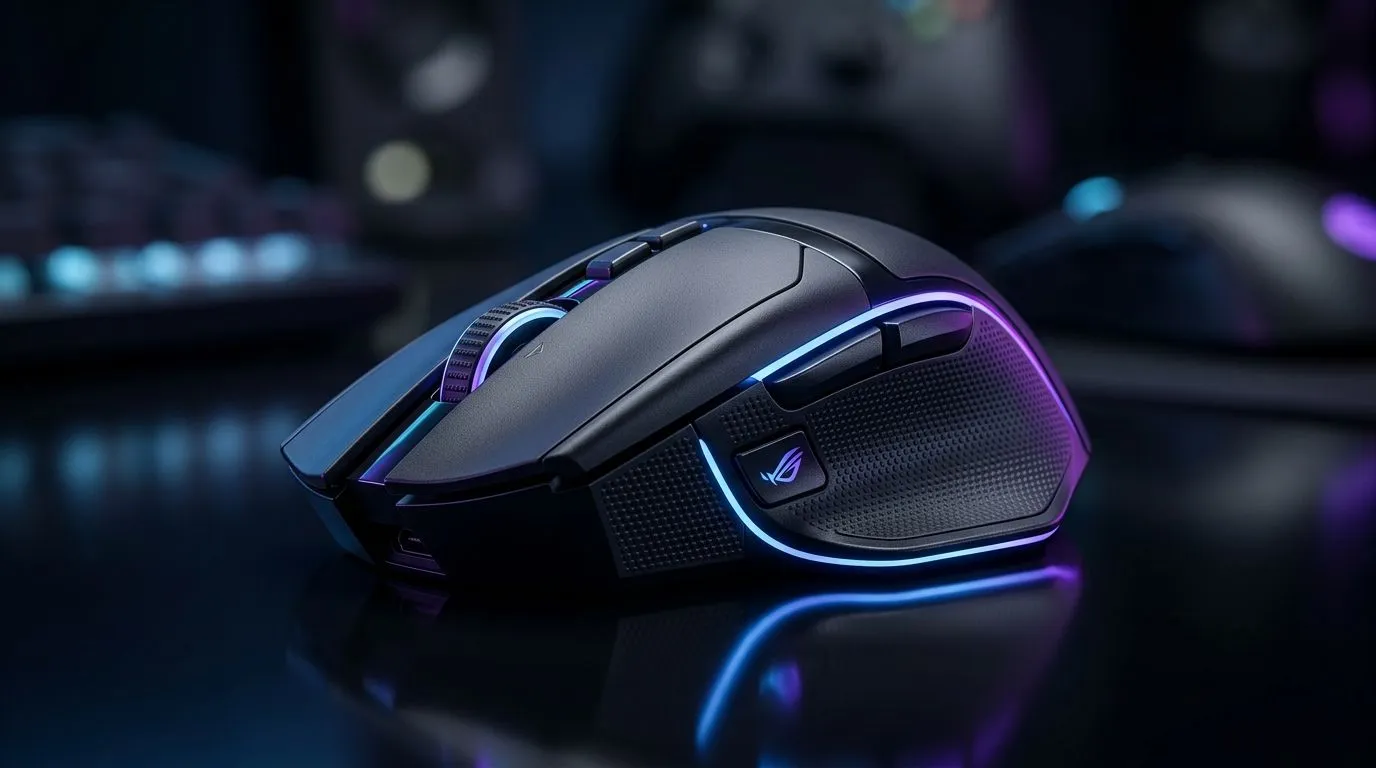
Why Your Wireless Gaming Mouse Feels Laggy on 2.4GHz and Bluetooth
Gaming on a wireless mouse should feel smooth—but if you notice delays or lag, your kills and builds might suffer. Many South African gamers face wireless interference or connectivity struggles with 2.4GHz or Bluetooth mice. The good news? Understanding the root causes and some quick fixes can restore your edge and keep every click crisp and responsive 🔥.
Wireless gaming mouse laggy issues usually come down to signal interference or settings mismatches. Let’s dive into how to diagnose and fix these delays so you game like a pro again.
Common Causes of Wireless Mouse Lag on 2.4GHz and Bluetooth
Signal Interference in a Crowded Frequency Band
The 2.4GHz band is shared by Wi-Fi routers, Bluetooth devices, and countless other gadgets. This traffic jam can cause signal collisions and delay your mouse commands. In South African homes with multiple wireless devices and busy fibre connections, interference spikes are common.
Bluetooth lag specifically can arise from older Bluetooth standards or weak pairing between mouse and PC. Often, distance and obstacles also make a difference—walls, desks, even metal surfaces can weaken signals and introduce input lag.
Power Saving and Driver Settings Affect Response Time
Many wireless mice try to conserve battery by throttling connection speeds or entering sleep modes too aggressively. Windows settings or mouse drivers may also prioritise power saving over performance by default.
Outdated or generic mouse drivers can limit wireless signal optimisation. Evetech offers gaming mice with firmware that balances battery life and high responsiveness.
Quick Fix for Laggy Wireless Mouse
Keep your mouse firmware current and avoid USB ports at the back of your PC for better 2.4GHz reception. USB extension dongles help place the receiver away from interference sources. Also, disable Bluetooth power saving in Device Manager to reduce delays.
How to Fix Wireless Mouse Delay and Boost Responsiveness ⚡
Switch to a Less Crowded Frequency or Wired Option
If 2.4GHz interference is persistent, consider relocating your Wi-Fi router to 5GHz or upgrading to a dual-band router. For ultimate responsiveness, a wired mouse cuts lag entirely. Check out our curated range of wired mice at Evetech built for precision and speed.
Optimise Bluetooth Settings and Pairing
For Bluetooth users, removing and re-pairing your mouse can reset connections and fix lag. Use the latest Bluetooth 5.0 or newer-enabled devices with your PC or laptop for improved data transfer speeds. Evetech’s selection of wireless gaming mice often support multi-device pairing to streamline your setup.
Reduce USB Port Interference
USB ports located near other devices transmitting 2.4GHz signals can cause lag spikes. Using a USB extension cable to place your mouse dongle closer to your hand can reduce latency and stabilise connection. See our accessories section for quality gaming mouse accessories that improve connectivity.
If you’re curious how your current mouse stacks up, compare specs and response times against the latest in our gaming mouse collection. South African gamers find that upgrading to a low-latency model often unlocks smoother gameplay.
Choosing the Best Gaming Mouse Deal to Avoid Lag and Delay 🎮
When investing in a new mouse, look for models with high polling rates (1000Hz or above) for snappy movement. Also, check for low-latency wireless tech that uses advanced frequency hopping to dodge interference. Evetech regularly updates its best gaming mouse deals with local prices in ZAR, making it easy to upgrade without breaking the bank.
Remember: a great wireless mouse feels just as responsive as a wired one—once optimised correctly. With a few tweaks and the right gear, you’ll beat lag and stay ahead in those intense matches.
Elevate Your Gaming Experience Don’t settle for lag—upgrade your set-up with our handpicked wireless and wired mice deals. Shop now at Evetech for performance that leaves lag in the dust.











