

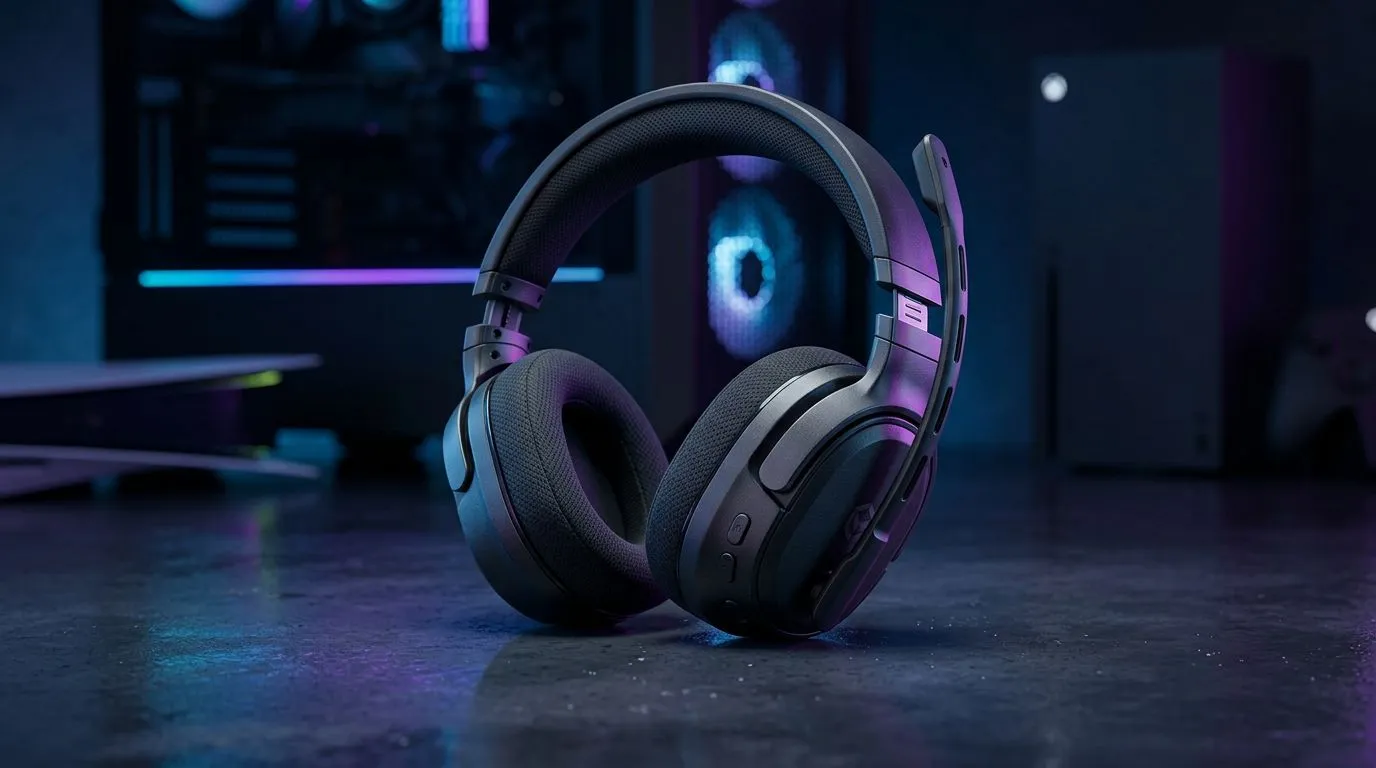
Wireless Headset Setup for PC and Console: Optimise Audio & Latency
South African gamers: tired of hollow footsteps or laggy comms on cross‑platform sessions? This quick, hands‑on guide to Wireless Headset Setup for PC and Console: Optimize Audio & Latency shows practical tweaks for crisp voice chat and tight in‑game sound. Read on for console pairing tips, low‑latency tricks, and pro tweaks that actually make a difference in Cape Town cafés or Jozi LANs. 🎧⚡
Why latency and audio stages matter for gamers
Latency changes how sound lines up with on‑screen action. Wireless headsets can sound fantastic, but if sync slips, your reaction window narrows. For best results, pick the right wireless mode and match settings across devices. If you’re shopping, consider models that advertise low‑latency wireless dongles for PC and console compatibility — like the well-reviewed Razer Barracuda X Chroma for cross‑platform use. Check the Evetech listing for full specs and compatibility notes.
Razer Barracuda X Chroma wireless headset (Phantom White)
PC setup: drivers, sample rates and USB dongles
- Use the native low‑latency USB dongle if the headset includes one. Dongles bypass Bluetooth stacks and often cut latency significantly.
- Set Windows sound to the headset’s recommended sample rate (48 kHz is common) via Sound Control Panel > Playback > Properties. That avoids resampling artefacts. For model-specific guidance, see manufacturer pages and Evetech's Razer headset category for details.
Explore Razer headphones & headsets at Evetech
Tip: close background apps that use audio devices; they can force sample‑rate switching.
Console setup: pairing, chat mix and firmware
On PlayStation and Xbox, prioritise the console’s USB dongle if available. If using Bluetooth, remember most consoles use Bluetooth profiles tuned for speech, not game audio, so you may get higher latency or lower fidelity. Keep controller firmware and headset firmware updated — many manufacturers post updates on their official pages and Evetech lists compatible models and support links. If your headset offers a chat/game audio balance, start at centre and adjust during play until footsteps and voice sit naturally.
Latency Quick Tip ⚡
To minimise lag, use the wired mode for competitive matches or enable the headset’s 2.4GHz USB dongle. Bluetooth is great for convenience, but 2.4GHz dongles almost always deliver better in‑game timing.
Fine tuning: EQ, headset mic and environmental tweaks
- Use a light roll‑off below 80Hz to reduce rumble from game bass and nearby traffic.
- If your mic causes clipping, enable mic monitoring and lower input gain; test with a friend on Discord or Xbox Party Chat.
- For open cushions, reduce room noise; for closed backs, ensure you allow some mic gain so teammates hear footsteps clearly. For shopping options across brands, Evetech’s headphone category helps you compare features and form factors.
Browse headphone & headsets at Evetech
Quick checklist before your next ranked match
- Firmware updated on headset and dongle.
- Windows/sample rate set to headset native rate on PC.
- Use USB dongle when low latency matters; Bluetooth for casual play.
- Test mic on your platform’s native chat app first.
Wrap: balance convenience and competitive needs 🚀
Wireless Headset Setup for PC and Console: Optimize Audio & Latency comes down to choosing the right connection for the situation, keeping firmware current, and tuning audio settings rather than leaving defaults. Small changes make footsteps pop and calls clear — and keep you competitive across PC and console nights.
Ready to Find Your Perfect Match? The Mac vs Windows debate is complex, but for maximum power, choice, and value in South Africa, Windows is hard to beat. Explore our massive range of laptop specials and find the perfect machine to conquer your world.











