

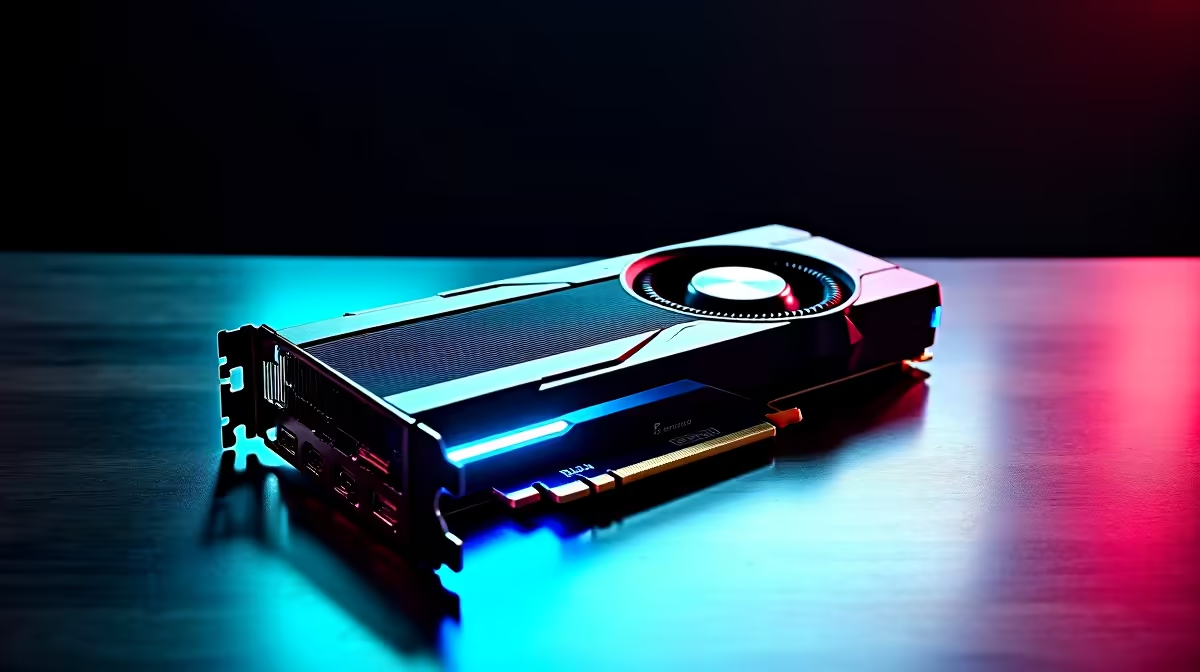
You just dropped good ZAR on a shiny new Intel GPU. You slot it in, boot up... and nothing. If your Arc B580 is not recognized by Windows, do not panic. It is a common hiccup with newer tech. Before you box it back up, let us walk through the troubleshooting steps. We will get your rig pushing pixels properly in no time.
Why is the Arc B580 Not Recognized by Windows? ⚡
Let us start with the physical hardware. Is the card seated correctly? A slight sag can break the PCIe connection. Push it gently until you hear that satisfying click. Next, check your power cables. Ensure they are snug and fully inserted. Intel's new contenders pack a serious punch. If you are upgrading from an older setup, ensure your power supply can handle the load. Browsing for a future upgrade? You can easily check our massive range of graphics cards to compare power requirements.
The Magic of Re-Size BAR
Here is the secret sauce for Intel GPUs. It is called Re-Size BAR. If this motherboard setting is off, your Arc B580 might throw a tantrum. Restart your PC and mash the delete key to enter the BIOS. Look for your advanced PCIe settings. Enable Re-Size BAR along with Above 4G Decoding. Save your settings and exit. If your motherboard is too old for this modern feature, do not stress. It might simply be time to look at some pre-built office and home PCs or a proper motherboard upgrade.
Nuking Old Display Drivers 🚀
Windows hates driver conflicts. If you swapped from team green or red, old files will cause absolute chaos. You need to wipe the slate clean. Download a tool called Display Driver Uninstaller. Boot your PC into safe mode and let the software scrub your system. Restart and install the latest Intel drivers fresh. A clean installation is the best way to optimise performance. If you want to avoid this hassle entirely next time, grabbing one of our best gaming PC deals ensures everything comes pre-configured. You just plug in and play.
Driver Cleanup Pro Tip 🔧
Always run Display Driver Uninstaller in Windows Safe Mode. This prevents background processes from holding onto old driver files. It guarantees a completely clean installation for your new Intel Arc GPU.
Forcing Windows to See the Light
Still staring at a blank screen? Right-click your start button and open Device Manager. Look for a hidden device. Sometimes it shows as a Microsoft Basic Display Adapter with a yellow warning triangle. Right-click that icon and hit update driver. Sometimes Windows just needs a gentle nudge to wake up. If you are doing this on a mobile setup, eGPU enclosures can be tricky. Mobile gamers might prefer exploring notebooks for sale in South Africa with dedicated hardware built right in.
Keep Your System Optimised ✨
Finally, run a full Windows update. Intel works closely with Microsoft to push critical patches. Missing an optional update could be the exact reason your card is hiding. These updates often contain specific fixes for new architecture. Do not let a simple software glitch ruin your weekend gaming session. Tech moves fast... and keeping your software updated is non-negotiable. Want to keep your hardware just as fresh? Keep an eye on our daily tech specials for the best local pricing.
Ready to Upgrade Your Entire Setup? Troubleshooting hardware can be a headache, but finding the perfect PC shouldn't be. For maximum power, choice, and value in South Africa, Evetech is hard to beat. Explore our massive range of gaming PC specials and find the perfect machine to conquer your world.











