

Quick Answer
A complete slow boot diagnostic walks through BIOS POST time, Windows boot time, startup app load, and driver delays. The fastest path to a fix: measure boot time with Task Manager, disable startup apps, update SSD firmware and BIOS, then check Event Viewer for stalled services.
Step 1: Measure What's Actually Slow
Before tweaking anything, measure. Open Task Manager, go to Startup apps, and check the BIOS time at the top right. Anything over 10-15 seconds is a BIOS issue. Then time how long Windows takes from password entry to a usable desktop. Use Event Viewer (Applications and Services Logs, Microsoft, Windows, Diagnostics-Performance, Operational) to see exactly which services or drivers slow boot down. This data tells you whether the bottleneck is hardware, BIOS, or Windows.
Step 2: Tackle the BIOS and Hardware Side
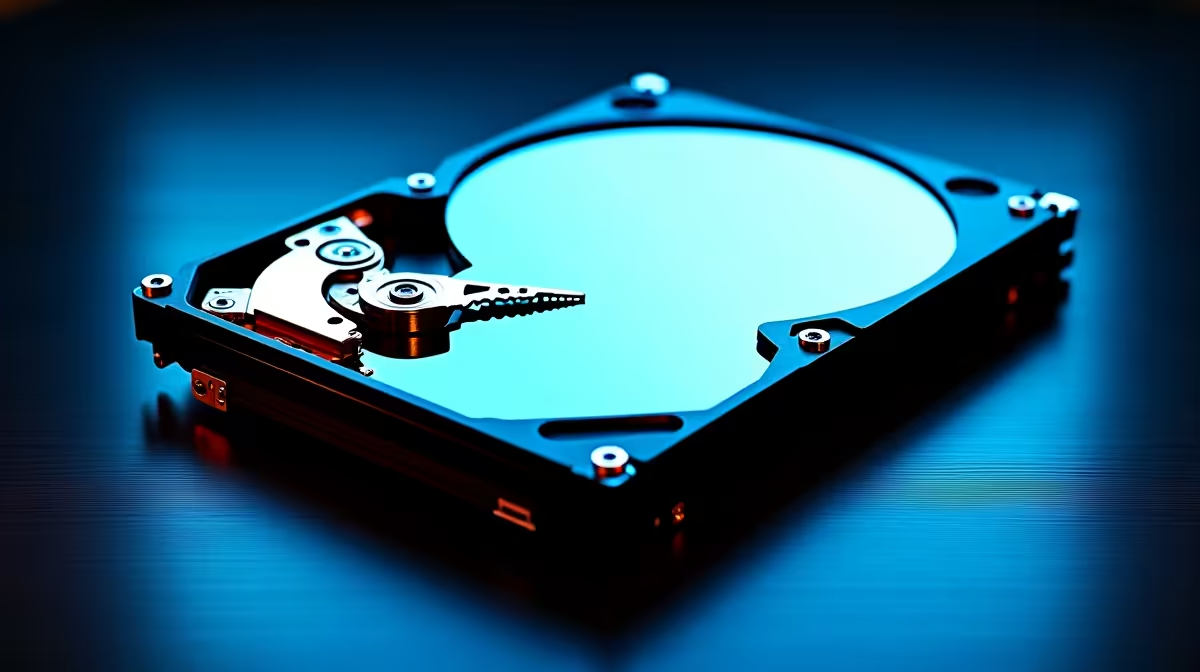
If BIOS time is high, enable Fast Boot in BIOS (UEFI), disable unused devices (legacy USB, serial ports, unused SATA), and update motherboard firmware. For NVMe SSDs, check that they're running in NVMe mode (not legacy AHCI compatibility) and update SSD firmware via the manufacturer's tool (Samsung Magician, WD Dashboard, etc.). HDDs are the single biggest cause of slow boots, swapping to even a budget 500GB NVMe like a Crucial P3 or Kingston NV2 takes boot from 90+ seconds to under 15.
Step 3: Windows-Side Fixes That Make a Real Difference
In Task Manager Startup, disable everything non-essential (especially Adobe, Spotify, Teams, OneDrive, Steam, Discord). Run sfc /scannow in admin Command Prompt to repair system files. Disable Fast Startup if you're seeing weird hibernation issues (Control Panel, Power Options). Update GPU drivers and chipset drivers. Check for stuck pending updates, sometimes Windows Update bricks boot speed until you let it finish. Loadshedding-related ungraceful shutdowns can also corrupt the boot record, run chkdsk /f if you suspect this.
Frequently Asked Questions
How long should a Windows 11 PC take to boot?
With an NVMe SSD and a modern CPU, expect 8-20 seconds from power button to desktop. Anything over 30 seconds suggests an issue, usually startup apps, an HDD, or a misconfigured BIOS.
Will switching from HDD to SSD speed up boot?
Dramatically. HDD to SATA SSD is roughly 4-5x faster boot. SATA SSD to NVMe is another 2-3x. If you're still on a spinning drive, this is the single best upgrade for boot speed.
Can a UPS help with slow boot caused by loadshedding?
Indirectly, yes. A UPS prevents ungraceful shutdowns that corrupt the Windows boot record over time. Combined with surge protection, it keeps your boot environment healthy in SA's stop-start power conditions.
Ready to Find Your Perfect Match? Fast boots, fast everything. Upgrade to a proper SSD-equipped rig. Shop gaming PC deals at Evetech











