

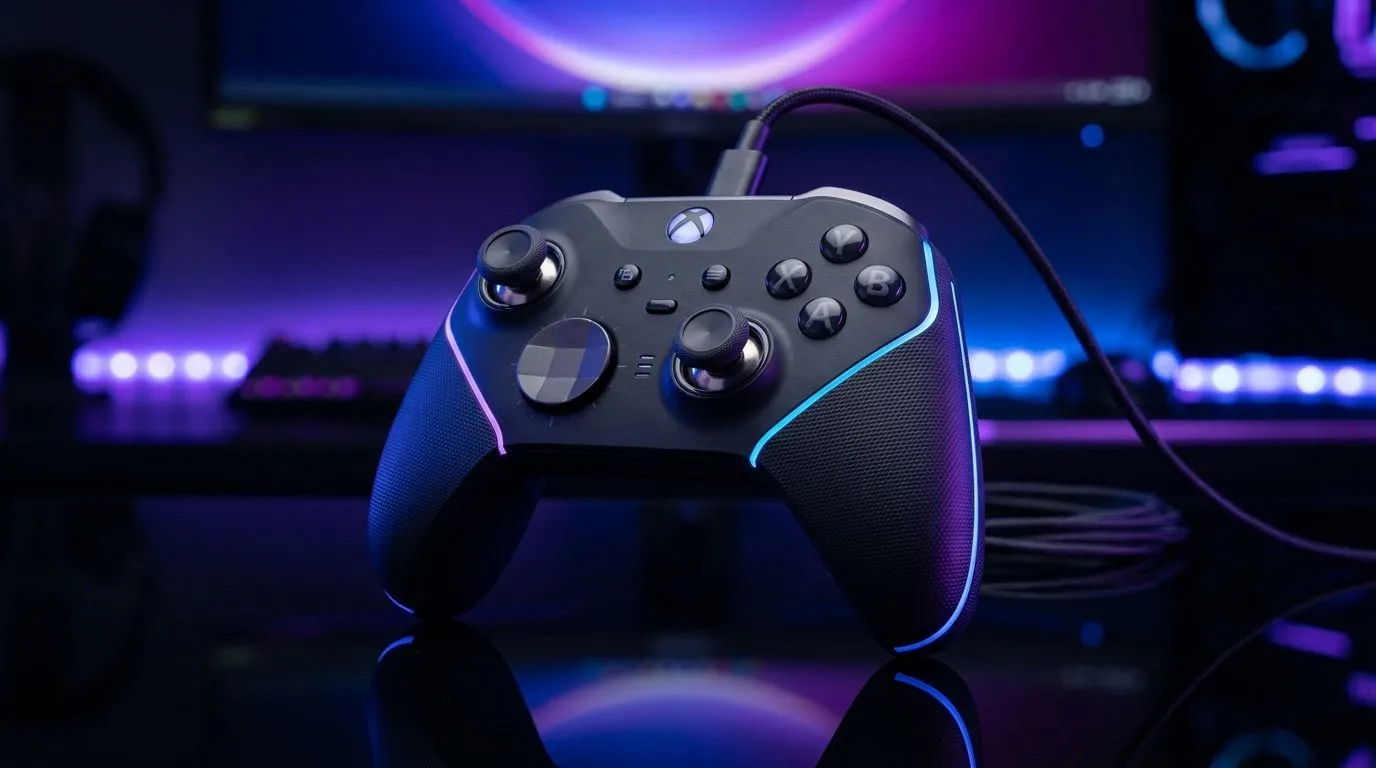
Connecting a Multi-Platform Gamepad to PC and Mobile Made Easy ⚡
South African gamers know the thrill of switching between their PC and mobile gaming setups. But connecting a multi-platform gamepad isn’t always straightforward. Whether you want smooth controls on your favourite mobile RPG or precise aiming on PC shooters, this guide breaks down how to link your controller seamlessly. Ready to unlock flexibility that keeps you competitive wherever you play? Let’s dive in.
Multi-Platform Gamepad Compatibility: What You Need to Know
Multi-platform gamepads are designed to work across both PC and mobile devices, but you must consider connection types. Most controllers connect via Bluetooth or USB, while some offer proprietary wireless dongles for low latency. The Razer Wolverine V3 Tournament Edition is a fine example, featuring wired USB connectivity for smooth PC gameplay and plug-and-play compatibility (see specs here).
For mobile devices, Bluetooth is king. Android and iOS support plenty of controllers, but pairing steps vary. Bluetooth pairing keeps cables out of your way when gaming on the go. Ensure your gamepad supports the Bluetooth version compatible with your phone for the best experience.
Step-by-Step Connection Guide for PC and Mobile 🕹️
1. USB Wired Connection to PC
- Plug your gamepad’s USB cable into your PC’s port.
- Windows will usually detect it automatically, installing drivers in seconds.
- Open your favourite game, configure button mapping if necessary.
- For the best lineup of wired controllers optimized for PC, browse Evetech’s gaming controller range.
2. Bluetooth Setup for Mobile Devices
- Enable Bluetooth on your mobile device.
- Put your gamepad into pairing mode (usually by holding a sync button).
- Select the controller’s name once it appears in your Bluetooth list.
- Test the connection in any game that supports controllers.
Some games on mobile might require additional configuration or third-party app support for full button mapping. Android users particularly benefit from this flexibility.
3. Wireless Dongle Connection (Optional)
If your controller came with a wireless dongle, plug it into your PC’s USB port. This often reduces latency compared to Bluetooth and gives a stable connection.
Choosing the Right Gamepad for Multi-Platform Use in SA 🇿🇦
When shopping for a gamepad that pairs well with both PC and mobile, consider ergonomic design and button responsiveness. Popular brands like Razer provide controllers that combine robust hardware with strong software support.
Explore a curated selection of controllers suited for multi-platform gaming on Evetech’s site, including options filtered by brand and feature right here. You’ll find the perfect fit for your gaming style and budget, with prices in ZAR.
Pro Tip for Seamless Gaming Control
Try resetting your controller Bluetooth settings if you encounter lag or disconnects. Turning off Bluetooth on all paired devices before re-pairing often clears interference.
Final Thoughts on Multi-Platform Controllers
Mastering your setup for multi-platform gaming can take your performance to the next level. Keep your software updated and regularly check for firmware updates on your controllers to avoid compatibility hiccups. With practice, you’ll switch from desktop to mobile effortlessly, keeping your reflexes razor-sharp wherever you play. 🔧
Upgrade Your Gaming Setup Today Ready to experience sharp control on every platform? Shop now at Evetech for top-quality multi-platform gamepads that put you in charge.











