

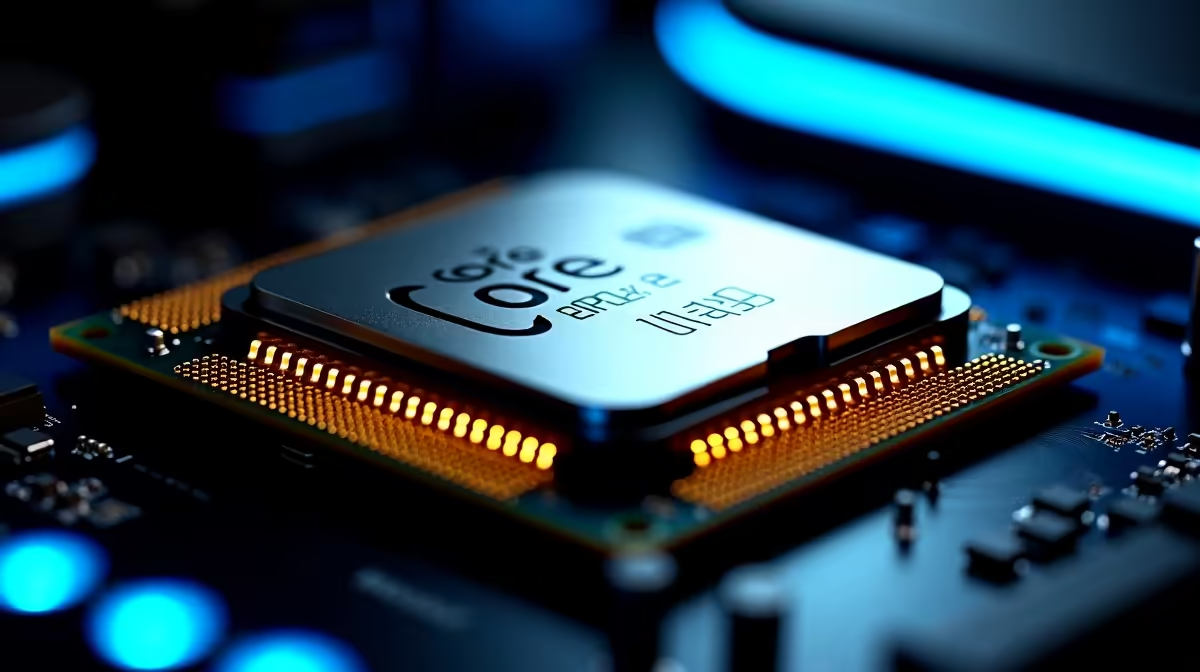
The Intel Core Ultra 7 265K is a powerful Arrow Lake processor, but some users have reported black screen events after installation or during heavy workloads. These issues are almost always caused by driver conflicts, power delivery problems, or BIOS settings that need adjustment rather than a faulty chip.
Quick Answer
Core Ultra 7 265K black screen issues are most commonly resolved by updating the BIOS to the latest version, installing Intel's updated Arc graphics and chipset drivers, and ensuring the CPU is receiving stable power through a quality PSU and properly seated EPS connector.
Step 1 - Update BIOS and Chipset Drivers 🔧
Arrow Lake CPUs require up-to-date BIOS firmware to function correctly. Early BIOS releases from motherboard manufacturers had power management and compatibility bugs that caused black screens and system hangs. Visit your motherboard manufacturer's support page, download the latest BIOS for your specific board, and flash it following their instructions carefully.
After the BIOS update, download and install the latest Intel chipset drivers from Intel's download centre. Chipset drivers govern how the CPU communicates with the rest of the system, and stale versions can cause display output to drop unexpectedly. Pair this with the latest Intel Arc graphics driver if you are using the integrated graphics, as the iGPU driver stack on Arrow Lake was updated significantly post-launch.
You can find compatible motherboards for Arrow Lake that come pre-tested with the latest BIOS releases.
Step 2 - Check Power Delivery and GPU Seating 💡
Black screens are a classic symptom of insufficient or unstable power delivery. The Core Ultra 7 265K has a base power of 125W with peak power draw exceeding that under boost. Ensure your PSU is rated for at least 650W for a mid-range build and that the 8-pin or 8+4-pin EPS CPU power connector is firmly seated. A loose EPS connector is a surprisingly common cause of intermittent black screens.
If you are using a dedicated GPU, reseat it in the PCIe slot and ensure both power connectors are fully clicked in. Test with the GPU in a different PCIe slot if your board has multiple x16 slots. Also try clearing CMOS by removing the motherboard battery for 30 seconds, which resets any corrupted BIOS settings.
Step 3 - Display Cable and Monitor Settings ⚡
Sometimes the black screen is not a system crash but a display handshake failure. Try a different DisplayPort or HDMI cable, and if possible test with a different monitor. Some monitors have trouble re-establishing a signal after the GPU exits a low-power state. Disabling HDMI CEC and setting your monitor's signal input to always-on can help.
In Windows, navigate to Display Settings > Advanced Display and disable Variable Refresh Rate if enabled. Some combinations of Arrow Lake iGPU drivers and monitor firmware have known conflicts with VRR that cause signal drops.
Frequently Asked Questions ❓
Q: Is the black screen issue a known defect with the 265K? A: No. It is a compatibility and driver issue that Intel and motherboard vendors addressed through BIOS and driver updates. Most users resolve it without any hardware replacement.
Q: Do I need to reinstall Windows after the BIOS update? A: No, a BIOS update does not require a Windows reinstall. However, if driver conflicts persist, a clean Windows install with fresh chipset drivers is a reliable last resort.
Q: What PSU wattage is recommended for the Core Ultra 7 265K? A: A minimum of 650W from a reputable brand is recommended for a system with a mid-range GPU. Pair it with at least 750W for high-end GPUs.
Evetech carries Graphics Card Deals and Evetech Best Sellers — check live stock and pricing before you buy.
Ready to Find Your Perfect Match? Explore relevant Evetech options, compare current South African pricing, and choose hardware that fits your setup. Shop now











