

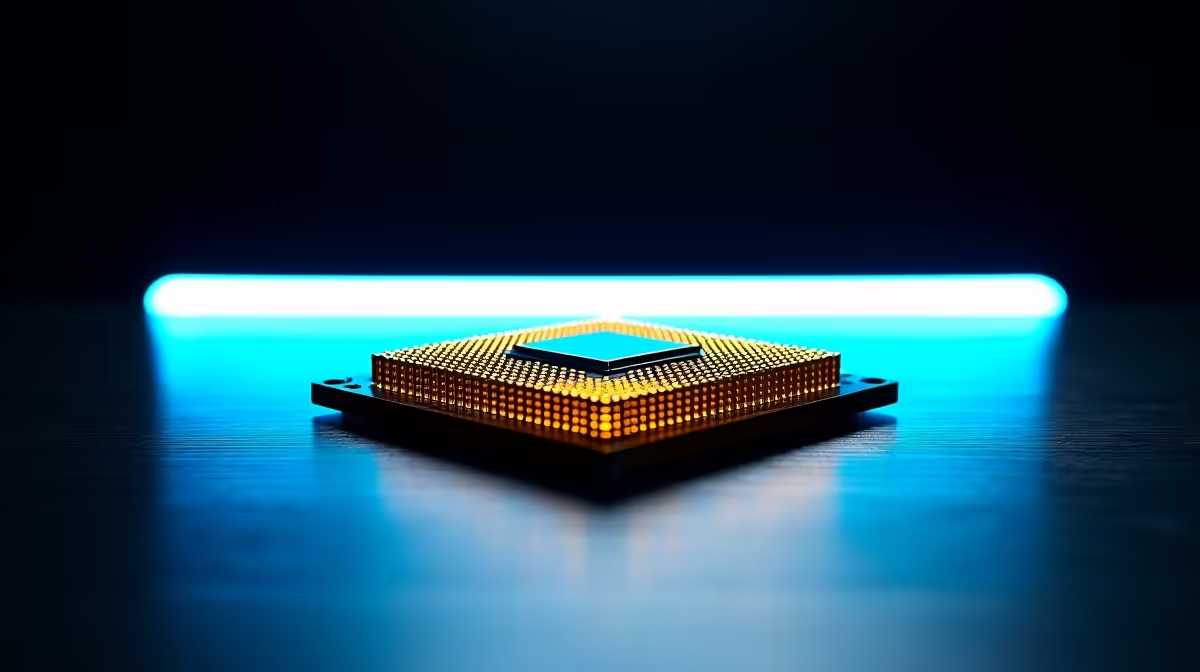
You just dropped serious ZAR on Intel's newest flagship processor... you carefully install it, hit the power button, and nothing happens. Your screen stays completely black. If you are dealing with a Core Ultra 9 285K not detected by BIOS, take a deep breath. This is a common hurdle with brand new architectures. Let us walk through the exact steps to get your rig up and running.
Why is Your Core Ultra 9 285K Not Detected by BIOS?
The new LGA 1851 socket brings massive performance improvements... but early motherboard shipments often leave the factory with older firmware. If you are upgrading to the latest Intel processors, your high-end motherboard simply might not know how to communicate with the chip yet. The system powers on, but the brain remains asleep.
The Ultimate Fix Guide 🔧
1. The BIOS Flashback Method
Since you cannot get into the BIOS menu to run a standard update, you will need to use the BIOS Flashback button located on your rear I/O panel. Grab a secondary machine like your work laptop to download the latest firmware directly from your motherboard manufacturer's official support page.
Flashback Pro Tip ⚡
Always format your USB flash drive to FAT32 before moving the BIOS file over. Most motherboards will simply ignore NTFS formatted drives during a flashback process, leaving you stuck with a blank screen.
Extract the downloaded folder, rename the specific BIOS file as instructed by your digital manual, plug it into the designated flashback USB port, and hold the physical button until the LED begins to blink.
2. Check Your LGA 1851 Pins
If the firmware update finishes successfully but the Core Ultra 9 285K not detected by BIOS error persists... you need to check your physical installation. Remove the cooler and gently lift the CPU. Inspect the motherboard pins with a smartphone flashlight. Even one slightly bent pin can break the critical data connection.
3. Reseat Memory and Power Cables
Sometimes the issue is not the processor at all. Motherboards feature debug LEDs... usually tiny lights labelled CPU, DRAM, VGA, and BOOT. If the CPU light stays solid red, double-check that your dual 8-pin EPS power cables are securely clicked into the top-left of the board. Next, try booting with just one stick of DDR5 RAM. Memory training on new platforms can take up to five minutes... so give it time to process before restarting.
Skip the Troubleshooting Completely 🚀
Building a PC is incredibly rewarding... but sometimes you just want to plug in and play. If tweaking firmware and inspecting delicate pins sounds too stressful, you can always opt for professionally assembled custom gaming PCs. Our technicians test every single component to ensure flawless compatibility before shipping.
Alternatively, exploring our range of pre-built desktop computers guarantees that your system arrives fully updated, stress-tested, and ready for extreme frame rates straight out of the box.
Final Thoughts on Arrow Lake Upgrades ✨
Getting a Core Ultra 9 285K not detected by BIOS warning is terrifying when you have invested thousands of ZAR... but it is almost always a temporary software hurdle. Once that firmware is properly updated and the system posts, you will unlock incredible multi-core performance for rendering and gaming. If you are still hunting for the right compatible components, premium cooling solutions, or high-speed DDR5 memory to finish your Arrow Lake build, keep an eye on our daily tech specials to stretch your budget even further.
Ready to Upgrade Without the Stress? Troubleshooting hardware is not for everyone. For maximum power, choice, and value in South Africa, a professionally built rig is hard to beat. Explore our massive range of desktop specials and find the perfect machine to conquer your world.











