

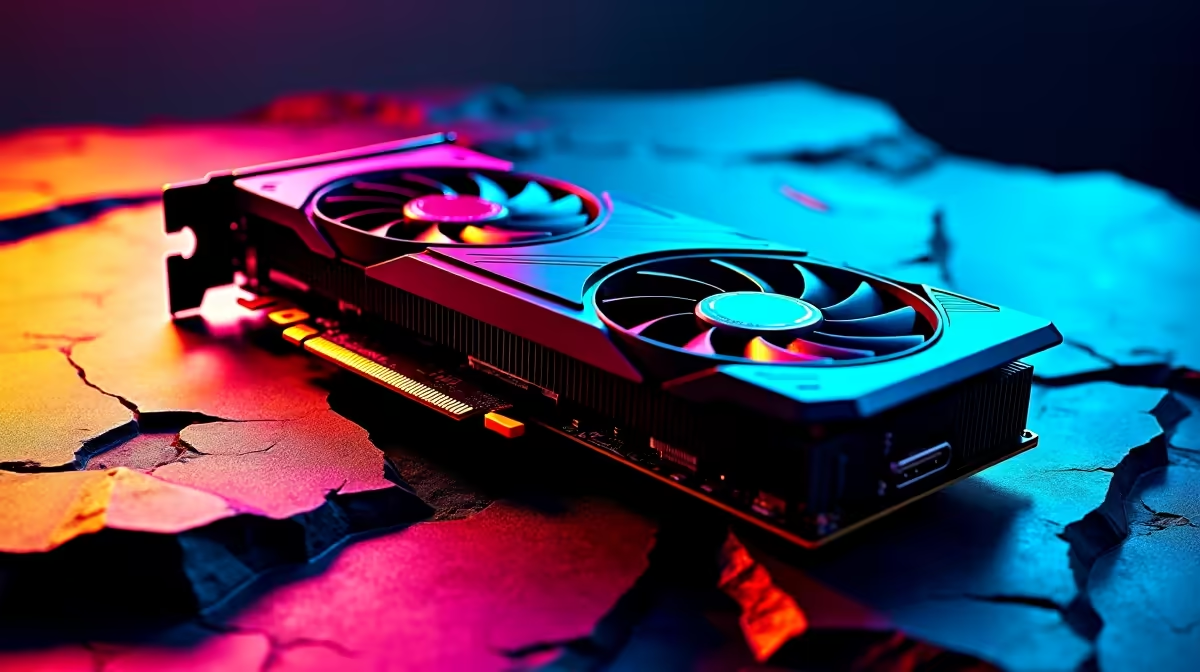
Why Cyberpunk 2077 Crashing Due to GPU Frustrates SA Gamers
Cyberpunk 2077’s stunning graphics demand a lot from your GPU, making crashes a common headache for South African gamers. If you’ve faced sudden freezes or crashes during Night City escapades, it’s often linked to GPU issues. But don’t pack up just yet — fixing Cyberpunk 2077 crashing due to GPU challenges is doable 🇿🇦⚡. Understanding why this happens lets you get back to your neon-fuelled missions faster and smoother.
Common GPU Causes for Cyberpunk 2077 Crashes
Your graphics card works overtime rendering Cyberpunk’s sprawling urban dystopia. Here’s where problems might creep in:
- Drivers Outdated or Corrupted: Old drivers cause compatibility hiccups with the game engine.
- Overheating: Intensive scenes push GPUs hot; overheating triggers shutdowns to protect hardware.
- Insufficient VRAM: Cyberpunk 2077 needs at least 6GB VRAM for stable 1080p; less causes instability.
- Hardware Bottleneck: Older or underpowered GPUs can’t maintain steady frame rates without crashes.
If your system seems up to scratch, double-check the latest driver updates from the official GPU manufacturer. Evetech stocks a wide range of graphics cards built to handle demanding titles — from mid-range to premium models tailored for smooth Cyberpunk 2077 play.
How to Fix Cyberpunk 2077 Crashing Due to GPU
1. Update Your GPU Drivers
The quickest fix is often a driver update. Nvidia and AMD release patches that improve game stability and performance. Use their official software or visit Evetech’s collection of drivers if you need a fresh card — reliable hardware means fewer headaches.
2. Manage GPU Temperatures
Keep your rig’s cooling in check. Dust build-up and suboptimal airflow cause your GPU to overheat, crashing Cyberpunk during heavy graphical loads. Consider improving case airflow or upgrading your cooling system.
Easy Cooling Boost
Try lowering your GPU fan curve by 5% using software like MSI Afterburner. It can reduce temperatures by up to 2°C — quieter and more stable gaming.
3. Adjust Game Settings
Reduce in-game graphics quality to decrease VRAM demand. Lower texture resolutions and shadows if your GPU is borderline. This simple change often prevents crashes without sacrificing too much visual flair.
4. Upgrade Your Gaming Setup
If your GPU doesn’t meet Cyberpunk’s requirements, it’s time to consider an upgrade. South African gamers can browse pre-built PC deals optimised for gaming or find budget-friendly, powerful gaming laptops. These are ready to handle Cyberpunk smoothly at decent settings.
Boost Your Cyberpunk Experience with Evetech Deals
Still wondering how to get the best Cyberpunk 2077 performance? Check out Evetech’s latest specials for ZAR-friendly offers on GPUs and gaming gear. Plus, our gaming PC bundles combine everything you need — GPU, CPU, memory — at competitive prices.
With the right hardware and settings, you’ll spend less time restarting and more time diving deep into Night City’s secrets 🚀.
Ready to conquer Night City? Don’t let GPU crashes hold you back — Shop now at Evetech for performance that leaves lag in the dust.











