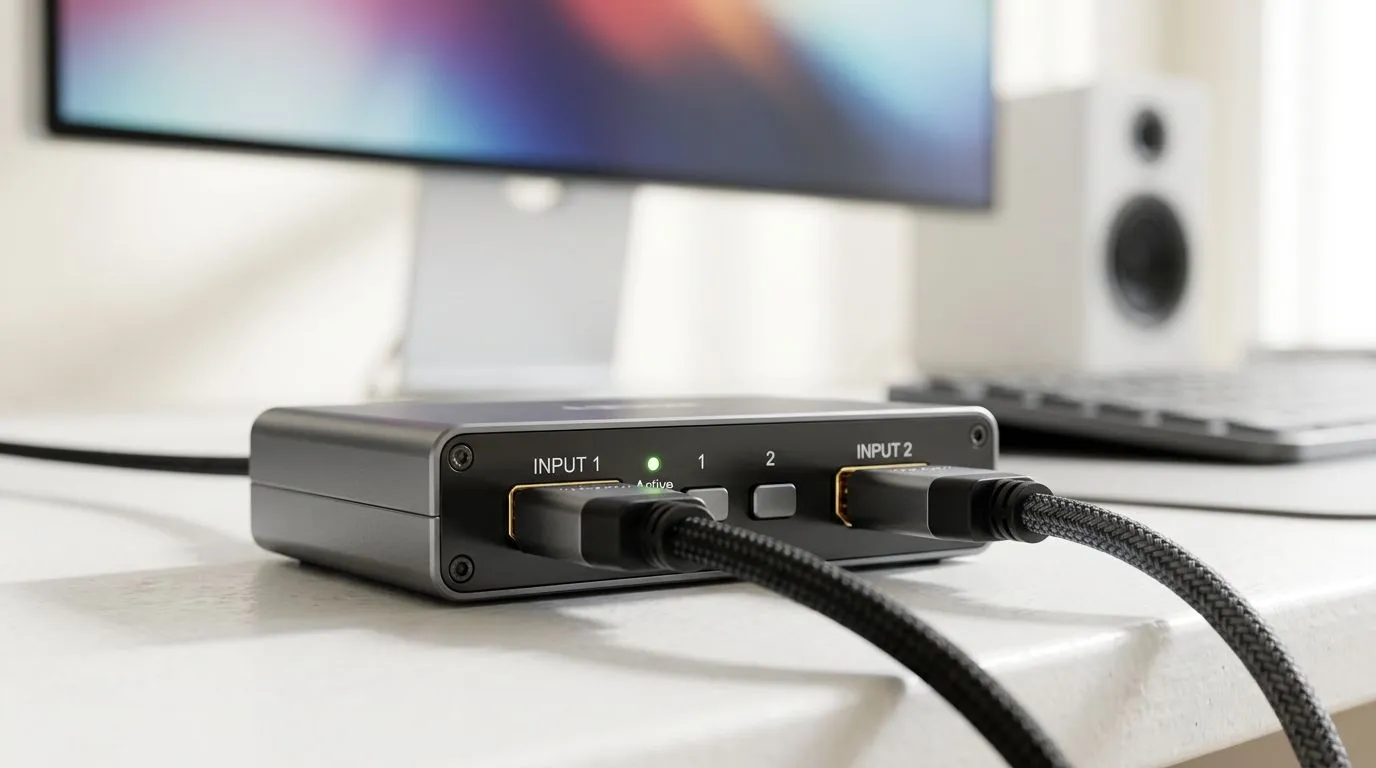
Dual HDMI 2.1 Ports: Simplify Your Multi-Device Gaming Setup (and Keep Your Desk Tidy) 🎮
If you game on a monitor and constantly swap inputs between a PS5, gaming PC, and a streaming box… you already know the pain. Every cable swap breaks momentum. Every “quick” unplug turns into a hunt for the right HDMI lead. And when your monitor only has one HDMI, you’re stuck using workarounds that add lag or reduce features.
That’s where Dual HDMI 2.1 Ports: Simplify Your Multi-Device Gaming Setup comes in. With two full HDMI 2.1 inputs, you can keep your devices connected and switch fast. Less fiddling. More play. ⚡
Why Dual HDMI 2.1 Matters for PS5, Xbox, and PC 🔧
HDMI 2.1 is the feature set that supports modern high-refresh and high-bandwidth needs. In a multi-device setup, the big win is not just “better quality”. It’s reliability and convenience.
Here’s what typically changes when you have two HDMI 2.1 ports:
- You can leave your consoles wired at all times. No repeated unplugging.
- Your gaming PC stays ready for high FPS sessions.
- Your monitor’s input switching becomes a one-button habit, not a ritual.
Evetech’s monitor range makes it easier to shop by what you need. If you want to compare options and pricing, browse current deals via best PC monitor deals. Then narrow down by category using PC Monitors or the broader all gaming monitors page.
A Setup That Works in Real Life: Consoles, PC, and Switching ✨
Let’s say you’re running:
- PS5 on HDMI 1
- Gaming PC on HDMI 2
- (Optional) a streaming device through a second input type, or via a different screen profile
Your monitor remembers settings. That means your FPS mode stays consistent. Your console’s HDR and refresh behaviour also has less chance of “mystery changes” after a cable swap.
Quick Wiring Plan for Less Chaos
- Plug your main gaming device (usually PC) into HDMI 2.1 port #1.
- Plug your console into HDMI 2.1 port #2.
- Label the cables with small tags. You will thank yourself later.
- In the monitor menu, enable the correct HDMI mode for each device (only where supported).
If you’re choosing between monitor styles, consider what you actually see on screen. For many gamers, a curved panel helps immersion during long sessions. Explore options like buy curved monitors when you’re building your multi-device desk.
Don’t Guess: Match the Monitor to Your Usage 🚀
Multi-device is about more than ports. It’s about how your monitor performs under your real mix of games and apps.
Ask yourself:
- Do you play competitive shooters where motion clarity matters most?
- Do you also watch movies or use streaming apps often?
- Do you edit clips, stream, or run Discord alongside gameplay?
If your priority is portability (LAN nights, holidays, or switching rooms), take a look at portable monitors. You’ll often find fewer port options on the road, so planning matters.
For buyers hunting for maximum clarity and pixel density (especially for story games and productivity too), 5K/4K monitors can be the sweet spot depending on your GPU and budget. You can browse 5K 4K monitors to compare what’s available right now in South Africa.
What to Buy Alongside It (So You Don’t Lose Features) 🔧
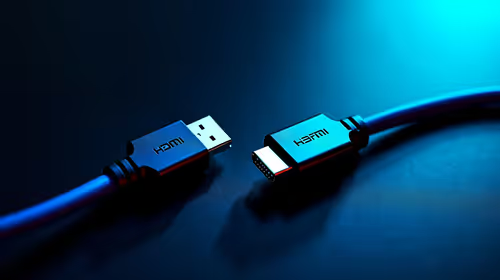
Even with the right ports, you can accidentally lose performance with a “basic” cable. For HDMI 2.1 use cases, choose quality HDMI 2.1 cables that support the bandwidth your monitor and devices are designed for.
Also don’t ignore physical accessories. Cable routing, stand stability, and desk space can make your setup feel premium or frustrating.
If you want to tidy up everything around your display, start with monitor accessories. Think cable management, mounts, and the small stuff that keeps your gaming space clean.
Productivity Pro Tip ⚡
On Windows, use the PowerToys FancyZones utility to create custom snap layouts for your windows. When you’re switching between console streams on the monitor and your gaming PC apps, layouts help you organise Discord, browser guides, patch notes, and game launchers without resizing everything every time. It keeps your desk feeling “set and forget”… even with multiple devices.
Final Checklist Before You Purchase (Dual HDMI 2.1 Included) ✅
Before you commit to a monitor, do a quick sanity check:
- Confirm the monitor has two HDMI 2.1 ports (not one).
- Check whether the monitor supports the features you care about on HDMI (high refresh, HDR, and any gaming modes).
- Ensure your PC GPU and console models can actually use the target settings.
- Plan your input assignments so your favourite modes are consistent.
If you want more choices across categories, return to all gaming monitors and shortlist based on the ports first, then refresh rate and resolution.
Ready to Find Your Perfect Match? The Mac vs Windows debate is complex, but for maximum power, choice, and value in South Africa, Windows is hard to beat. Explore our massive range of laptop specials and find the perfect machine to conquer your world.