

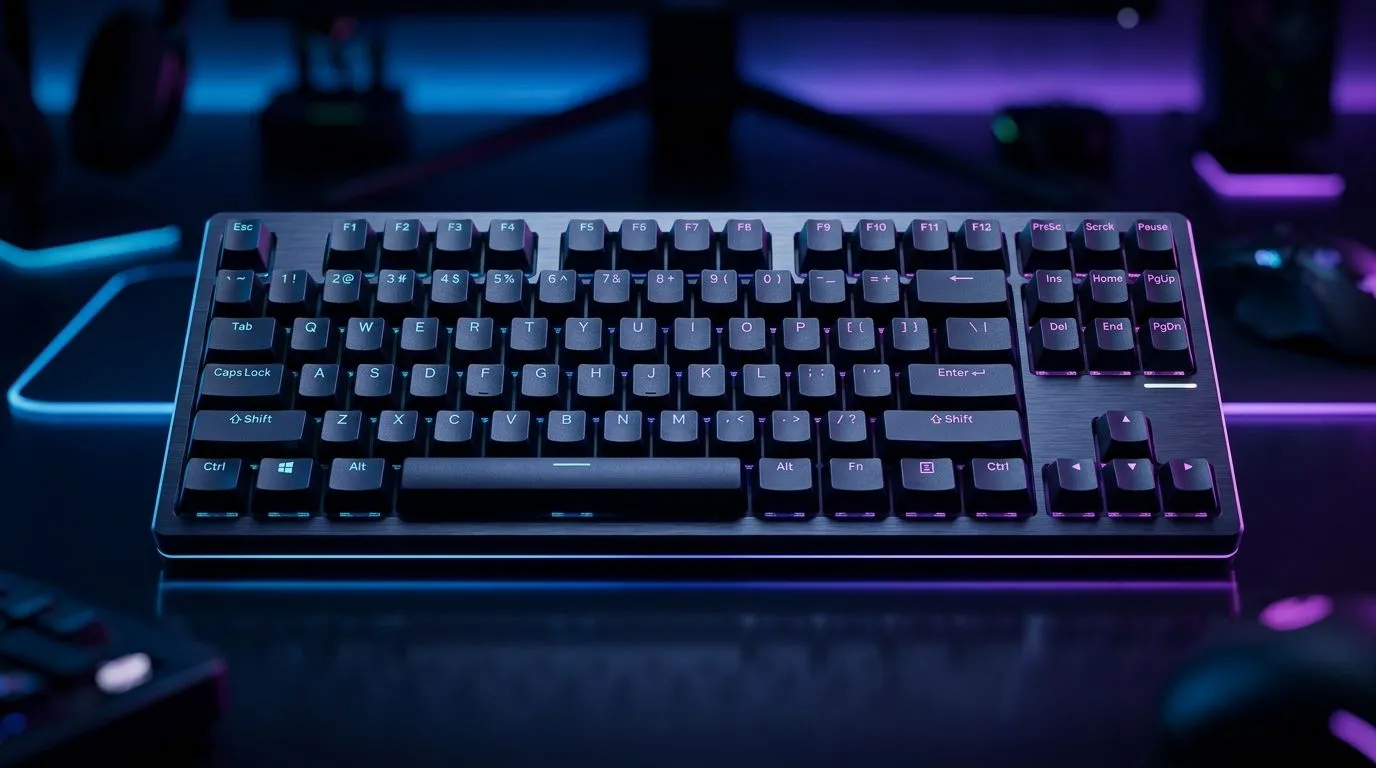
Easy-Shift [+] Macros: Set Up on Mechanical Keyboards for Real-Life Play
South African gamers love gear that just… works. If your keyboard’s macro software feels fiddly, you’re not alone. 🔧 This guide walks you through setting up Easy-Shift [+] macros on mechanical keyboards, so your binds stay reliable in games and productive in work. Whether you’re optimising FPS controls or speeding up editing shortcuts, you’ll get a clean setup you can trust. ⚡ Let’s get your keys doing more with less hassle.
Easy-Shift [+] Macros: What “Easy-Shift” Actually Gives You
Easy-Shift [+] is a clever layering method. Instead of dedicating dozens of keys to one command each, you use a “shift” style modifier to access a second set of actions. Think of it like a keyboard bank vault… but for keybinds. ✨
You typically assign:
- A hold modifier key (the “Easy-Shift” layer)
- One or more macro triggers on the shifted layer
- Optional timing rules (like presses vs holds)
This is especially useful on compact or TKL boards where every key counts.
The big win: fewer keycaps, more commands
If you’re used to toggling weapons, switching loadouts, or using utility keys in games, macros help. But the real benefit is consistency. A layered approach keeps your muscle memory cleaner than “press Alt+random key” style binds.
Easy-Shift [+] Macros: Set-Up Steps That Don’t Waste Your Time
Most mechanical keyboards that support Easy-Shift style features use a brand-specific software suite. The exact UI labels differ, but the workflow is similar.
Step 1: Install the keyboard software (and keep it updated)
- Download the utility from the keyboard manufacturer’s page.
- Restart your PC after installation.
- Plug the keyboard in via the connection type you’ll actually use (wired is typically more straightforward for consistent macro timing).
If you’re shopping for a keyboard right now, check deals first so you don’t buy the wrong layout for your setup.
Explore the best gaming keyboard deals on Evetech
Step 2: Create your Easy-Shift layer
Open the macro/lighting/key mapping tab and:
- Pick an Easy-Shift modifier key (often near the bottom row).
- Enable “layer” or “shift” mode for the secondary bindings.
Step 3: Record or define the macro
For gaming macros, prefer “press sequences” over long delays. Examples:
- Inventory hotkeys
- Quick comms text (in supported games)
- Loadout switching (only if your game tolerates it)
Avoid macros that spam actions rapidly. Not only can they feel inconsistent, they may violate game rules.
Step 4: Test in a safe environment
Before jumping into ranked, test:
- In a notepad window (for text macros)
- In training mode (for movement binds)
- In your main editor (for workflow macros)
Step 5: Save profiles and lock it in
If your keyboard supports onboard profiles, save your config to the keyboard memory. That way you’re not stuck reconfiguring every time you switch PCs.
Productivity Pro Tip ⚡
Windows, set your macro-testing workflow up by using two keyboard layers: keep one layer for “workspace shortcuts” (copy, paste, export) and the other for “game-only binds”. Then test macros in Notepad and your editor back-to-back, so you catch timing issues before they annoy you in-game.
Easy-Shift [+] Macros: Wired vs Wireless Setup Notes (South Africa Edition)
Wireless keyboards can be excellent, but macro timing and connectivity matter. If you want the smoothest macro behaviour, wired often wins for stability during long sessions.
If you’re still deciding what to buy, here’s how to think about it:
- Wired: usually simplest for consistent input and lower latency feeling.
- Wireless: great for desk cleanliness and couch setups, but you’ll want to keep firmware and battery practices tight.
Wired-friendly options: Browse the cheapest gaming keyboard deals (wired)
Wireless options: Browse the cheapest gaming keyboard deals (wireless)
If you want a bundle to match your macro workflow (and free up budget), consider pairing your keyboard with a matching mouse: Grab a keyboard and mouse combo on Evetech
And if you want to compare across models in one place: Check the best-value gaming keyboard picks in South Africa
Easy-Shift [+] Macros: Quick Troubleshooting (When It Stops Working)
Macros failing usually comes down to one of these:
- Wrong profile loaded (common after software updates)
- Easy-Shift not enabled on the expected key
- Macro recorded with unwanted pauses
- Connection mode mismatch (for example, configuring wireless but gaming on wired)
Fix fast by:
- Re-selecting the active profile
- Deleting and re-recording the macro with shorter inputs
- Testing the modifier hold first, then the shifted action
Pro tip… if your macro is meant to “press and release”, make sure your recording doesn’t include a hold accidentally.
Ready to Find Your Perfect Match? The Mac vs Windows debate is complex, but for maximum power, choice, and value in South Africa, Windows is hard to beat. Explore our massive range of laptop specials and find the perfect machine to conquer your world.











