

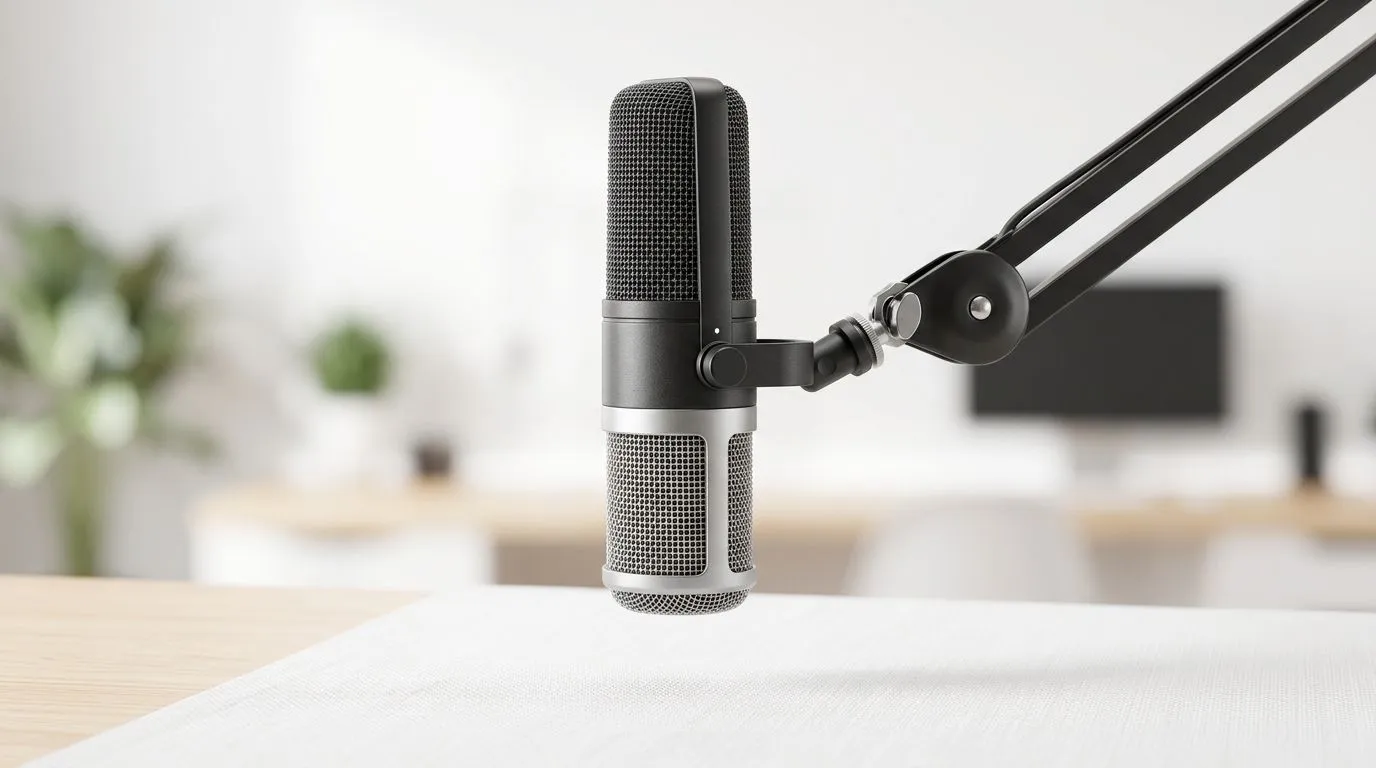
Flip-to-Mute Microphone Setup Tips for Clear Team Chat That Actually Work
Ever lost a call in the middle of a ranked fight because your mic picked up keyboard taps… or you accidentally muted yourself? Happens to the best squads. In South Africa, where load shedding, noisy homes, and shared headsets are real life… clear voice comms can be the difference between clutch and chaos. 🎧
Let’s get your Flip-to-Mute Microphone Setup Tips for Clear Team Chat dialled in, fast, and without guesswork.
Flip-to-Mute Mic Setup Tips: Start With Placement, Not Settings
A flip-to-mute button is convenient, but audio quality still depends on how the mic sits. 🔧 Aim for these basics:
- Put the mic close to your mouth, about a fist’s width away.
- Keep it slightly off to the side of your lips. This reduces plosives (those “p” and “b” bursts).
- Don’t point the mic straight down toward your keyboard. Sounds travel… especially in small rooms.
If you’re using a headset model that includes a flip-to-mute mic, check that the mic boom is positioned consistently each time you flip. A slightly bent boom can change pickup patterns.
Flip-to-Mute Microphone Setup Tips: Match Your Team App to Your Headset
Next, make sure your PC and your comms app are both using the same mic.
Windows 11 quick check (so you’re not “talking to air”)
- Settings → Sound → Input: select your headset microphone.
- In Discord/Teams/Valorant party chat, pick the same input device.
- Do a 10-second test in the lobby, not mid-match.
Why? Windows can switch inputs when a USB headset reconnects, or when another app “helpfully” changes devices.
Quick Fix Tip for Cleaner Voice ✨
On Windows, open Settings → Sound → Input and set the correct headset microphone. Then in your voice app, disable any extra mic devices (like “Hands-Free Telephony”) so your chat uses the headset mic profile, not a lower-quality fallback.
Flip-to-Mute Microphone Setup Tips: Reduce Background Noise (Without Making You Sound Robotic)
Background noise can come from fans, open windows, or even the fridge cycling on. Start with real-world tuning:
- Lower “mic gain” before you add noise suppression.
- If your voice sounds “tinny,” reduce EQ boosts in the 3kHz to 6kHz range (if your software offers it).
- Avoid turning noise suppression too aggressive. Over-suppression creates that robotic pumping effect.
Consider headset choice for clearer comms
If your current headset struggles, the fix might be hardware. For example, the Razer Barracuda X Chroma is built for wireless chat comfort and includes features that help with everyday clarity. Browse the deal here:
Check the Razer Barracuda X Chroma Wireless Headset deals
Or compare broader options across Razer’s headset lineup:
Explore Razer headphones and headsets
And if you want to shop by category and find a good fit for your setup, start here:
Headphones and headsets range
Flip-to-Mute Microphone Setup Tips: Avoid the “Accidental Mute” Trap
Flip-to-mute is great… until your thumb hits it mid-round. Here’s how to stop the awkward moments:
- Practise the flip with the headset in its normal position, not when it’s resting on the desk.
- Train a consistent gesture for mute/unmute, like “flip with the back of the hand.”
- If you stream or record, do a quick pre-match recording test. You’ll catch mic clipping and accidental mutes instantly.
Flip-to-Mute Microphone Setup Tips for Clear Team Chat: Final Checklist Before You Queue 🚀
Before you hit ranked:
- Mic selected in Windows input
- Mic positioned at a consistent distance
- Voice test done in your chat app
- Gain reduced before heavy noise suppression
- Flip-to-mute tested without touching the mic boom
Get this right once, and your squad hears you clearly every time… even during chaos.
Ready to Find Your Perfect Match? The Mac vs Windows debate is complex, but for maximum power, choice, and value in South Africa, Windows is hard to beat. Explore our massive range of laptop specials and find the perfect machine to conquer your world.











