

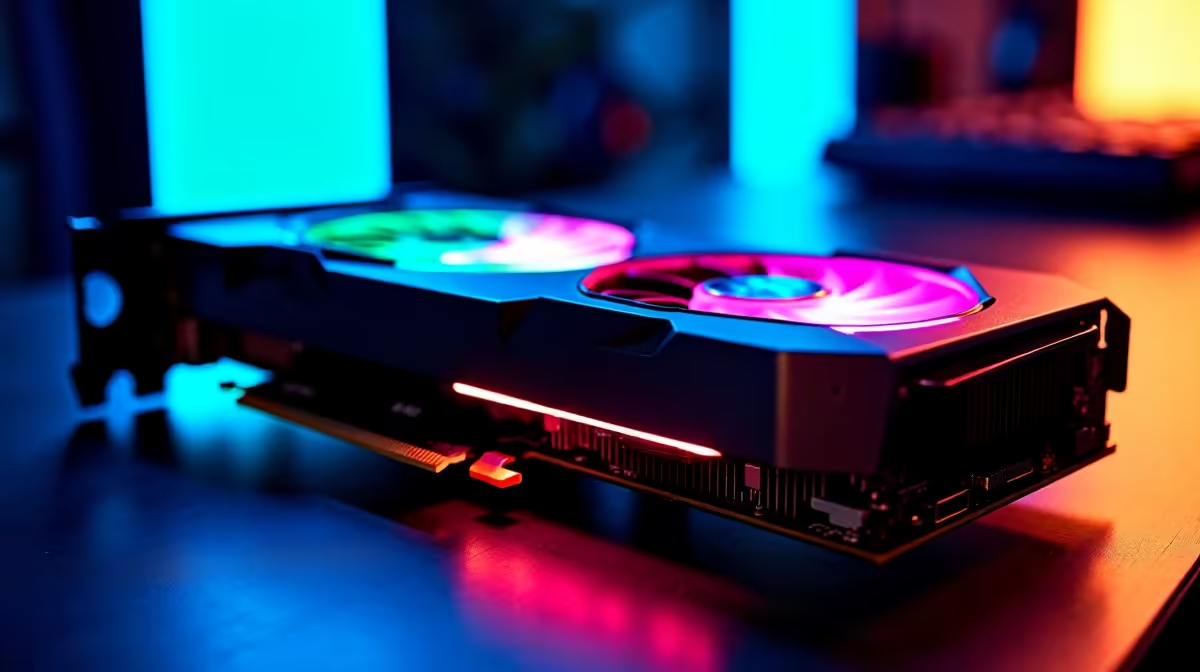
The power comes back on after a brutal bout of loadshedding. You boot up your rig, expecting a beautiful wave of colour. Instead... darkness. If you are dealing with your Gigabyte RGB not working, you are definitely not alone. Troubleshooting this common issue is usually straightforward. Let us get those lights back on and your setup looking brilliant again. ✨
Why is Your Gigabyte RGB Not Working?
RGB lighting relies on a delicate balance between hardware connections and software commands. When things go dark, the culprit is almost always a software conflict. Gigabyte Control Center (GCC) or the older RGB Fusion 2.0 can sometimes clash with recent Windows updates or competing lighting programs.
Whether you built your rig from scratch or grabbed one of our best gaming PC deals, software glitches do not discriminate. Sometimes, a simple PC restart fixes the issue. Other times... you need to dig a little deeper into your system settings.
Troubleshooting Software Clashes 🔧
The most reliable fix involves a completely clean software installation. Windows 11 now features Dynamic Lighting, which often tries to take over hardware control. This confuses Gigabyte's native applications.
First, completely uninstall GCC or RGB Fusion 2.0. Restart your computer immediately. Then, download the absolute latest version directly from the official Gigabyte website. This simple software refresh solves the problem for the vast majority of South African gamers.
Software Alternative Pro Tip ⚡
If Gigabyte Control Center keeps clashing with your Corsair or Razer peripherals, try a unified third-party app like SignalRGB or OpenRGB. These free tools can sync all your components perfectly without running multiple heavy background applications at once.
If you recently bought a pre-built PC, check if the builders installed multiple RGB programs. Having Asus Armoury Crate and RGB Fusion installed together is a recipe for a lighting disaster. Keep your software lean.
Checking Your Hardware Connections
If software tweaks fail, it is time to check the physical cables. Shut down your PC completely and unplug the power supply from the wall.
Look closely at your motherboard headers. The 5V ARGB and 12V RGB cables can easily become loose during transport or cleaning. Gently push them firmly into their designated slots. If you are running massive graphics cards, ensure their tiny RGB sync cables are securely attached if your specific model requires them.
If your dedicated ARGB controller hub is faulty, replacing it is quite affordable. A decent replacement hub will usually only set you back around R250 to R450.
Even portable users are not immune to lighting bugs. Users with high-end gaming laptops should ensure their proprietary control software is fully updated via the manufacturer's official support page.
The Final Step: BIOS Updates
Still staring at a hopelessly dark PC case? Your motherboard BIOS might desperately need an update. Motherboard manufacturers regularly release firmware patches to fix stubborn RGB controller bugs.
Updating your BIOS sounds intimidating, but modern boards make it incredibly safe and easy. Just ensure you have backup power... nobody wants to brick a costly motherboard during unexpected loadshedding. Keeping your system firmware fully updated ensures you get maximum value and longevity from those amazing hardware specials you scored.
Ready for a Brilliant Upgrade? Sometimes hardware simply reaches the end of its lifespan. If your system is struggling to keep up with modern demands, it might be time for a fresh start. Explore our massive range of PC components and build a rig that lights up your gaming world perfectly.











