

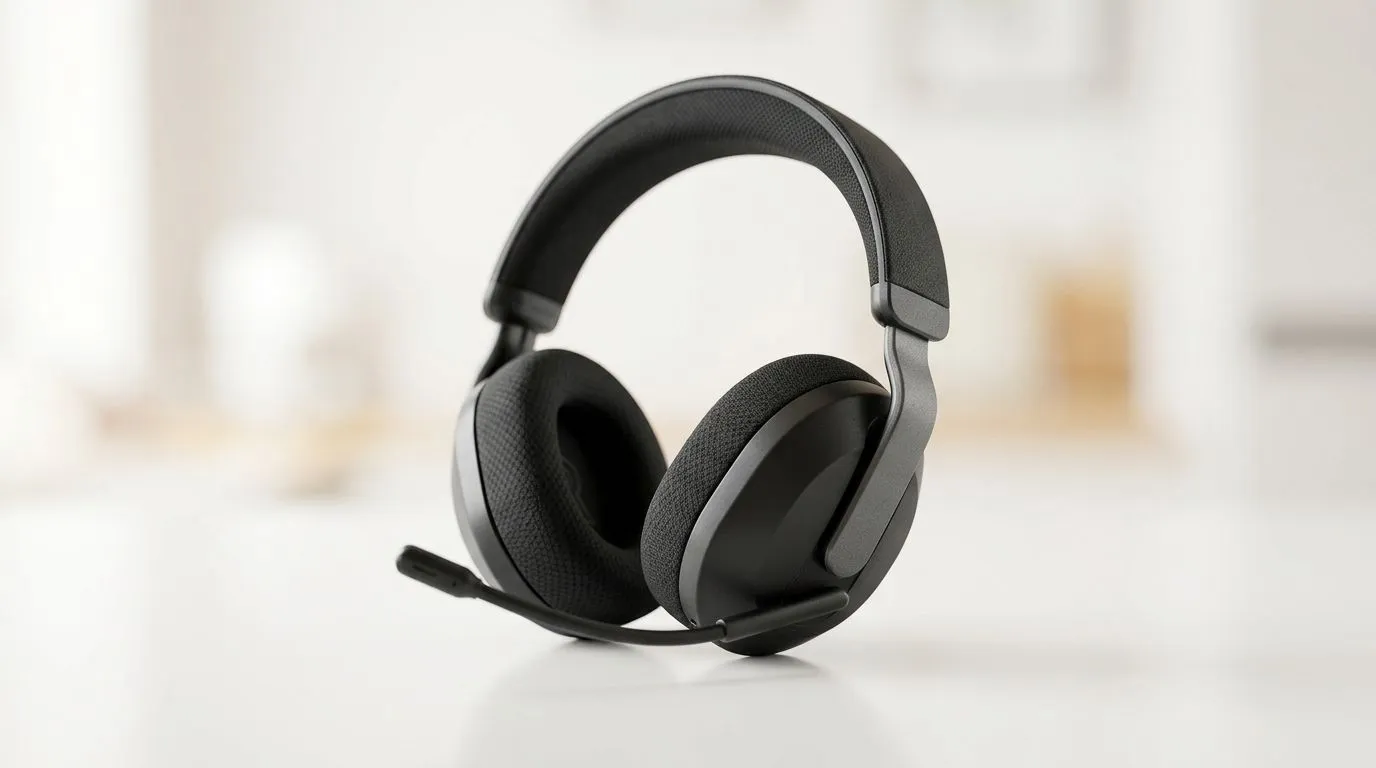
If your headset is suddenly invisible to your PC or Mac, you’re not alone. It usually happens at the worst time... right before a ranked match, a Zoom call, or a late-night session in the couch. The good news? Most headset detection issues are fixable in minutes, not hours. 🔧
Quick headset not recognised fixes for PC and Mac
Start with the basics. Unplug the headset, wait 10 seconds, then plug it back in properly. If it uses USB, try a different port. If it uses a 3.5 mm jack, make sure it’s fully seated. A loose connection can look like a dead device.
Next, check the output device settings.
On Windows
Open Sound settings and confirm the headset is selected as the output device. If it still does not show up, visit Device Manager and look for warning icons. Right-click the audio device and update the driver if needed.
On Mac
Go to System Settings, then Sound. Select the headset manually if it appears in the list. If it does not, restart the Mac with the headset already connected. That often prompts macOS to detect it again.
If you’re shopping for a reliable replacement, the Razer Barracuda X Chroma wireless headset is worth a look for clean wireless convenience and everyday gaming use. It’s the kind of headset many South African gamers want when cable clutter becomes a hassle.
Why your headset may not be detected
Sometimes the issue is not the headset at all. Audio conflicts can happen after a Windows update, a driver change, or a USB hub problem. On Mac, audio permissions or a stuck Bluetooth pairing can also block recognition.
If you’ve had the headset working before, ask yourself one thing... what changed recently? New software, a different USB port, or a firmware update often gives the clue away.
For broader browsing, you can also check the full Razer headphones and headsets range or compare options in the wider headphone and headset category. That makes it easier to spot a model that suits your setup and budget in ZAR.
Quick Audio Reset ⚡
On Windows, open Sound settings, set your headset as default, then disable and re-enable it in Device Manager. On Mac, toggle the headset off and on in Sound settings, then restart if it still does not appear. Small reset... big payoff.
Fast troubleshooting tips that actually help
Try these in order:
- Restart the PC or Mac with the headset connected.
- Test the headset on another device.
- Remove any USB hub or dock from the chain.
- Check for mute switches or inline volume controls.
- Reinstall the audio driver if the device still vanishes.
If the headset works elsewhere, the issue is likely with the computer. If it fails everywhere, the headset itself may need replacement.
When it’s time to replace the headset
If your headset drops out often, has crackling audio, or fails to appear across multiple devices, repair time can become wasted time. At that point, choosing a dependable new model is usually the smarter move. A fresh headset can save you from driver drama and restore your setup fast ✨
Ready to Find Your Perfect Match? The Mac vs Windows debate is complex, but for maximum power, choice, and value in South Africa, Windows is hard to beat. Explore our massive range of laptop specials and find the perfect machine to conquer your world.











