

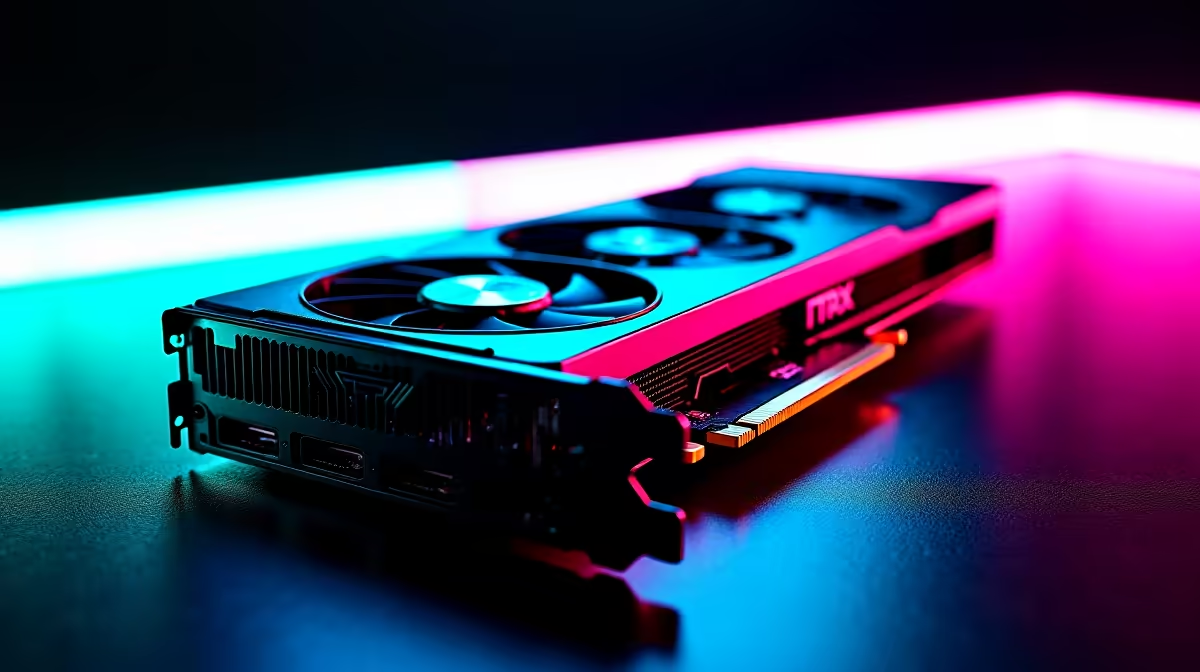
Want to unlock hidden performance without spending a single extra Rand? Learning how to BIOS flash your RTX 4060 Ti can push your hardware further. Whether you want higher power limits or a quieter fan curve, a custom BIOS offers serious tuning potential. But in South Africa, where load-shedding can strike without warning, you need to be careful. Let us walk you through this process safely.
Why Consider a BIOS Flash for Your RTX 4060 Ti?
Flashing the Basic Input/Output System (BIOS) of your GPU replaces its core instructions. For power users, a BIOS flash RTX 4060 Ti procedure can unlock higher maximum wattage limits. This translates into higher sustained boost clocks for much better frame rates.
It allows your mid-range card to stretch its legs. If you are not keen on tinkering but still want top-tier performance right out of the box, you might prefer to simply browse our premium gaming PCs instead.
Essential Prep Before You Flash
Before you learn how to BIOS flash your RTX 4060 Ti, preparation is absolutely vital. You will need a flashing utility called NVFlash and a verified BIOS ROM file. Always source your ROMs from a reputable database like TechPowerUp.
Never attempt a flash during a scheduled power outage... a sudden blackout during the installation process can permanently brick your card. If you prefer a system that is perfectly tuned and fully warrantied, our expertly assembled pre-built PCs take the stress out of PC gaming entirely.
Safety First Pro Tip ⚡
Always use GPU-Z to save a backup of your original RTX 4060 Ti BIOS before you flash anything. If the new BIOS causes instability, you can easily revert to your factory settings via Command Prompt to save the day.
The Step-by-Step Flashing Process 🔧
Ready to proceed? Here is the exact process. First, disable your display driver in Windows Device Manager to prevent any software conflicts. Next, open Command Prompt as an administrator.
Navigate to the specific folder containing NVFlash and your new ROM file. Type nvflash64 --protectoff to remove the factory write protection. Then, type nvflash64 -6 yournewbios.rom to initiate the actual flash.
Your screen will definitely flicker... do not panic. Press 'Y' on your keyboard to confirm the overwrite when prompted. Once the progress bar reaches 100 percent, restart your PC immediately.
If this sounds a bit too risky for your daily driver, you are certainly not alone. Many gamers prefer the portability and factory-optimised performance of modern gaming laptops. Alternatively, if you just want a fresh GPU with a massive factory overclock, you can always upgrade your graphics card to a higher tier directly.
Post-Flash Stability Checks 🚀
After rebooting your system, open GPU-Z to verify your new BIOS version and check the updated power limits. Run a heavy synthetic stress test to ensure total stability. Monitor your temperatures closely during this initial testing phase. A higher power limit will naturally generate more heat, so ensure your case airflow is well optimised.
Enjoy those extra frames and smoother gameplay! Pushing hardware to the absolute limit is incredibly fun. However, keeping a close eye on the latest tech specials is still the smartest way to upgrade your setup when you finally hit a hard performance wall.
Ready to Find Your Perfect Match? Pushing your hardware is great, but sometimes a massive system upgrade is the only way to get the frames you crave. Explore our massive range of PC specials and find the perfect machine to conquer your gaming world.











