


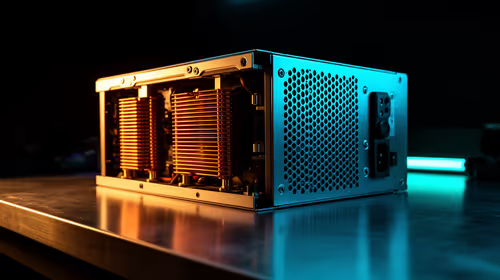
1000W PSU Planning for RTX 5090 Builds in SA
1000W for RTX 5090 needs a full-build check, not a simple yes. Review GPU guidance, CPU draw, transient load, connectors, PSU quality, and upgrade plans before deciding.
Read moreCalibrate Your Gaming Monitor. Step-by-step instructions with SA-specific tips, common pitfalls to avoid & expert recommendations.

To calibrate your gaming monitor, adjust brightness to match your room lighting, set contrast to preserve highlight detail, and dial in colour temperature to 6500K for accurate colour reproduction. Using software tools or a hardware colorimeter gives the best results, but manual calibration using the in-game or Windows display settings can meaningfully improve image quality at no cost.
Most monitors ship from the factory with boosted brightness and shifted colour profiles designed to look impressive under showroom lighting rather than accurate under home conditions. For South African gamers playing in a range of lighting conditions - from air-conditioned gaming rooms to lounge setups with large windows - proper calibration makes a real difference to image quality, eye fatigue, and competitive visibility.
Calibration ensures that dark areas in games show genuine shadow detail rather than crushing to black, that bright areas retain highlight information rather than blowing out, and that colours look as intended by the game developers. In competitive titles like Valorant or CS2, correctly calibrated contrast and brightness can make enemies more visible against backgrounds.
Begin by letting your monitor warm up for at least 20-30 minutes before calibrating. Monitors shift colour and brightness as they heat up, so calibrating a cold panel gives you inaccurate settings.
Set your room to typical gaming lighting conditions - the ambient light you actually game in. Open your monitor's OSD (on-screen display) using the physical buttons.
Brightness: Reduce brightness until the black bars in a test image look dark but not completely crushed. A good target is 80-120 nits for a darkened room, 200-250 nits for a bright room. Windows offers a built-in display calibration tool under Settings - System - Display - Calibrate Display Color.
Contrast: Reduce contrast until white areas retain texture and detail without blooming. Most monitors benefit from backing contrast down 5-10% from factory defaults.
Colour temperature: Set to 6500K (often labelled "sRGB" or "Warm" in OSD menus) for accurate colour reproduction. The default "Cool" or "Native" preset typically pushes toward blue, which causes eye fatigue over long sessions.
Gamma: Target gamma 2.2 for standard gaming. Some monitors offer a gamma selector in the OSD - set it to 2.2 and cross-reference with an online gamma test pattern.
Do I need a hardware colorimeter to calibrate my gaming monitor? No. Manual calibration using the steps above delivers a substantial improvement over factory defaults. A hardware colorimeter like a Spyder or X-Rite adds precision but costs extra and is more relevant for professional content creation than for gaming.
Should I use my monitor's game mode preset for gaming? Game mode presets typically reduce input lag by disabling some processing, which is beneficial for competitive gaming. However, they often ship with poor colour accuracy. Calibrate within the game mode preset rather than using the preset as-is.
How often should I recalibrate my monitor? For gaming purposes, recalibrating every 6-12 months is sufficient. Monitors drift gradually over time as the backlight ages. If you notice colour or brightness shifts before that, recalibrate sooner.
Ready to Find Your Perfect Match? Shop gaming monitors at Evetech
How to Calibrate Your Gaming Monitor available at Evetech.co.za with local warranty and fast delivery.
How to Calibrate Your Gaming Monitor - check Evetech for latest stock and SA pricing.
Depends on your use case. How to Calibrate Your Gaming M offers good value at current Rand pricing.
1000W for RTX 5090 needs a full-build check, not a simple yes. Review GPU guidance, CPU draw, transient load, connectors, PSU quality, and upgrade plans before deciding.
Read more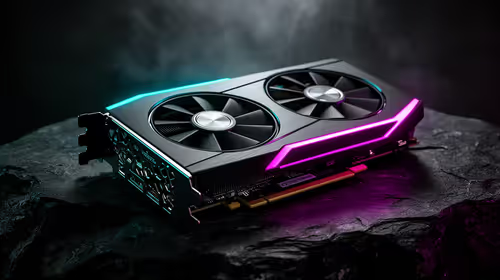
RTX 5080 Super with a 750W PSU is more comfortable than lower wattage if the unit is quality. SA builders should still confirm GPU guidance, CPU draw, connector type, airflow, and upgrade room.
Read more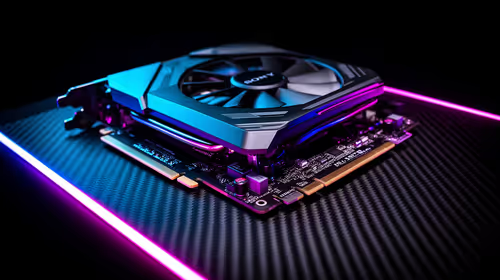
How to fix FPS drops after a RX 9070 XT starts with driver cleanup, chipset updates, thermals, and power checks. For SA gaming PCs, confirm PCIe seating, monitor refresh, frame caps, and per-game graphics settings before replacing parts.
Read more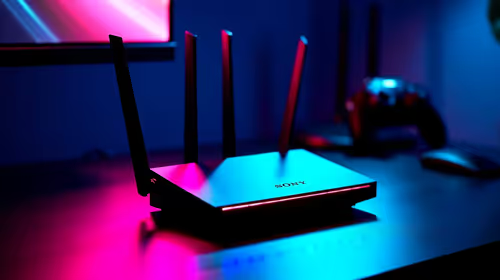
How to fix low FPS Windows 11 Wi-Fi 7 issues starts by checking whether the problem is frame rate or network lag. Test ping, drivers, power settings, Ethernet, and game FPS before adjusting visuals.
Read more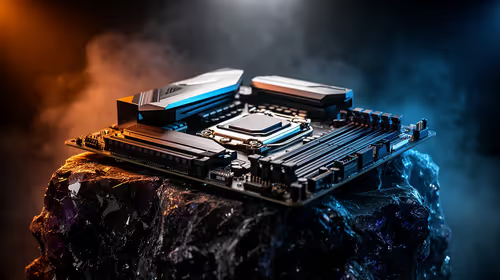
AM5 is smart for SA builders because it supports newer Ryzen CPUs, DDR5 memory, and a longer upgrade path. Compare board cost, cooling, gaming needs, and local part availability before choosing your next PC platform.
Read more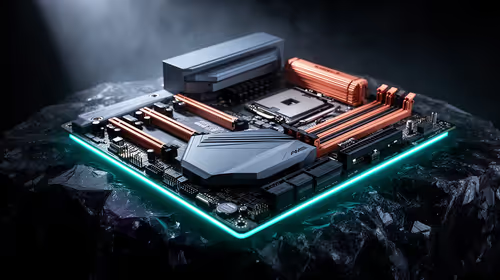
AM5 gives Randburg gaming builders a longer upgrade path. For SA buyers, DDR5 support, newer board features, and future CPU options can justify the platform. Weigh board cost, cooler support, BIOS maturity, and upgrade timing before choosing.
Read more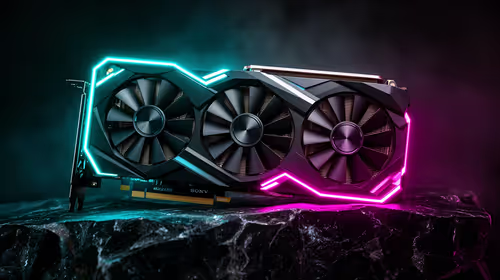
RTX 5090 on a 550W PSU leaves almost no practical room for OC plans. Treat the setup as constrained, with CPU draw, power spikes, cable quality, thermals, and stability checks more important than chasing extra clocks.
FPS drops on a Ryzen 9 9950X3D build often have a fixable cause. Check settings, drivers, thermals, background tasks, network conditions, and bottlenecks before assuming a part must be replaced.

The difference between PCIe 5.0 and PCIe 4.0 for SA gamers is mostly bandwidth headroom. Compare GPU slot needs, NVMe speed, motherboard support, and upgrade timing before paying extra for a newer platform.

Gaming PC stuck pixel checks in South Africa should confirm the monitor fault first. Use colour tests, screenshot comparison, cable swaps, display menu checks, and clear photos before deciding on support.

AMD's current driver now lists a Radeon RX 9050 4GB, while product coverage details a narrowed memory system. SA buyers should weigh the low VRAM ceiling against current local Radeon options.

Samsung Display has demonstrated a 16-inch 2.5K OLED laptop panel running at 300Hz. SA buyers should wait for a named notebook, full panel specifications and a local price before planning an upgrade.

Microsoft says some Windows 11 game crashes after recent updates are linked to RGB-related drivers. Affected SA gamers should confirm the update and driver before using the published registry workaround.

Thermalright's Fan Frame Vision-1 adds a 640x172 status screen to a standard 120mm fan. SA builders should check clearance, USB routing and local support before treating it as an easy upgrade.

Shokz OpenFit Air 2 earbuds weigh 7.2g each and use a redesigned dual-driver open-ear layout. SA buyers should choose them for comfort and awareness, not maximum isolation.

A fake 113GB GTA VI ISO reportedly used empty padding around a small malware payload. SA gamers should delete unofficial builds, keep Windows security active and wait for official channels.
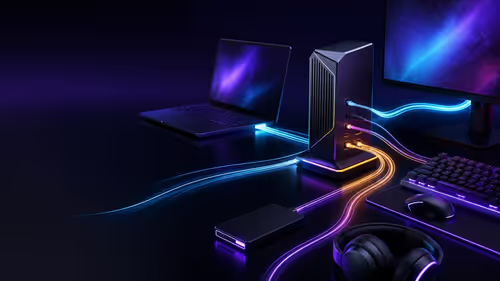
The ROG Flux Charger Dock combines 260W total output, 140W laptop charging and HDMI 2.1. SA buyers should check laptop USB-C limits, display needs and local warranty first.

ASRock's Rock 360 Digital AIO adds a 1.05-inch CPU temperature display, 360mm radiator and simplified wiring. SA builders should check case fit, socket support and local warranty.