

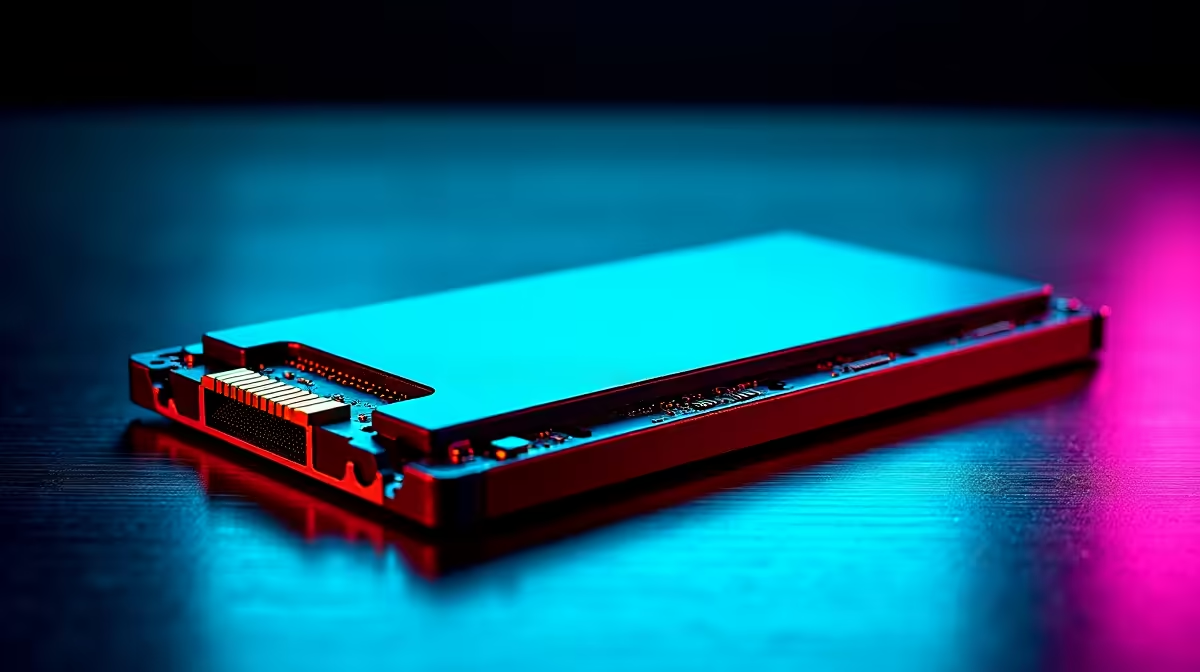
Still staring at loading screens while your squad is already dropping into the match? Running your operating system on an aging hard drive is a surefire way to bottleneck your entire setup. If you are tired of sluggish boots and stuttering textures, it is time for an upgrade. Learning how to clone your old drive to a new SSD is the easiest way to boost your PC's speed without losing your files.
Preparing for Your SSD Migration Guide
Before you start moving gigabytes of data around, you need the right hardware. Mechanical drives use spinning physical platters... which is exactly why they are so incredibly slow. Upgrading to NAND flash memory solves this instantly. If you are still hunting for the perfect drive, you can grab one of the latest solid state drives to drastically cut down your load times.
You will also need a way to connect both drives at the same time. Desktop users can usually just plug the new drive into an empty M.2 slot or a spare SATA port on their motherboard. If you are upgrading your portable workstation, the process is exactly the same for notebooks and laptops... you will just need an external USB enclosure to hold the new drive temporarily.
The Step-by-Step Cloning Process
Figuring out how to clone your old drive to a new SSD is much simpler than it sounds. First, connect your new drive to your system and boot up Windows. Next, download a reliable cloning software. Many premium storage brands include their own free migration tools right in the box.
Once installed, open the software and select your old drive as the source. Then, select your fresh SSD as the destination. Take a moment to double-check your selections... you definitely do not want to overwrite your precious gaming library by mistake.
Click start and let the software do the heavy lifting. The time this takes depends entirely on how much data you are moving across.
Software Pro Tip ⚡
Free tools like Macrium Reflect or Clonezilla are incredibly reliable for full disk imaging. Always ensure your new SSD has a larger capacity than the used space on your old drive to avoid partition errors during the transfer.
Final Steps and Booting Up
Once the software finishes the transfer, shut down your PC completely. Disconnect the old drive and power on your system. Your PC should boot straight into Windows, looking exactly as you left it... just significantly faster 🚀. If it struggles to find Windows, simply restart, enter your BIOS, and ensure your new SSD is set at the top of the boot priority list.
Sometimes, an older system needs more than just a storage boost. If your entire rig is struggling to keep up with modern titles, it might make more financial sense in ZAR to browse the best gaming PC deals rather than replacing parts piece by piece. Alternatively, you can look at pre-built PC deals that already come equipped with lightning-fast NVMe storage out of the box.
And if you are simply hunting for massive savings on your next component upgrade, keeping a close eye on our weekly specials will ensure you get the absolute most frames for your Rand ✨.
Ready to Leave Loading Screens Behind? Upgrading your storage is the single best way to breathe new life into your setup. Explore our massive range of SSDs and find the perfect drive to conquer your world.











