

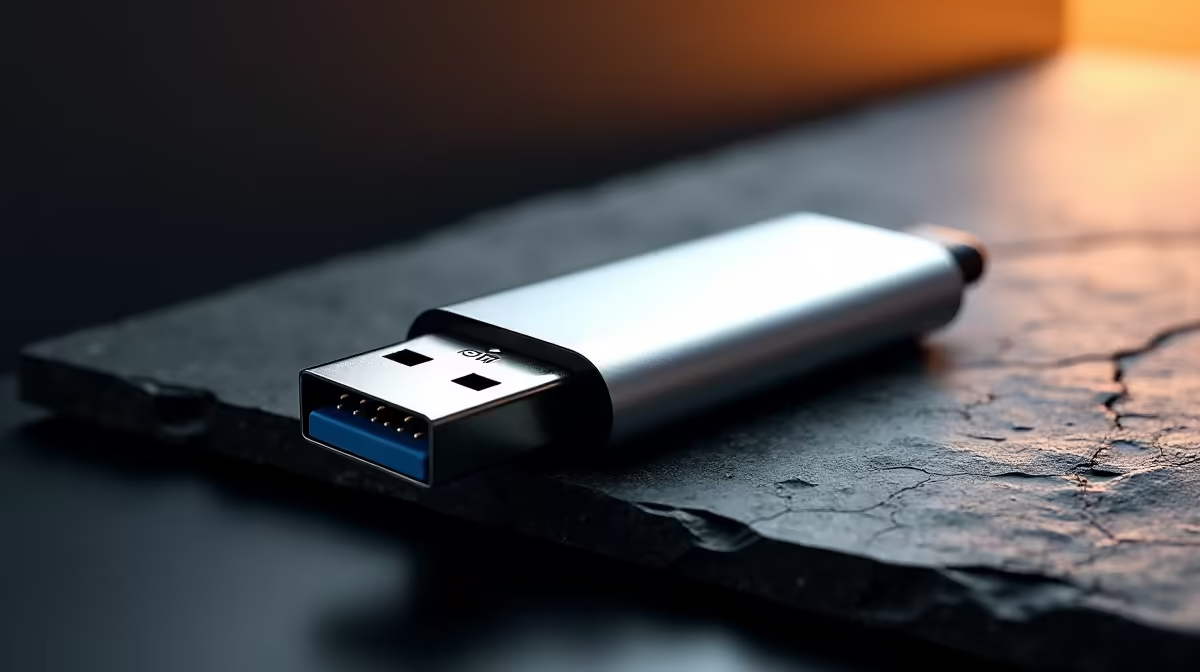
Why You Should Create a Bootable macOS USB Drive
Upgrading or troubleshooting your Mac can quickly become a hassle without the right tools. Creating a bootable macOS USB drive is a powerful step every South African gamer and tech enthusiast should master. Whether you need to install macOS on a new Mac, recover a system, or perform a clean install, having a ready-to-go USB drive saves time and potential headaches. Let’s dive into how to get it done efficiently and correctly. 🔧
Preparing to Build Your macOS Bootable USB Drive
Before you get started, make sure you have a USB drive with at least 16GB of storage capacity. The process will erase everything on the drive, so back up any important data. You’ll also need access to the macOS installer, which you can download from the App Store or through official Apple channels.
While you’re sorting your macOS USB drive, it’s a good idea to consider your overall setup. If you’re in the market for a powerful pre-built PC for gaming or productivity, check out the latest pre-built PC deals in South Africa. Optimising your tech stack keeps your workflow smooth and efficient—all accessible through trusted local suppliers.
Steps to Create Your Bootable macOS USB Installer
1. Download the macOS Installer
Head over to the App Store on your Mac and download the macOS version you want. macOS Monterey and Ventura remain popular choices that support most Apple hardware today.
2. Format Your USB Drive Using Disk Utility
Open Disk Utility, select your USB drive, and format it as Mac OS Extended (Journaled) with the GUID Partition Map scheme. This prepares the drive for the macOS installer.
3. Use Terminal Commands to Create the Bootable Drive
Apple provides Terminal commands to create the bootable installer. For example:
sudo /Applications/Install\ macOS\ Monterey.app/Contents/Resources/createinstallmedia --volume /Volumes/MyUSB
Replace /Volumes/MyUSB with your actual USB drive name.
This step takes a few minutes as files copy and the drive becomes bootable.
Keep Your USB Drive Ready
Always label your bootable macOS USB clearly and store it safely. It saves you precious time if a sudden reinstall becomes necessary.
Additional Tips to Maximise Your macOS Experience
While creating your USB installer, take a moment to optimise your whole setup. South African gamers know how much smoother games run with the right hardware. Consider upgrading components like graphics cards for the best visuals—browse top picks on Evetech's graphics cards page.
If you prefer laptops over desktops, Evetech offers a range of notebooks for sale in South Africa suited for gaming and productivity, blending portability with power.
Always check the specials and discounts at Evetech when building your rig. Scores like these make upgrading your tech more affordable, with deals often tailored for local gamers and creators.
Troubleshooting Your Bootable macOS USB Drive
If the USB drive fails to boot, verify the following:
- USB drive is properly formatted.
- Correct macOS installer version was downloaded.
- Terminal commands were executed accurately.
Boot options can vary depending on your Mac model. Holding the Option key during startup will let you choose the USB drive if it’s set up correctly.
Final Thoughts on Creating a Bootable macOS USB Drive ⚡
Bootable USB installers add a layer of self-reliance and control to your Mac maintenance. Once created, they’re a reliable fallback for system repairs, clean installs, or upgrades—even when internet access is limited.
Pair this know-how with the right tech setup from local deals and gear. South African gamers know that both software and hardware work hand-in-hand to deliver the best performance and reliability.
Ready to Upgrade Your Tech Setup? Ready to build your ultimate gaming and work rig? Shop now at Evetech for unbeatable gaming PC deals that deliver pure performance.











