

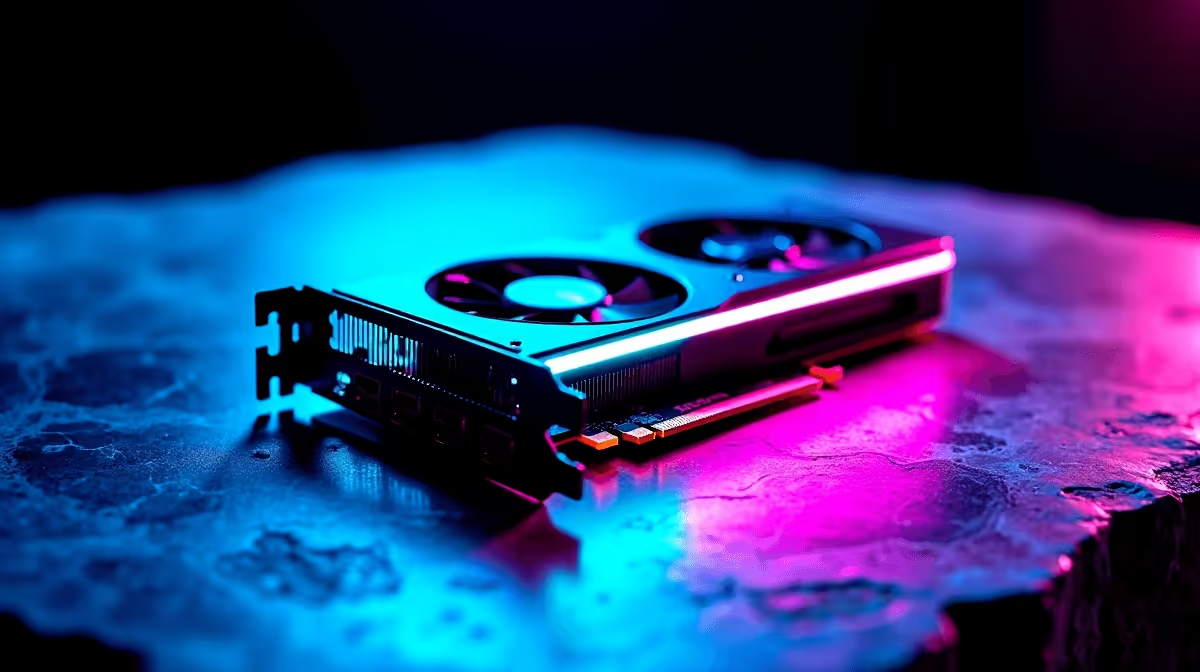
Is your RTX 4060 sounding like a Boeing taking off during an intense gaming session? You are not alone. Many South African gamers are discovering the magic of deshrouding. This simple mod replaces loud stock fans with premium case fans. It drops temperatures and cuts noise drastically. Whether you are chasing silent operation or better airflow, learning how to deshroud your RTX 4060 is easier than you think.
Why Mod Your GPU? ⚡
Stock coolers are great... but they often prioritise aesthetics over acoustics. If you want a whisper-quiet rig without having to completely upgrade your graphics card, deshrouding is the perfect answer.
By removing the plastic housing and tiny stock fans, you make room for standard 120mm case fans. These push significantly more air at much lower RPMs. South African summers get incredibly hot. A stock cooler can easily hit 80 degrees Celsius under heavy gaming load. A proper deshroud mod can drop those temperatures by up to 10 degrees. The result is a cooler GPU that stays silent even when pushing maximum frame rates.
Tools You Need for the Job 🔧
Before you start taking expensive things apart, gather your supplies. You will need a precision Phillips screwdriver, some small zip ties, and two high-quality 120mm fans.
If you recently bought a custom gaming PC, check your motherboard box to see if you have spare fans lying around. You will also need a VGA to PWM fan adapter cable. This special cable lets your GPU control the new fans automatically based on the core temperature.
Voided Warranty Warning 🚨
Deshrouding usually involves removing screws with warranty stickers. While local consumer laws offer some protection, always check your manufacturer's specific warranty terms before modifying your hardware. Keep the original shroud and screws safe so you can reverse the process if needed.
The Step-by-Step Deshroud Process 🚀
Ready to dive in? Follow these steps carefully.
First, power down your rig completely and unplug the main power cable. Remove the GPU from your motherboard. If you are currently using a pre-built desktop, make sure to firmly unclip the plastic PCIe lock first.
Next, flip the graphics card over. Look for the small screws holding the plastic shroud to the metal heatsink. Carefully unscrew them. Do not remove the main spring-loaded screws around the GPU core... those hold the actual heatsink block in place!
Gently lift the plastic shroud. You will feel a slight resistance from the fan cables. Unplug these tiny connectors from the PCB and lift the shroud completely away.
Mounting Your New Fans ✨
Now you have a bare metal heatsink. Place your two 120mm fans directly onto the metal fins. Make sure the airflow direction pushes air directly into the heatsink. Secure them tightly using zip ties wrapped around the exposed heat pipes.
Connect your new fans to the VGA adapter cable. Plug that adapter into the GPU's fan header. Reinstall the card into your PC. This level of deep customisation is exactly why desktop rigs offer flexibility that even the best gaming laptops simply cannot match.
Take a moment to tidy up the cables. You do not want a stray wire hitting the spinning blades. Boot up your system and use software like MSI Afterburner to set a custom fan curve. You will immediately notice the temperature drop and the beautiful silence. Plus, you save those hard-earned Rands for our weekly tech specials instead of buying a whole new aftermarket cooler.
Ready for a Massive Hardware Upgrade? If deshrouding sounds like too much work, or your current rig is just too old to save, we have you covered. Explore our massive range of gaming PC specials and build the silent, ultra-fast setup of your dreams today.











