

Rolling a natural 20 in combat feels amazing... until your screen freezes. If you are battling stuttering frames in the Lower City, you are not alone. Act 3 is notoriously heavy on hardware. Fortunately, you do not need magic to fix Baldur's Gate 3 low FPS on PC. Whether you are dodging loadshedding schedules or just want smoother gameplay, here is your complete troubleshooting guide.
Adjust Your In-Game Graphics Settings 🔧
The quickest way to fix Baldur's Gate 3 low FPS on PC is by tweaking video options. First, experiment with your API. Some systems run better on DirectX 11, while others prefer Vulkan. Next, turn on DLSS if you have an Nvidia RTX card, or FSR for AMD users. These upscalers give you a massive performance boost without sacrificing visual quality. Still dropping frames? Try lowering shadow quality and crowd density. Those dense city streets put a heavy load on your rig's memory and processor. If you are running an older setup and tweaks fail, it might be time to upgrade your graphics card to experience the Sword Coast properly.
Optimise Your System Resources ⚡
This game is incredibly CPU-heavy. Every background NPC runs their own routines... eating up processing power. Close unnecessary apps like Chrome or heavy RGB software before launching. Also, ensure Windows Game Mode is active to prioritise your gaming performance. If you play on the move, keep your machine plugged in. Many modern gaming laptops throttle performance on battery power to save energy.
Evaluate Your Current Hardware Setup 🚀
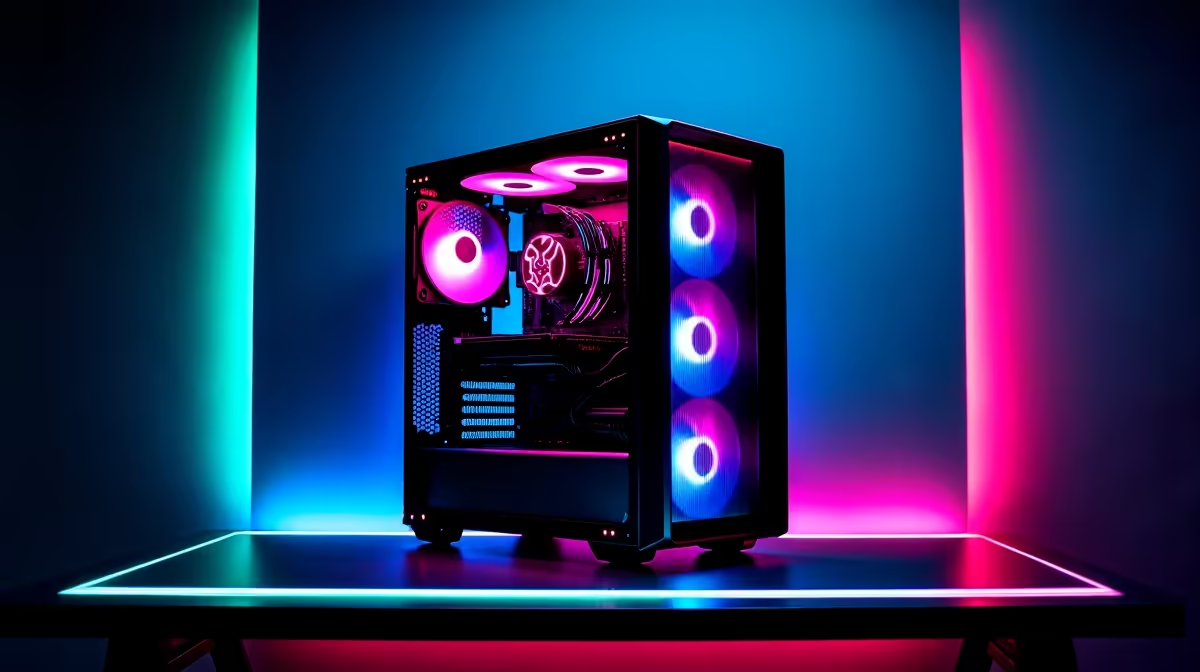
Sometimes software tweaks cannot fix Baldur's Gate 3 low FPS on PC. If your processor is older, or you use an outdated mechanical hard drive, you will experience severe stuttering. Installing the game on a fast NVMe SSD is mandatory for smooth loading and texture rendering. If your system is showing its age, an overhaul is the best route. You can explore incredible pre-built PC deals that remove the hassle of building. Alternatively, if you want maximum performance tailored for heavy titles, check out the best gaming PC deals available.
Keep Drivers Updated and Monitor Temps ✨
Outdated drivers kill frame rates. Always keep GPU drivers updated, as manufacturers frequently release driver patches to optimise massive RPGs. Also, monitor your temperatures. South African summers push hardware to the absolute limit... causing thermal throttling. Keep your case clean and well-ventilated. If you need extra cooling gear, keep an eye on our tech specials to stretch your ZAR further.
Performance Pro Tip ⚡
Bypassing the Larian Launcher can sometimes improve your frame rates and reduce stuttering. Right-click the game in your Steam library, select Properties, and type "--skip-launcher" in the Launch Options box. It saves system memory and gets you into the action faster.
Ready to Conquer the Sword Coast? Struggling with low frames can ruin the ultimate RPG experience. If your current rig is holding you back from exploring Faerûn in ultra-high definition, Evetech has the hardware you need. Explore our massive range of gaming PC specials and find the perfect machine to conquer your world.











